Bravo University · Course 101
Setting Up a New Account
From registration to a ready-to-talk device, step by step

Before we start
What makes Bravo different
Two interfaces
Separate Tap and Scan experiences, each built for its user
Expressive mascots
Engaging characters, not plain stick figures
Wake Word
Partners start a conversation just by speaking
Consent-first AI
Personal suggestions, with parents in control

Bravo University · 101 Setting Up a New Account
2
Roadmap
The setup at a glance
Create the account
Login
→
Register
Device setup: 10 steps
1
Interface Mode
2
Mascot
3
Wake Word
4
Button Layout
5
Menu Options
6
User Language
7
Partner Voice
8
Age & Consent
9
Personalized Learning
10
Profile Interview
Highlighted: child protection steps. For users under 13, steps 9 and 10 unlock only after a parent consents.
Bravo University · 101 Setting Up a New Account
3
Create the account
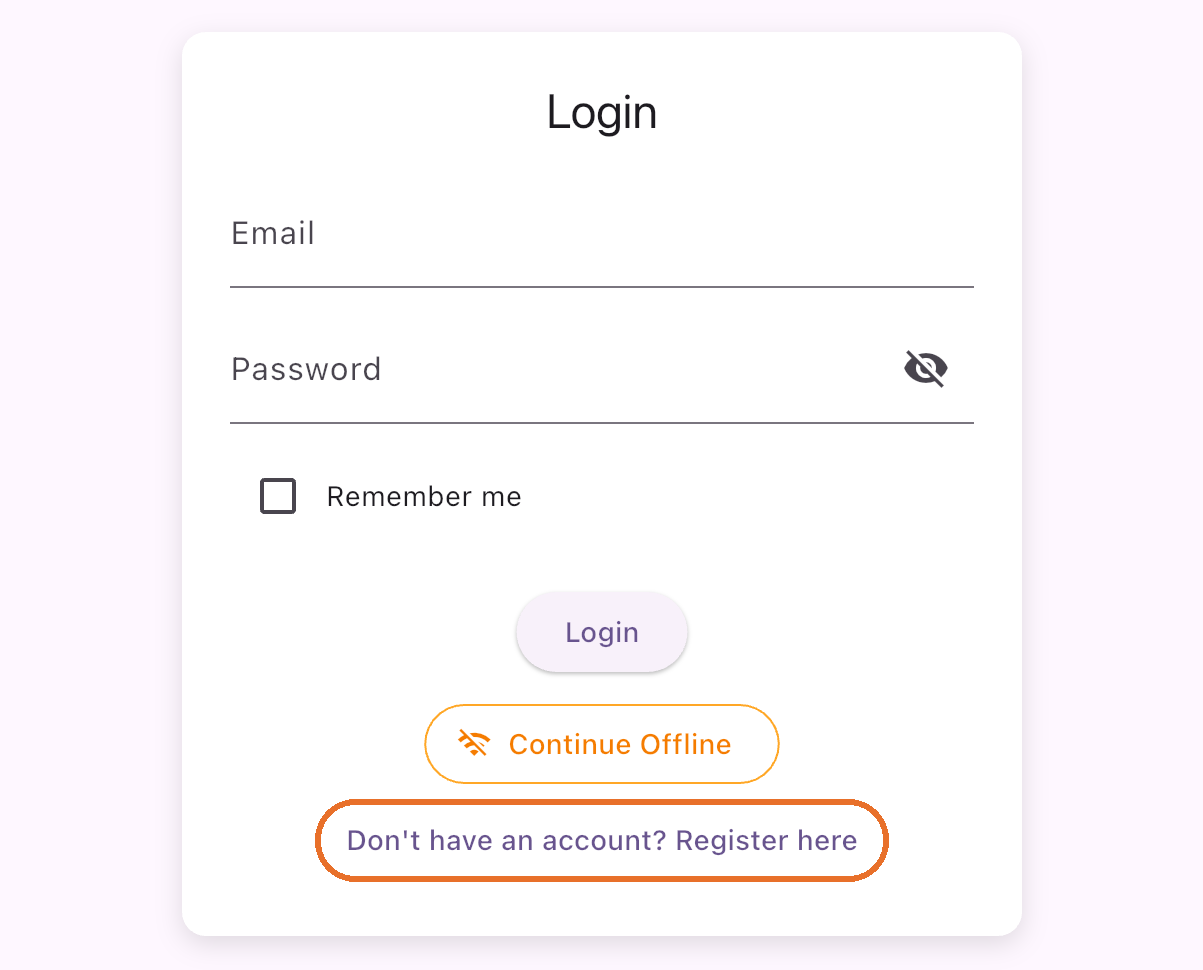
Start at the login screen
New to Bravo? Tap Register here.
Bravo University · 101 Setting Up a New Account
4
Create the account
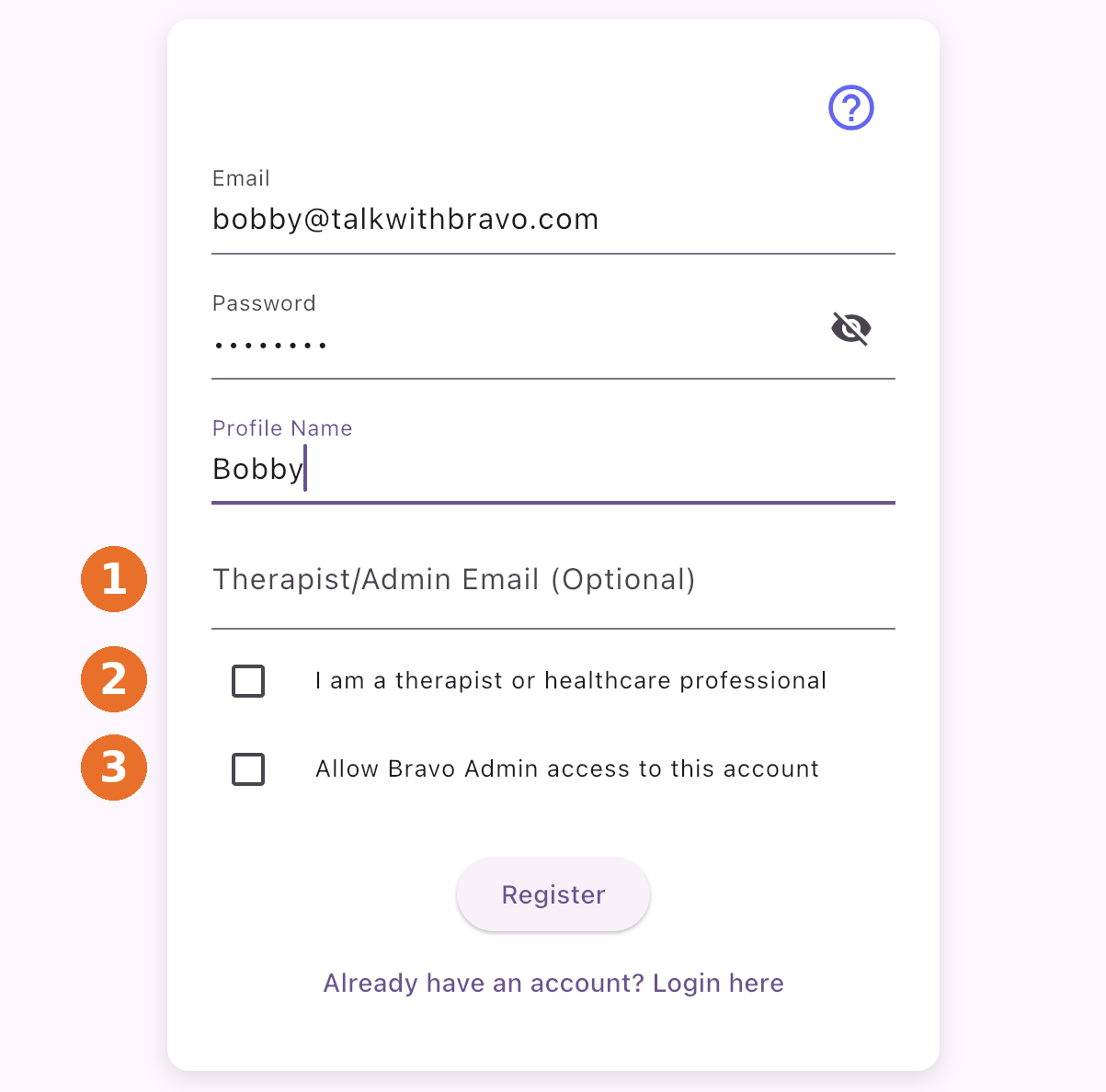
Register, with sharing built in
1
Therapist/Admin email: an SLP can manage the account without sharing the login
2
I am a therapist: this account can access client accounts
3
Allow Bravo Admin: Bravo can help with support
Bravo University · 101 Setting Up a New Account
5
Interface Mode
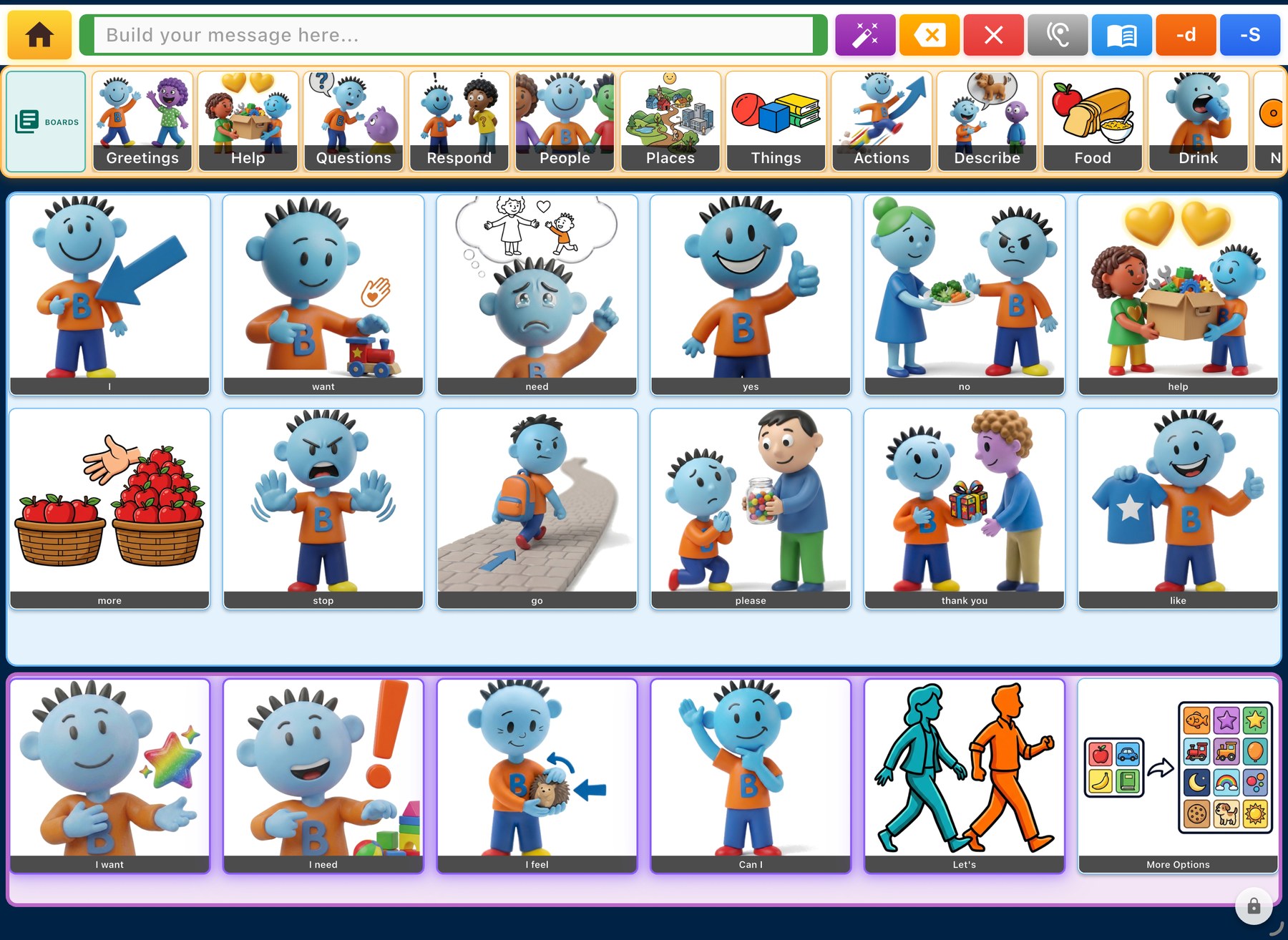
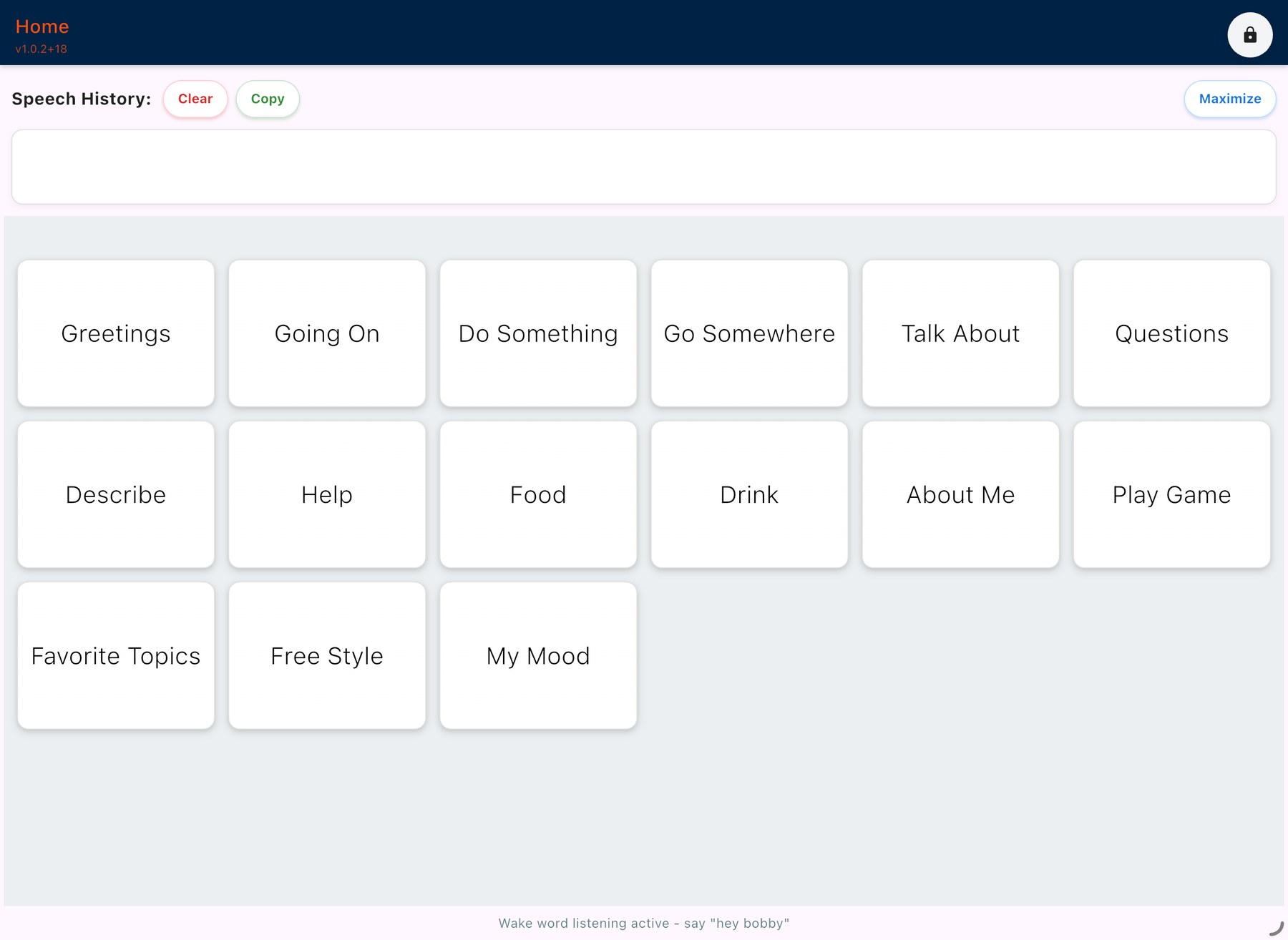
One app, two purpose-built screens
Tap
Scan
Bravo University · 101 Setting Up a New Account
6
Interface Mode
Built for two kinds of users
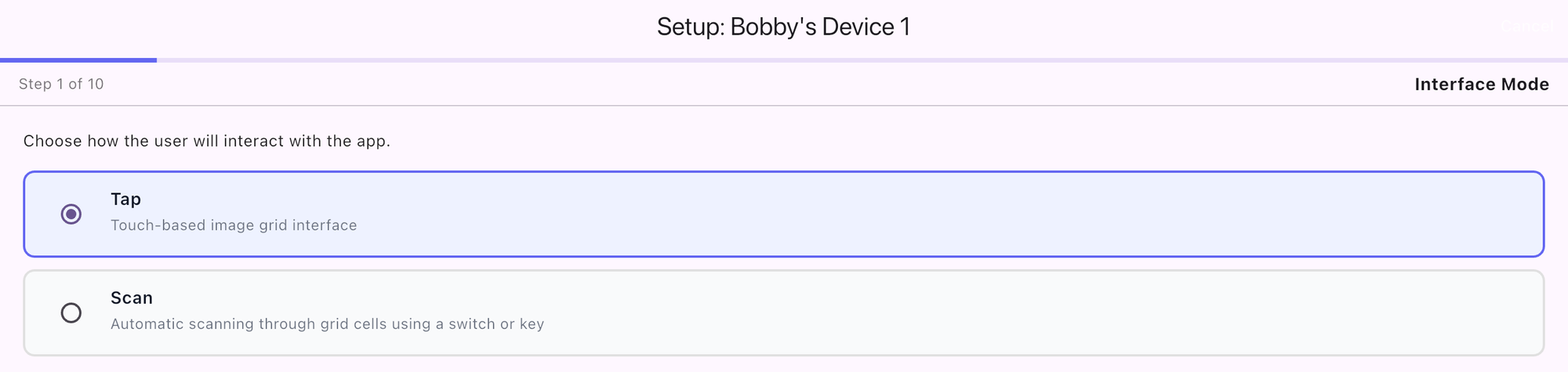
Tap: a touch-based picture grid
Scan: automatic scanning with a switch or key
Bravo University · 101 Setting Up a New Account
7
Tap only
Choose a Mascot
Characters with real expression
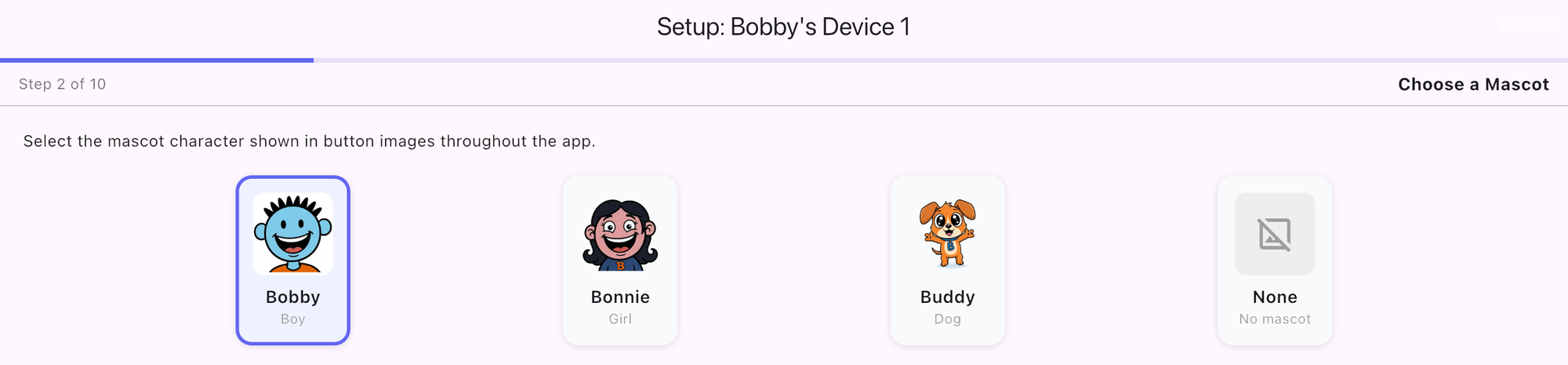
Bobby, Bonnie or Buddy, or no mascot at all
Expressive and engaging, not plain stick figures
Bravo University · 101 Setting Up a New Account
8
Tap only
Button Layout
Size the grid to fit the user
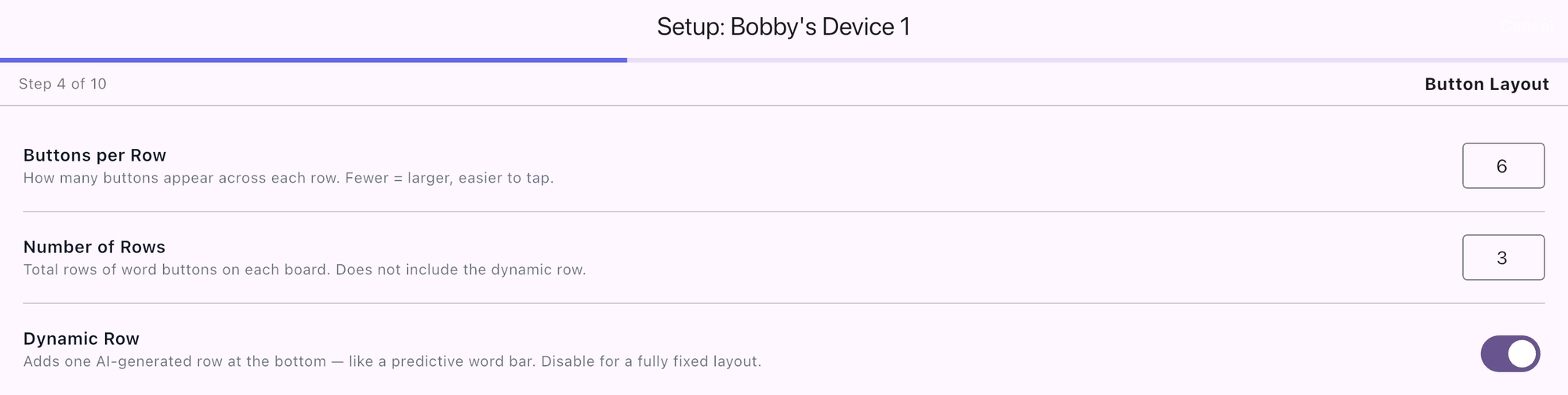
Pick buttons per row and number of rows
Fewer buttons = bigger targets
Dynamic row: AI keeps generating options
Bravo University · 101 Setting Up a New Account
9
Tap only
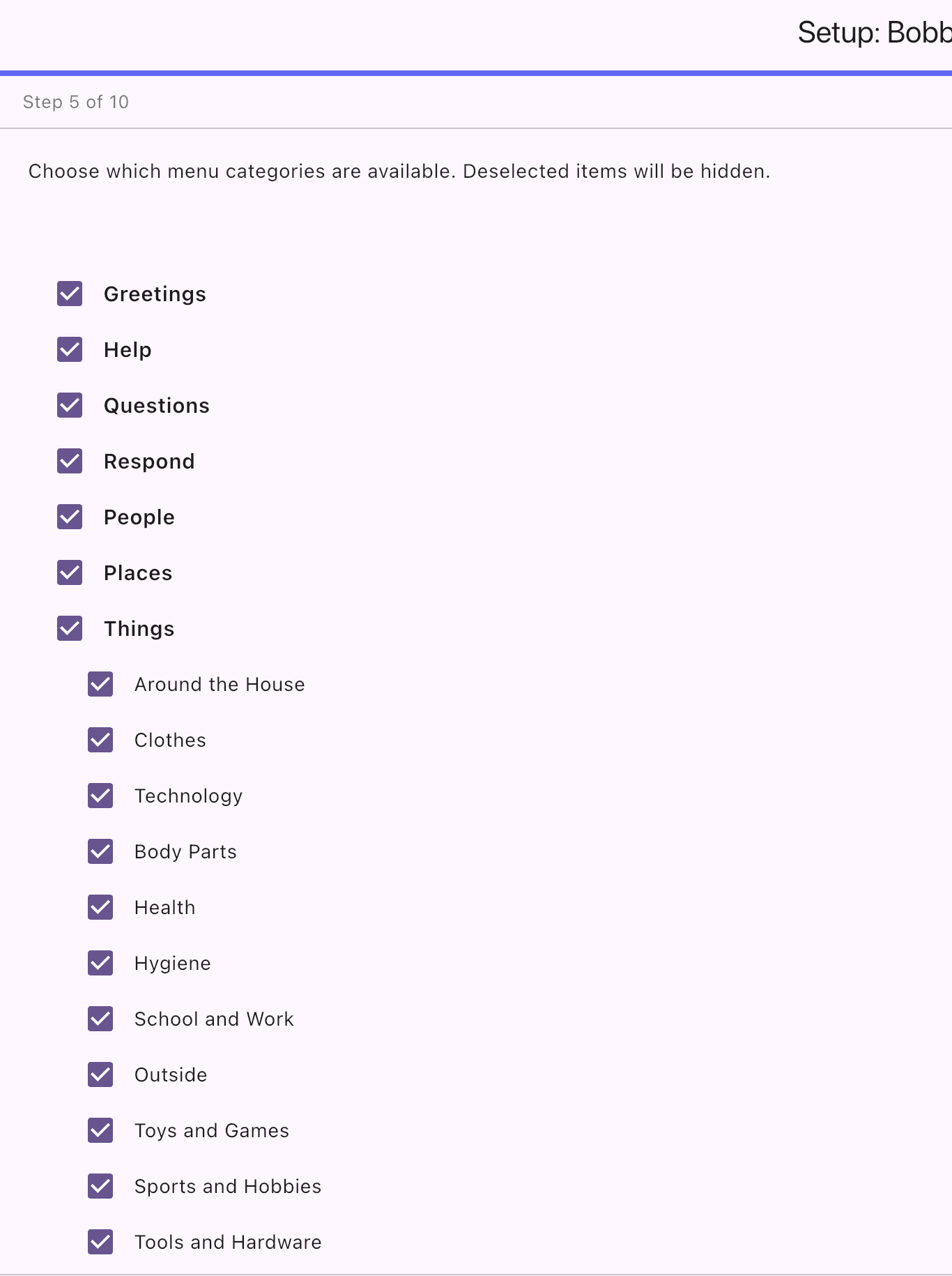
Menu Options
Choose the built-in menus
Every menu comes with a ready-made board
Uncheck a menu to hide it
Things has sub-menus, from Clothes to Tools
Bravo University · 101 Setting Up a New Account
10
Scan only
Button Layout & Options
Buttons, AI options and Freestyle
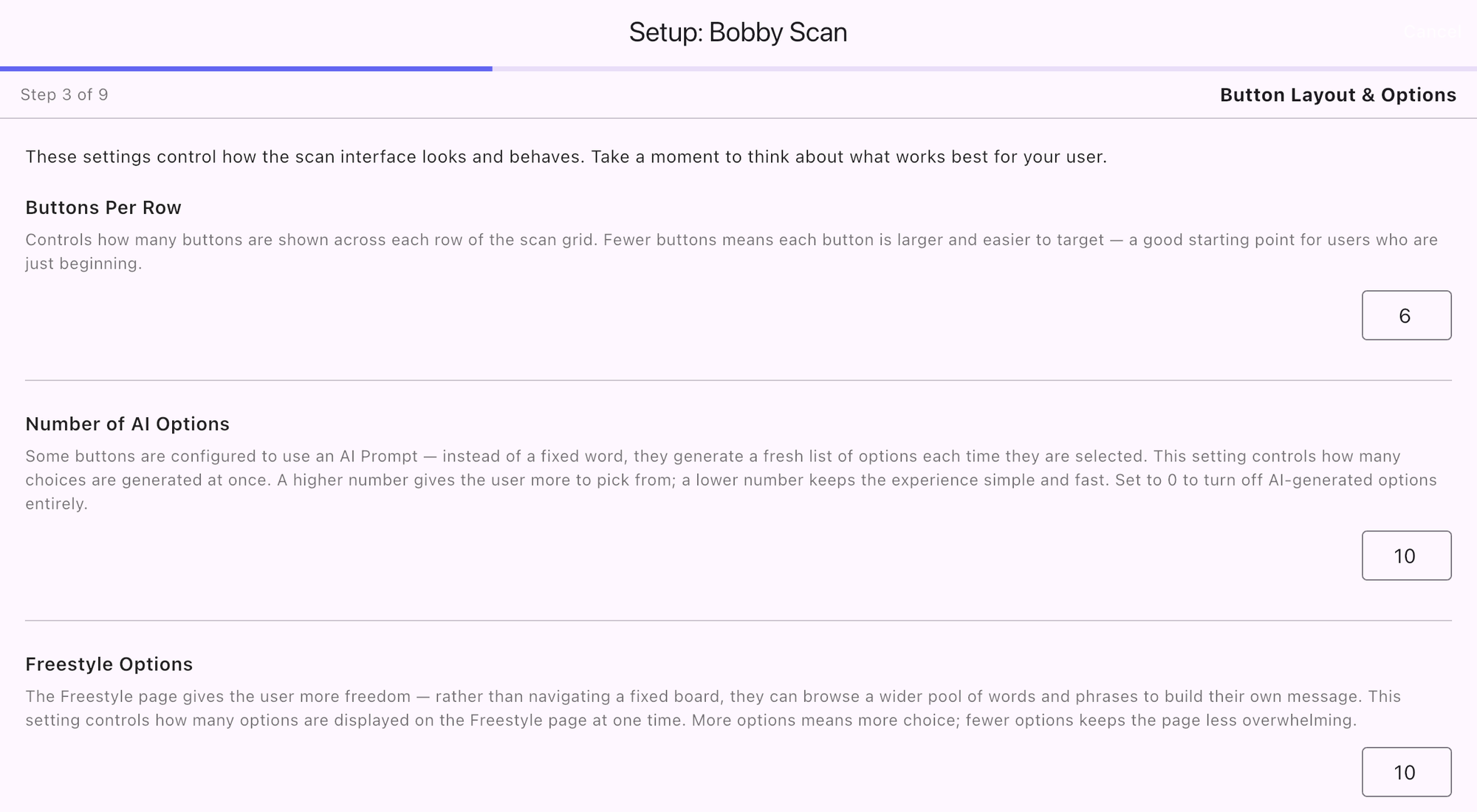
Buttons per row
Fewer means bigger buttons, a good start for beginners
Number of AI options
Choices an AI-prompt button generates. 0 turns them off.
Freestyle options
Words and phrases shown at once on the Freestyle page
Bravo University · 101 Setting Up a New Account
11
Scan only
Scanning Configuration
Tune the scan to the user
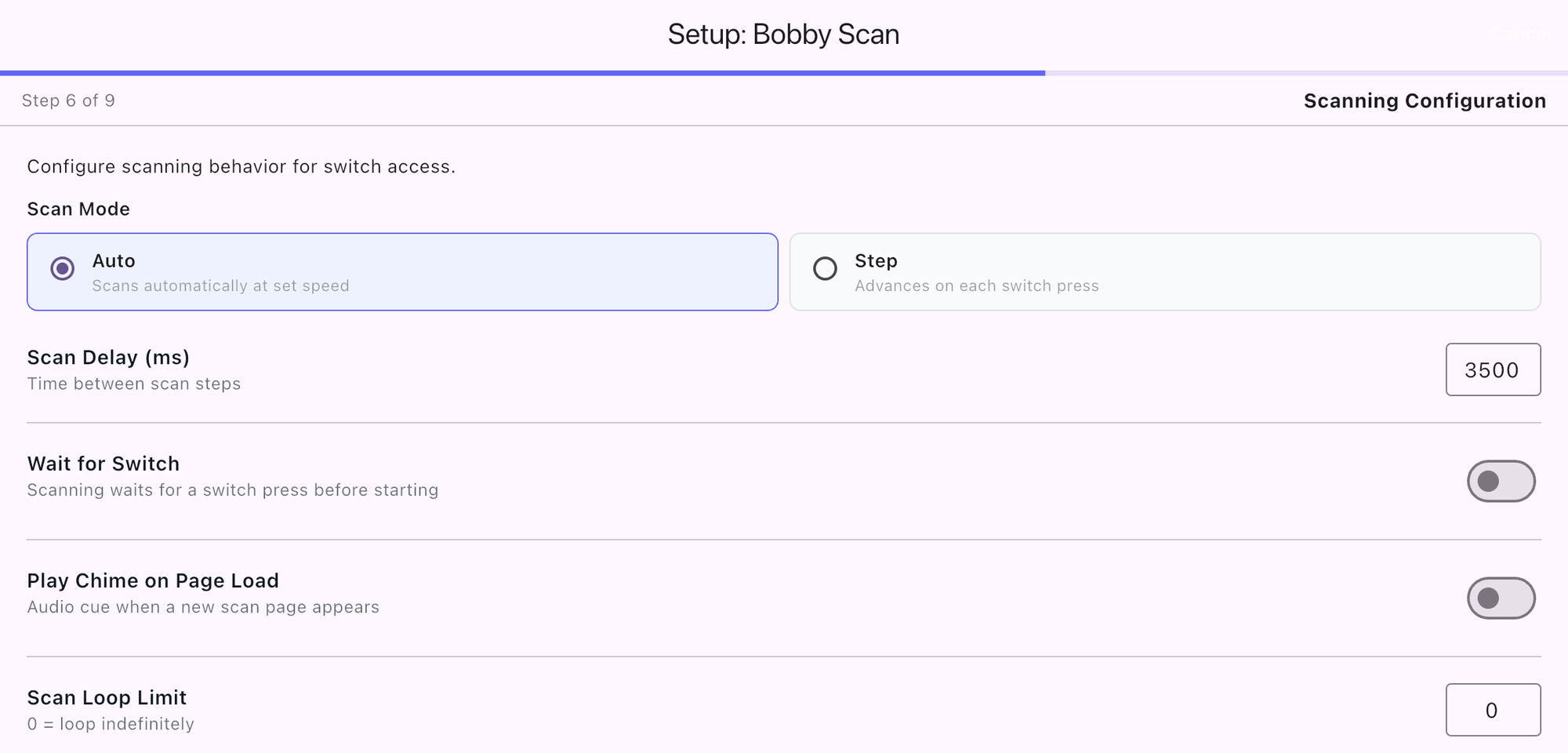
Scan mode: Auto at a set speed, or Step on each switch press
Scan delay: 3500 ms = 3.5 seconds per option
Wait for switch: start only after a press
Chime: a sound when a new page appears
Loop limit: times through the page. 0 = no limit.
Bravo University · 101 Setting Up a New Account
12
Tap + Scan
Wake Word
Start a conversation by name
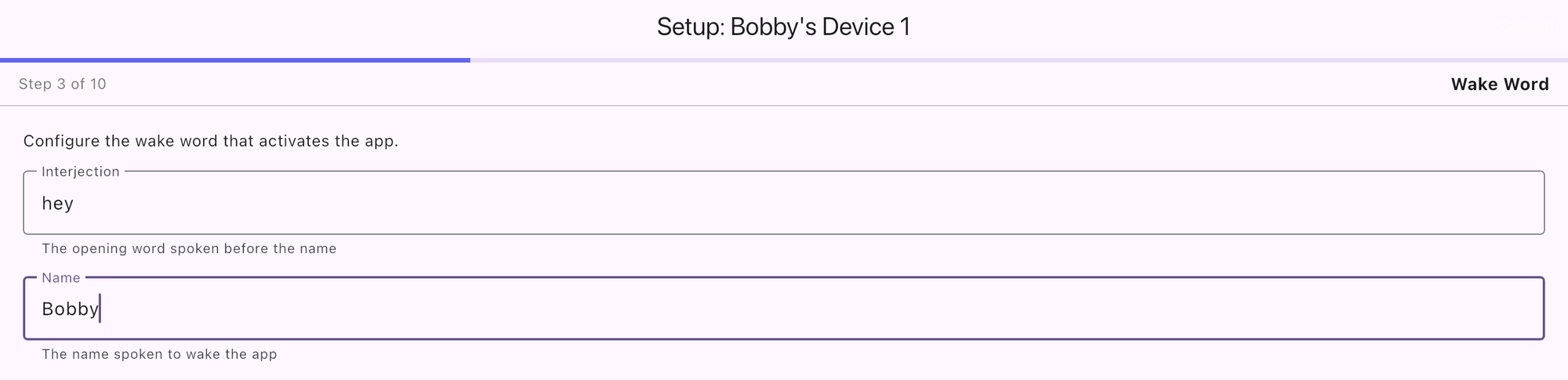
Interjection + name = “hey Bobby”
Then ask the user a question or share a comment
Bravo University · 101 Setting Up a New Account
13
Tap + Scan
User Language
The language the user sees
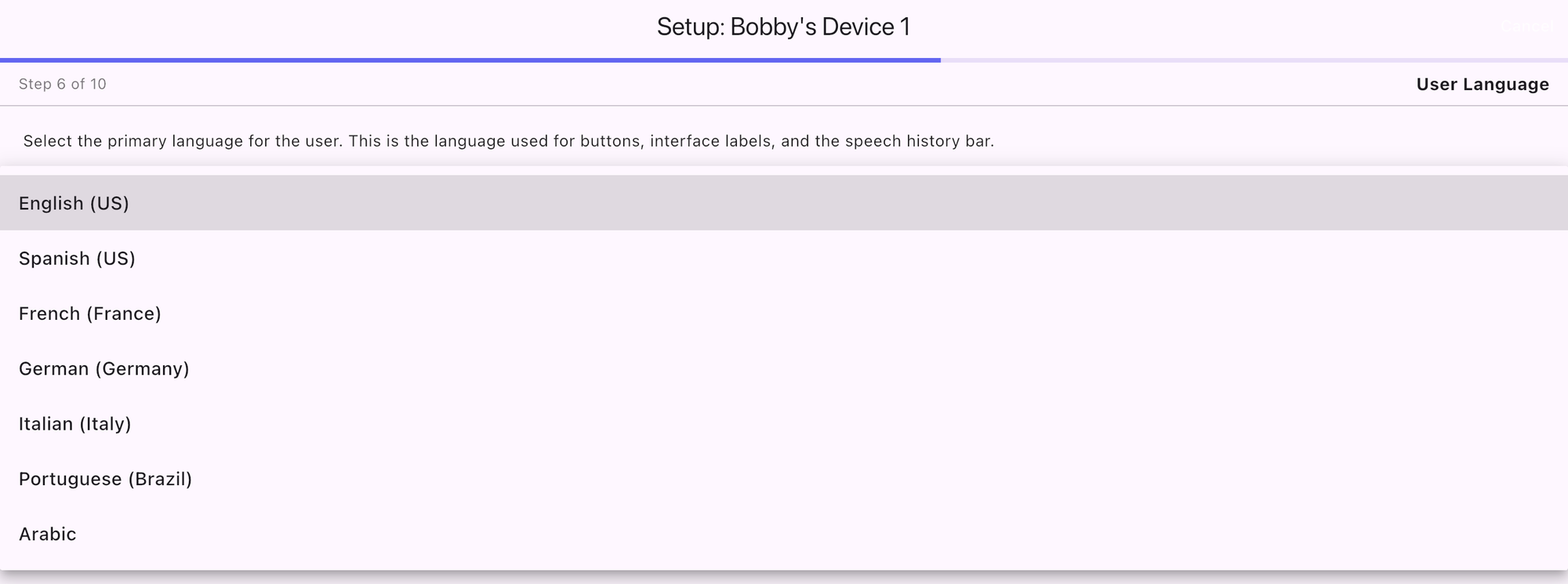
Sets the words on buttons, labels and speech history
Includes Spanish, French, Arabic and more
Bravo University · 101 Setting Up a New Account
14
Tap + Scan
Partner Language & Voice
The voice everyone hears
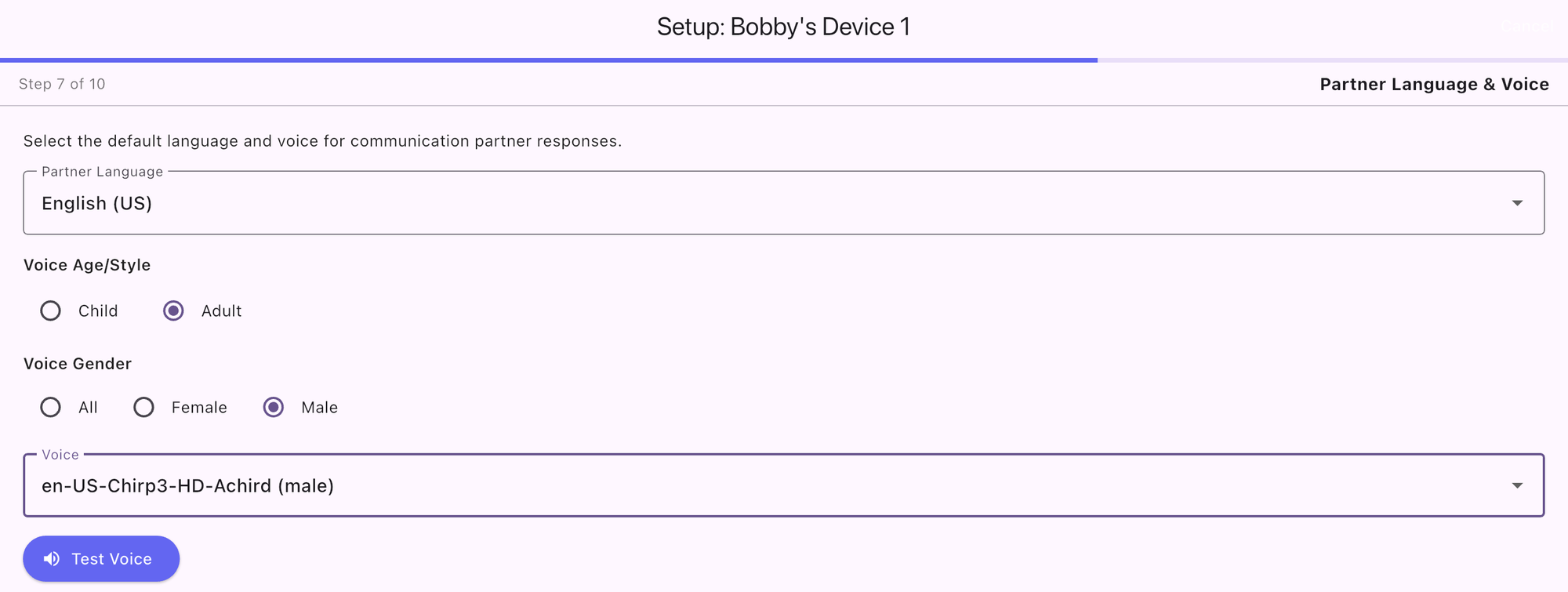
Can differ from the on-screen language
Child or adult, female or male voices
Tap Test Voice to hear it first
Bravo University · 101 Setting Up a New Account
15
Tap + Scan
Age & Parental Consent
Under 13? A parent decides.
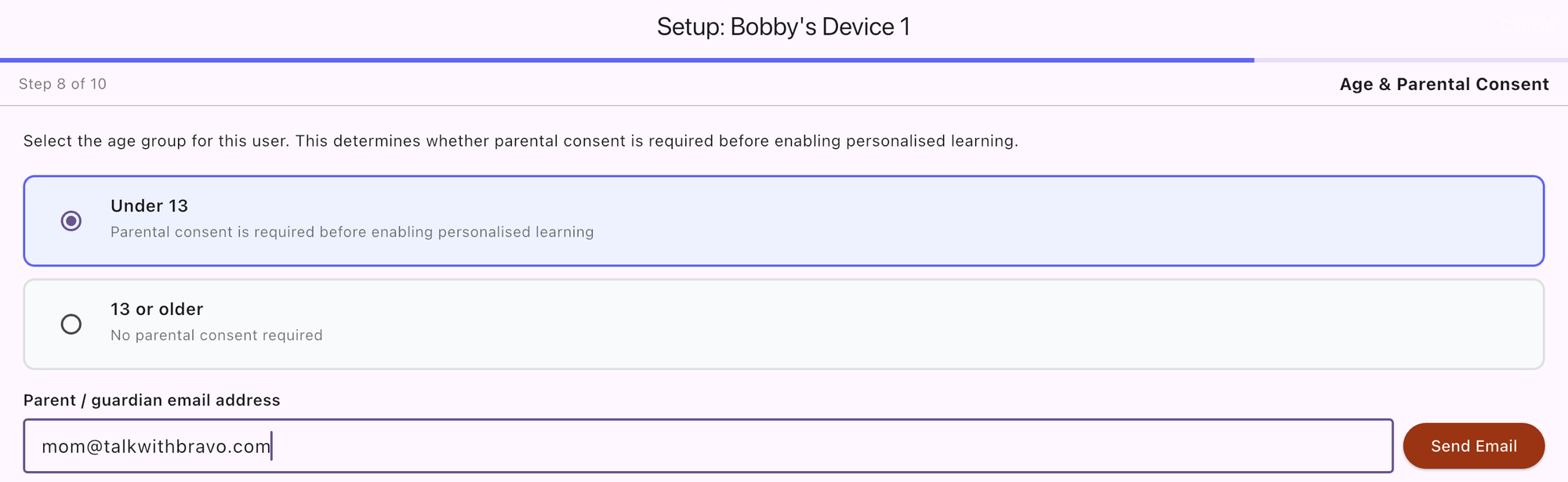
Select Under 13
Enter the parent’s email and tap Send Email
Bravo University · 101 Setting Up a New Account
17
Tap + Scan
Age & Parental Consent
The request is on its way
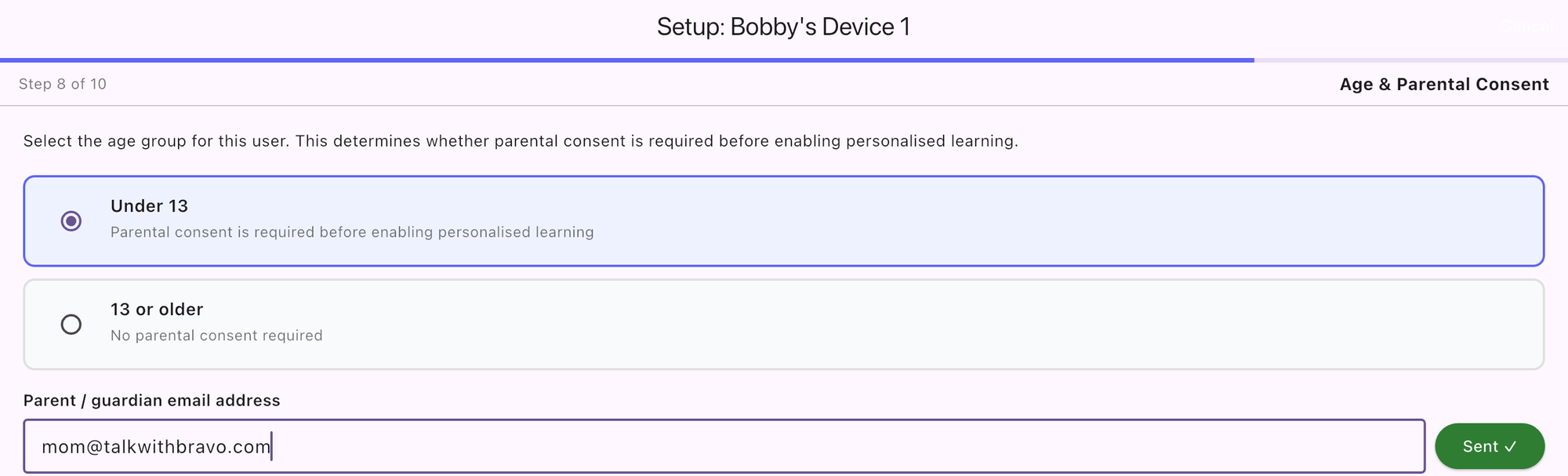
The button turns green and reads Sent
Tap Next and keep setting up
Bravo University · 101 Setting Up a New Account
18
Tap + Scan
The parent’s view
Clear promises, one tap to confirm
1. The consent email
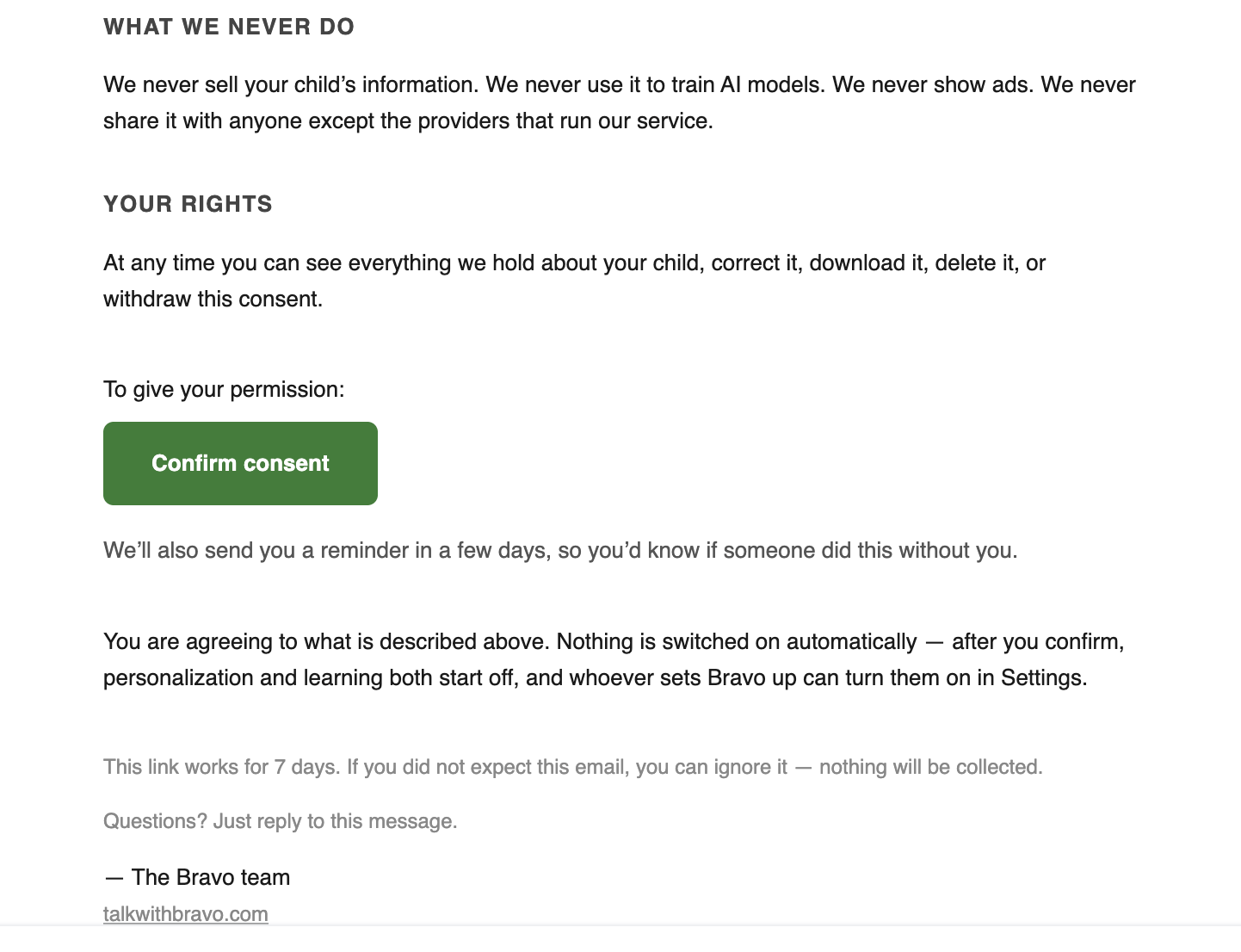
2. After tapping Confirm consent
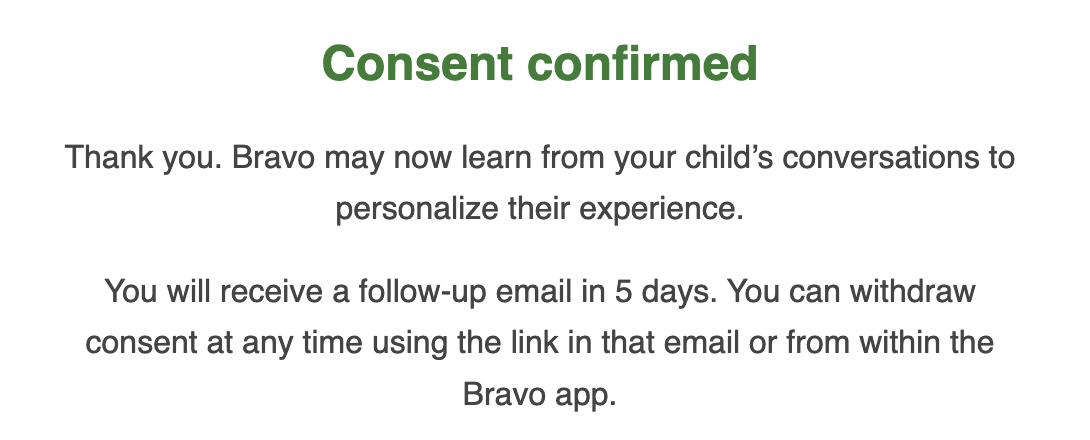
No selling data, no training AI models, no ads
Consent can be withdrawn at any time
Bravo University · 101 Setting Up a New Account
19
Tap + Scan
Personalized Learning
Check for consent in real time

Parent confirms, you tap Check for Consent
Setup continues, no restart needed
Bravo University · 101 Setting Up a New Account
20
Tap + Scan
Personalized Learning
Parents control what Bravo learns
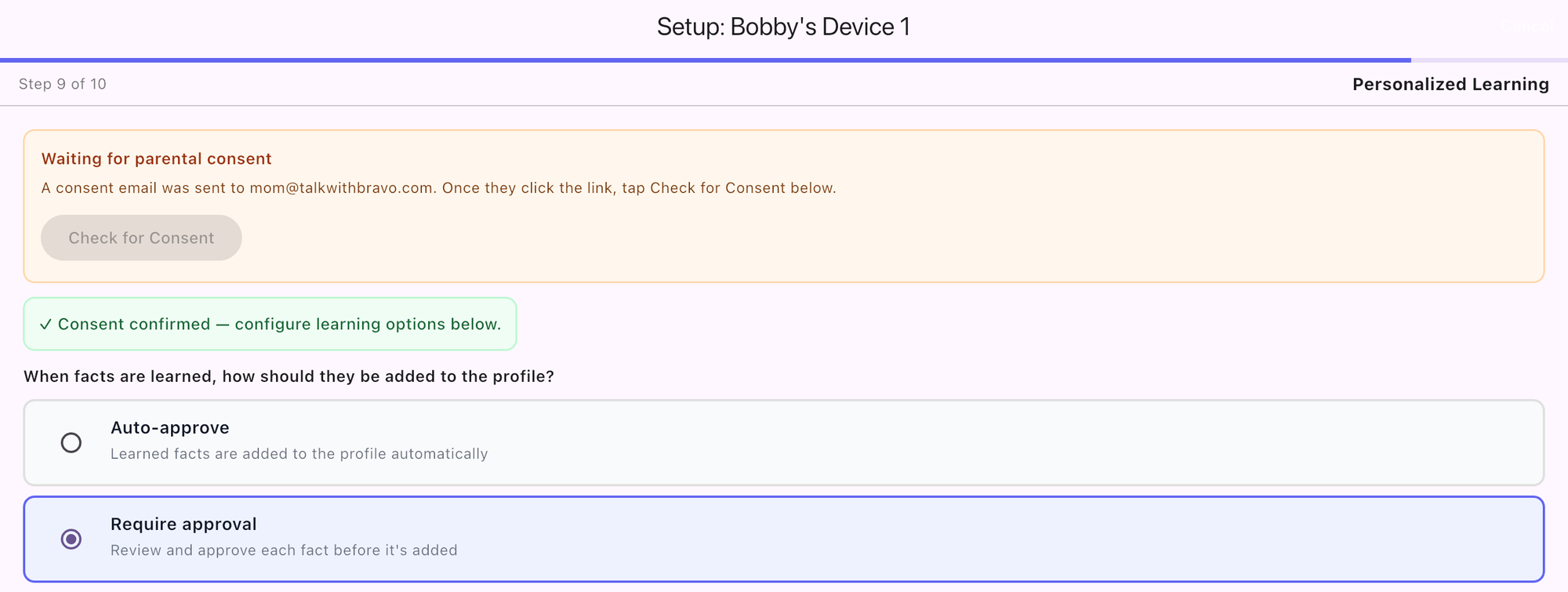
Unlocks only after consent
Auto-approve: facts added automatically
Require approval: review each fact first
Bravo University · 101 Setting Up a New Account
21
Tap + Scan
User Profile Interview
A profile for more personal options
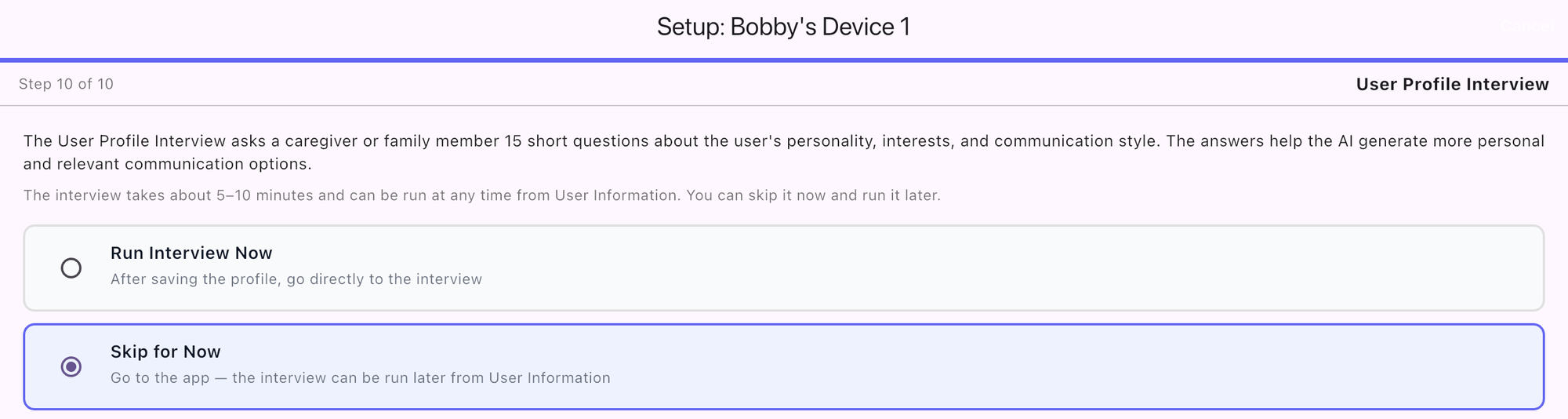
15 short questions, about 5–10 minutes
Unlocks only after consent
Skip now, run later from User Information
Bravo University · 101 Setting Up a New Account
22
Setup complete
Ready to talk
Account registered
Device set up
Parental consent on record
Tap
Scan
Bravo University · 101 Setting Up a New Account
23