Bravo University · Course 104
How do I use the Wake Word to ask a question?
Five steps, on both Scan and Tap

The Wake Word
A new way to start a conversation
More interaction
Partners can ask a question or share a comment, and the user can answer right away.
Works like a smart assistant
If you’ve said “Alexa” or “Hey Siri”, you already know how it works.

Bravo University · 104 Using the Wake Word
2
The process
Five steps from question to answer
1
Partner
Says the Wake Word
2
Bravo
Says “I’m listening”
3
Partner
Asks a question or comments
4
Bravo
Generates response options
5
User
Selects, and gets follow-ups
Bravo University · 104 Using the Wake Word
3
Before you start
Choosing the Wake Word
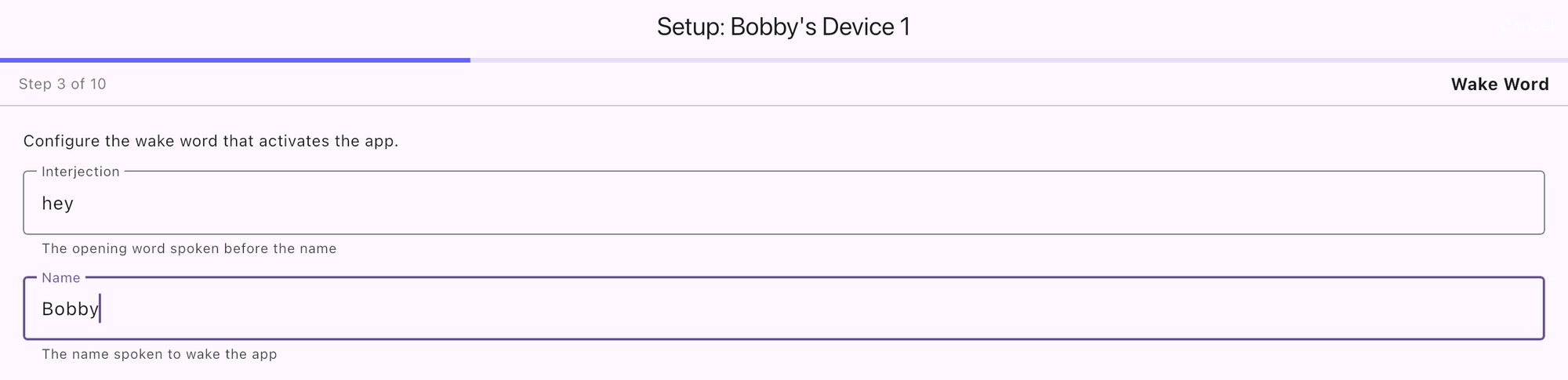
Set by the Admin at setup, and can be changed later
The default is “Hey Bravo”
Usually “Hey” + the user’s name: “Hey Bobby”
Bravo University · 104 Using the Wake Word
4
Step 1 of 5
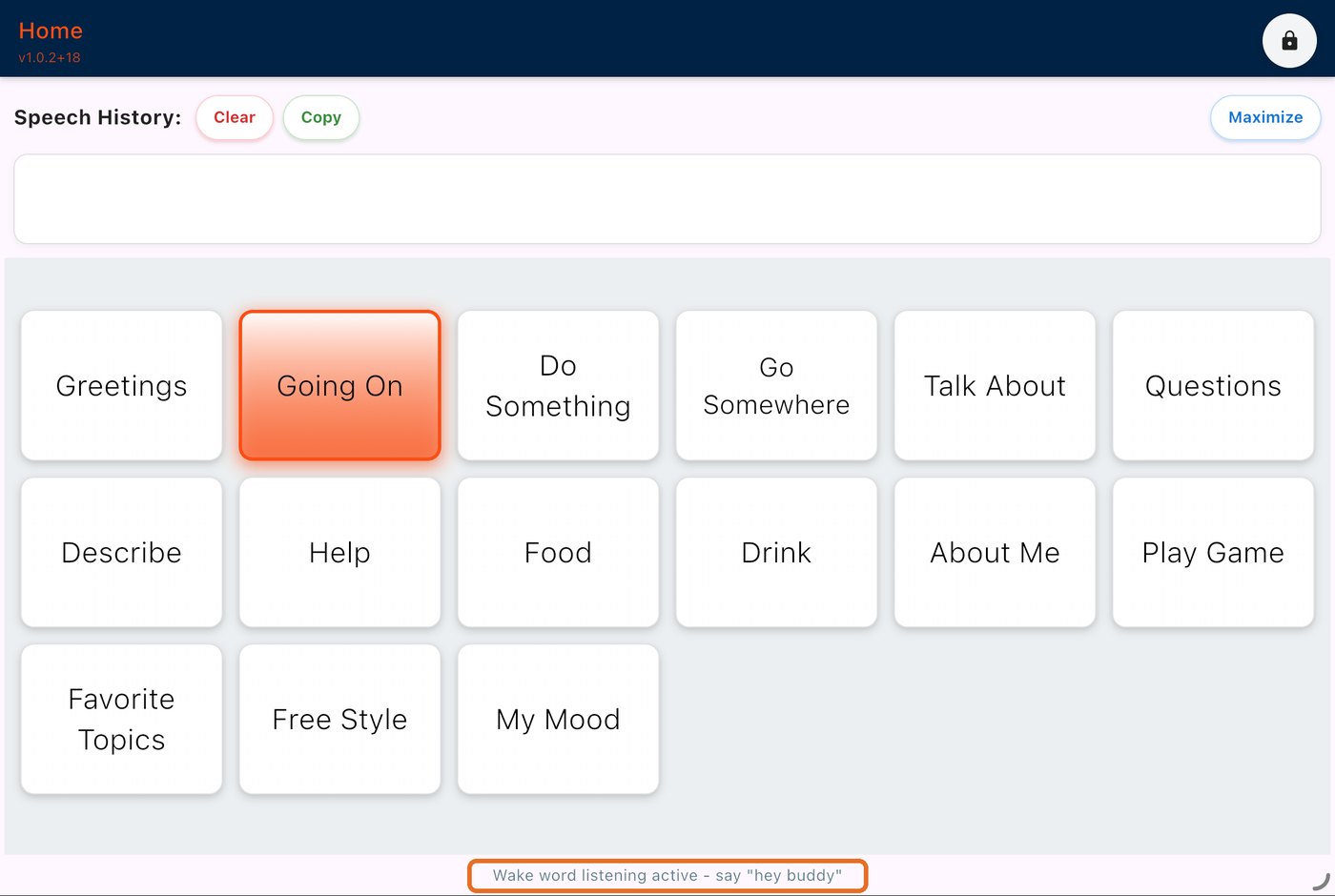
Say the Wake Word
Scan
Tap
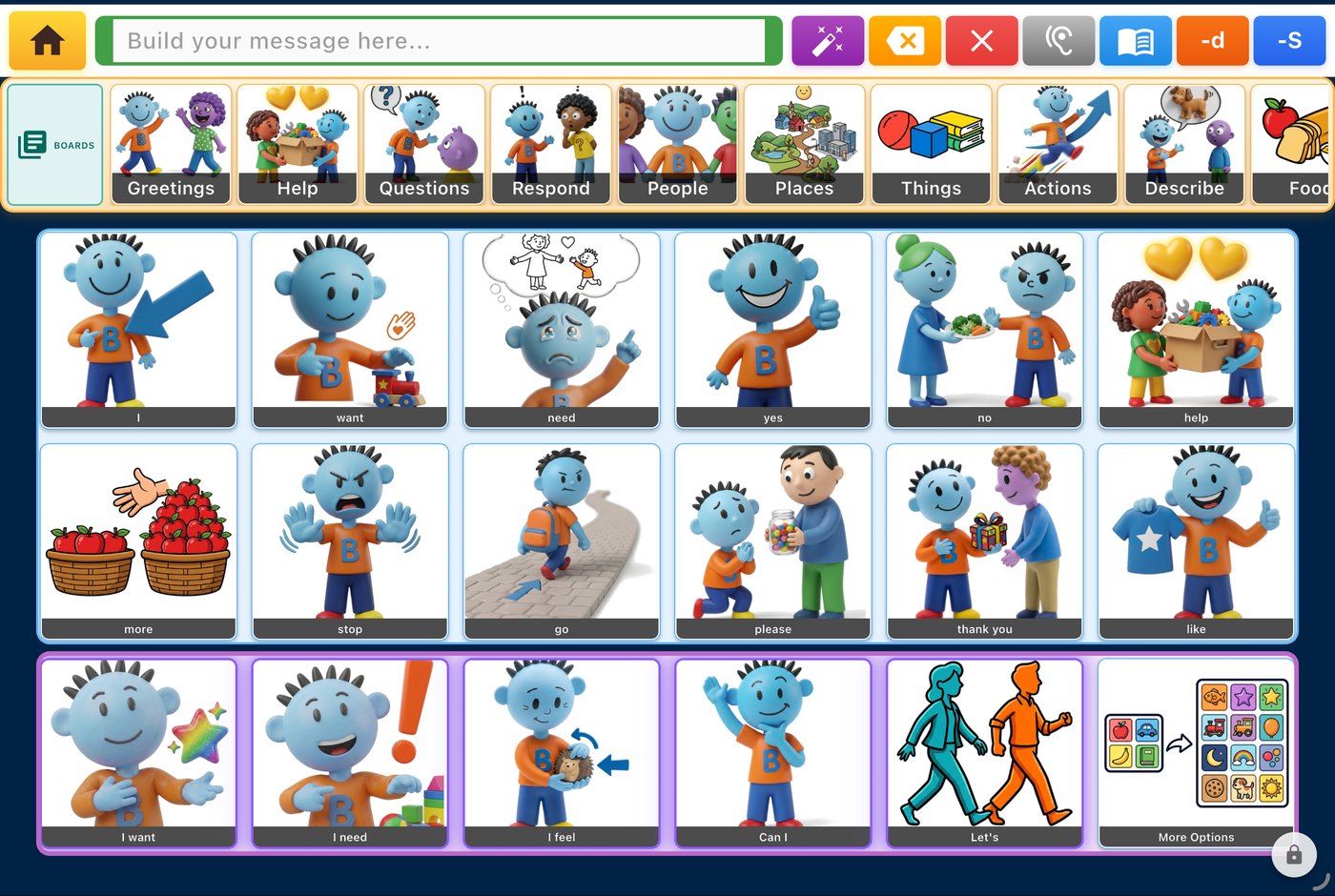
Always listening, even while scanning
Auditory scanning: the mic is in the personal speaker
Bravo University · 104 Using the Wake Word
5
Step 2 of 5
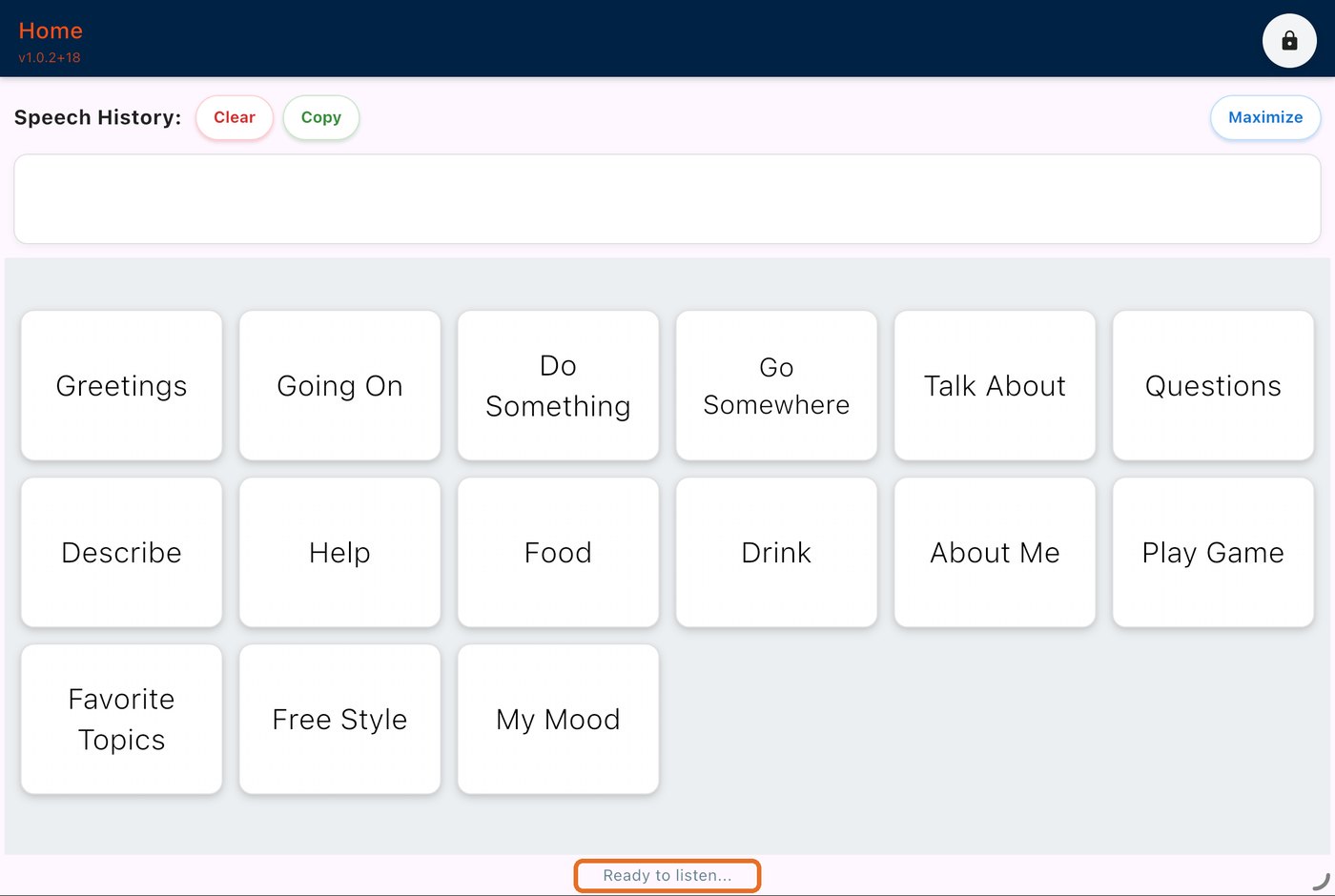
Wait for “I’m listening”
Scan
Tap
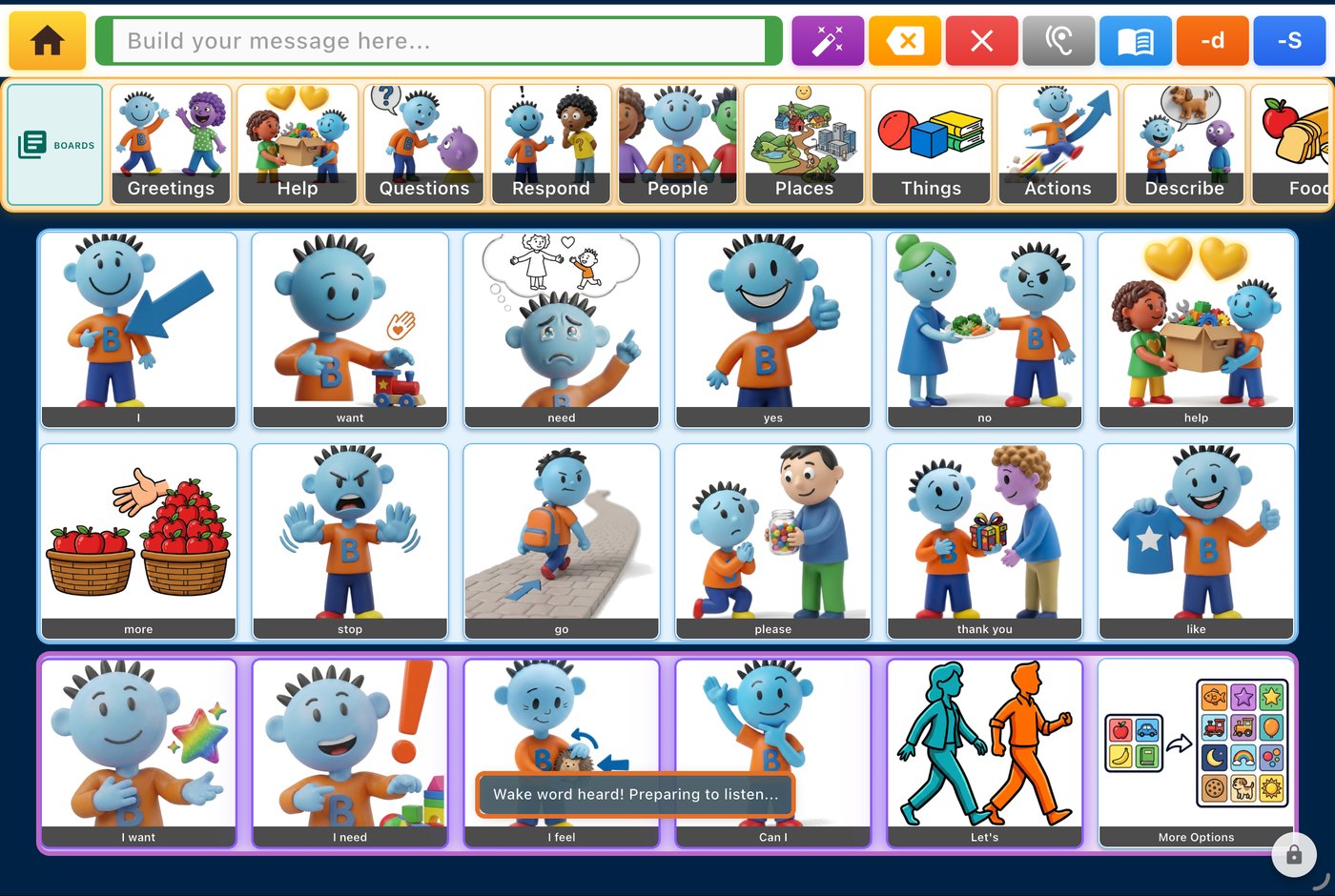
Bravo says “I’m listening” out loud and shows it on screen. Then it’s your turn.
Bravo University · 104 Using the Wake Word
6
Step 3 of 5
Ask a question or share a comment
Speak after “I’m listening”
Short or long questions both work
Bravo stops listening after a pause
2
seconds of silence ends the question
Bravo University · 104 Using the Wake Word
7
Step 3 of 5 · Tip
Include context in your question
“What do you think about the Broncos big win yesterday?”
“What do you want to eat from McDonald’s?”
The more detail in the question, the more specific the answers Bravo can offer.
Bravo University · 104 Using the Wake Word
8
Step 3 of 5
Bravo confirms what it heard
Scan
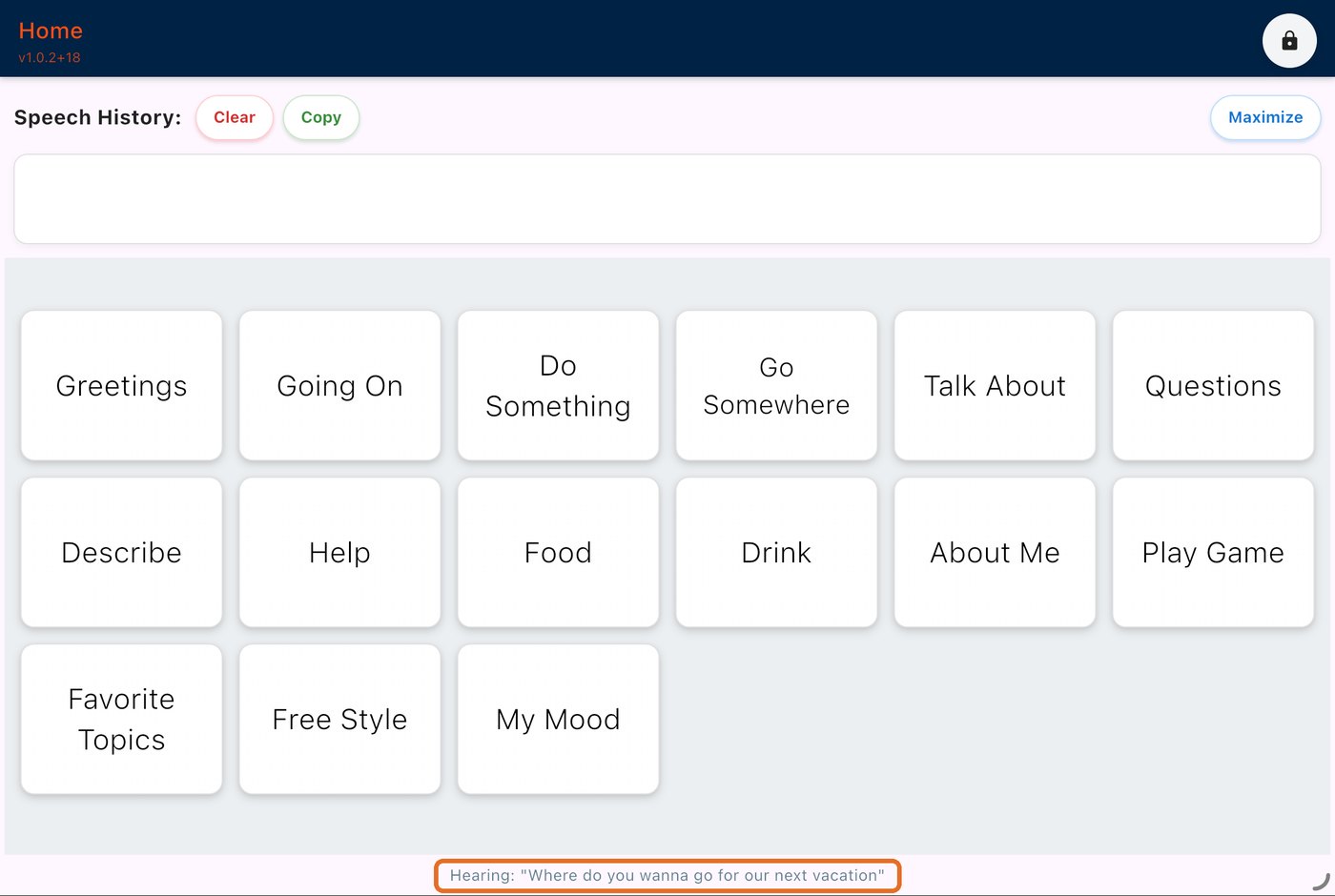
Tap
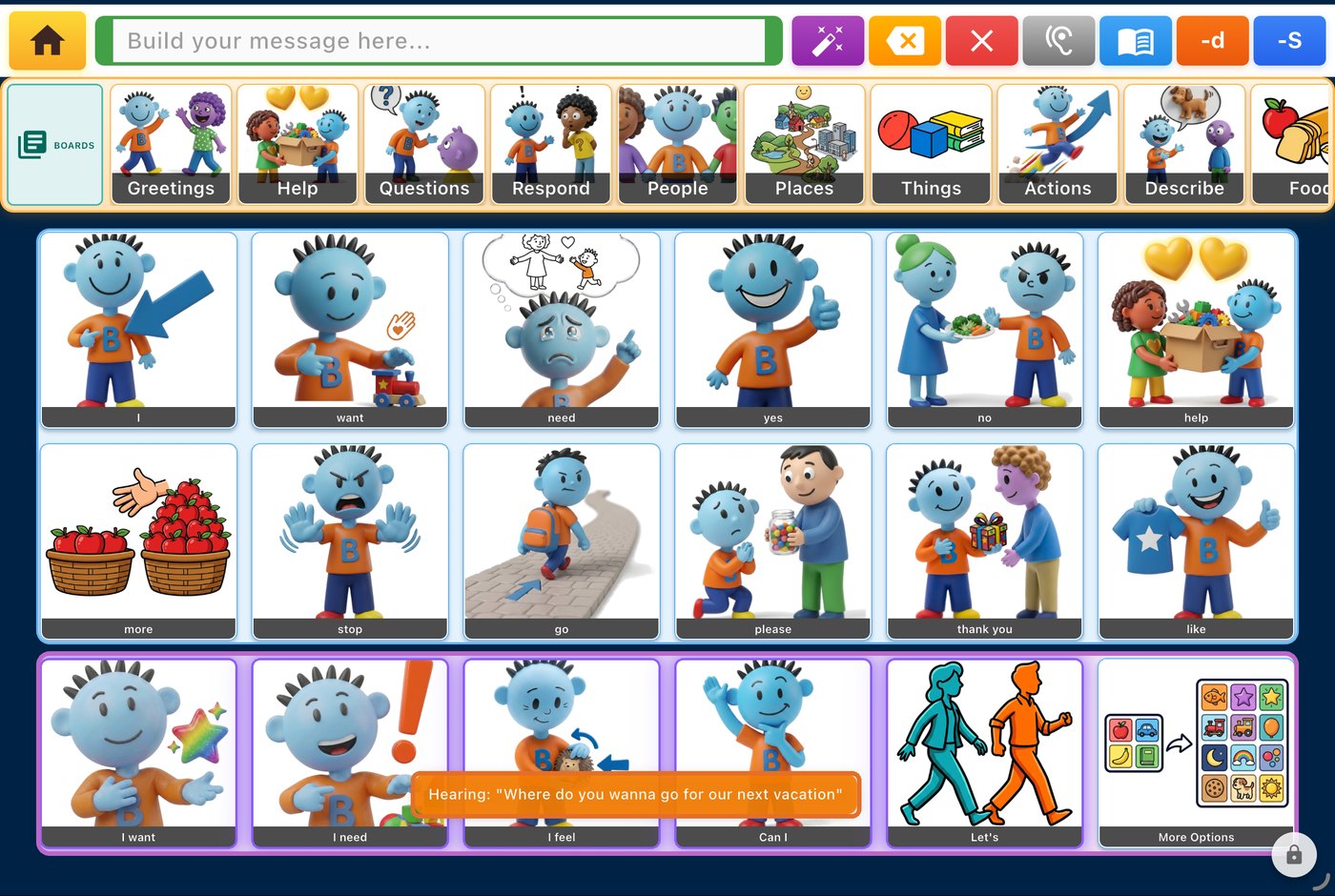
Shows “Hearing: …”, then says “Give me a moment to respond”
Bravo University · 104 Using the Wake Word
9
Step 4 of 5
Bravo generates ways to respond
Scan
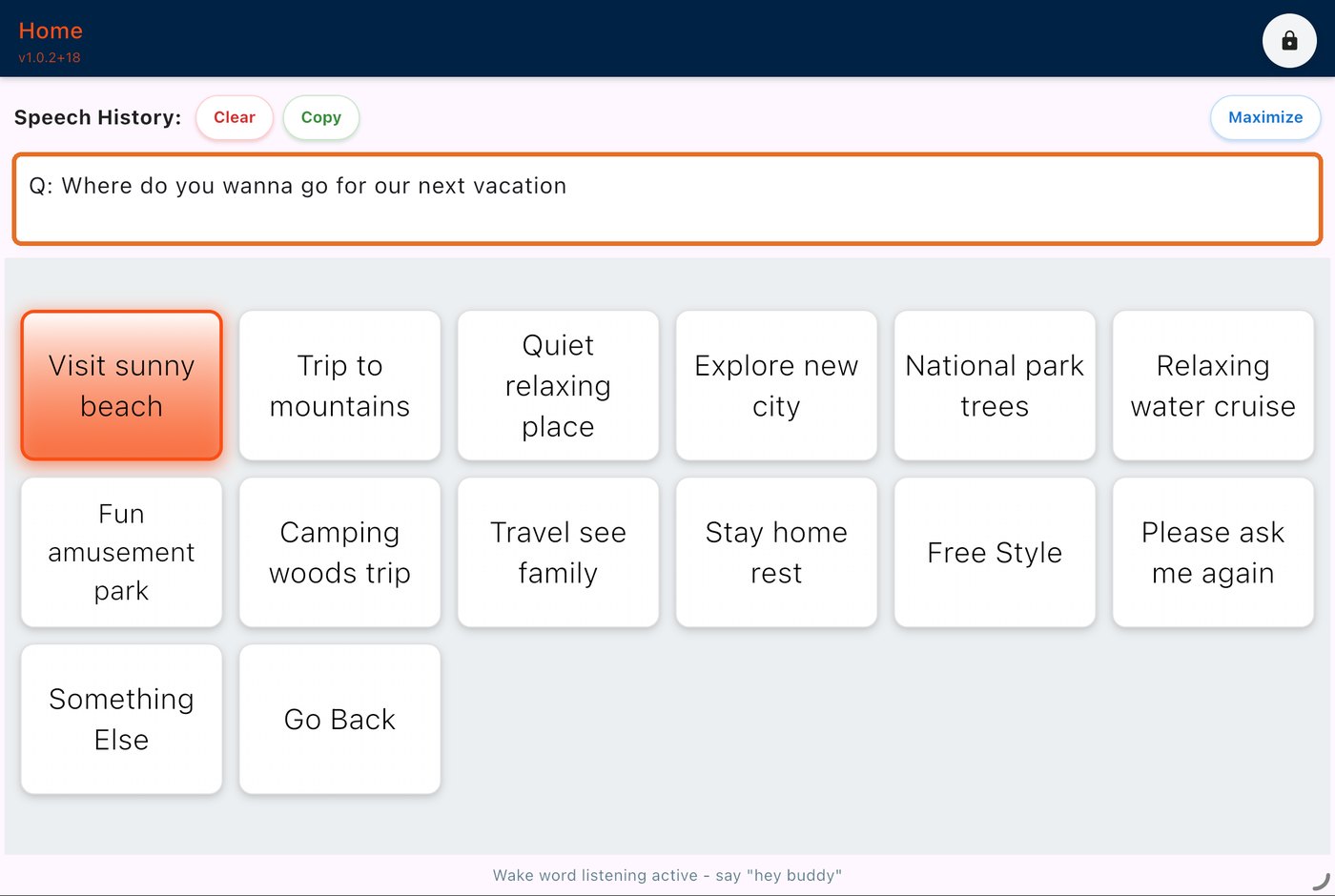
Tap
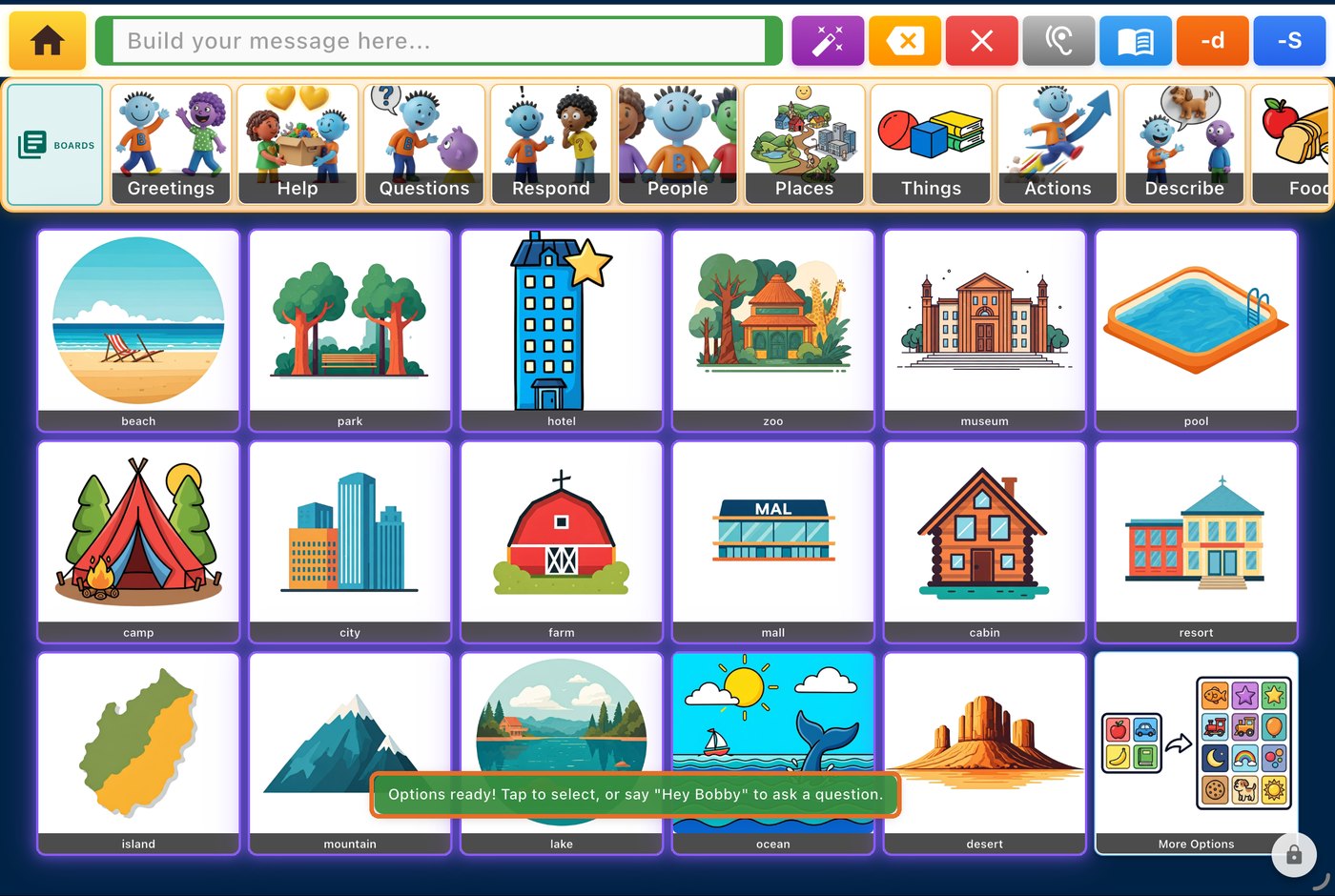
Scan: full phrases to answer
Tap: building blocks to answer
Shaped by context: mood, favorites and more
Bravo University · 104 Using the Wake Word
10
Step 5 of 5
Select an answer, and keep talking
Scan
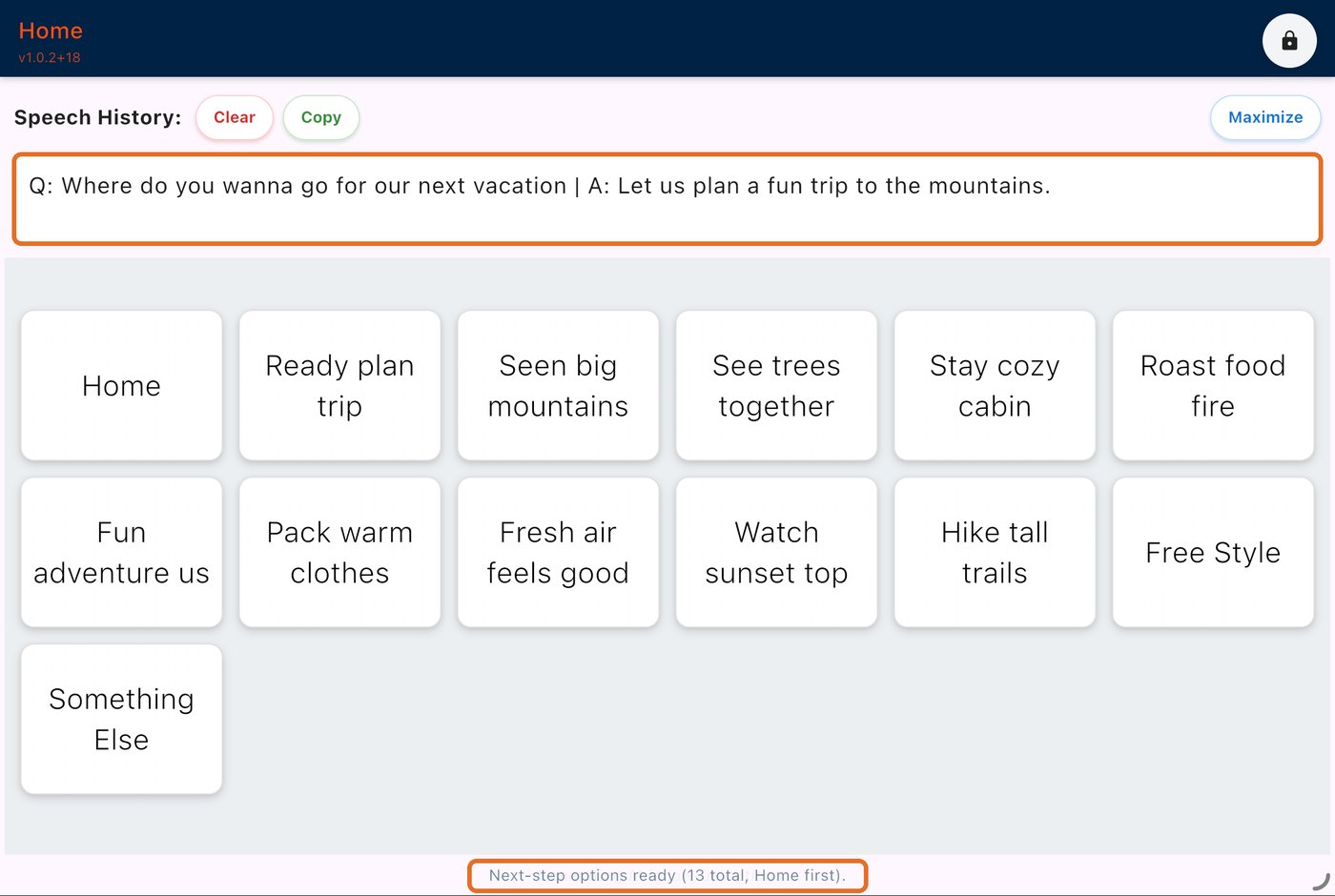
Tap
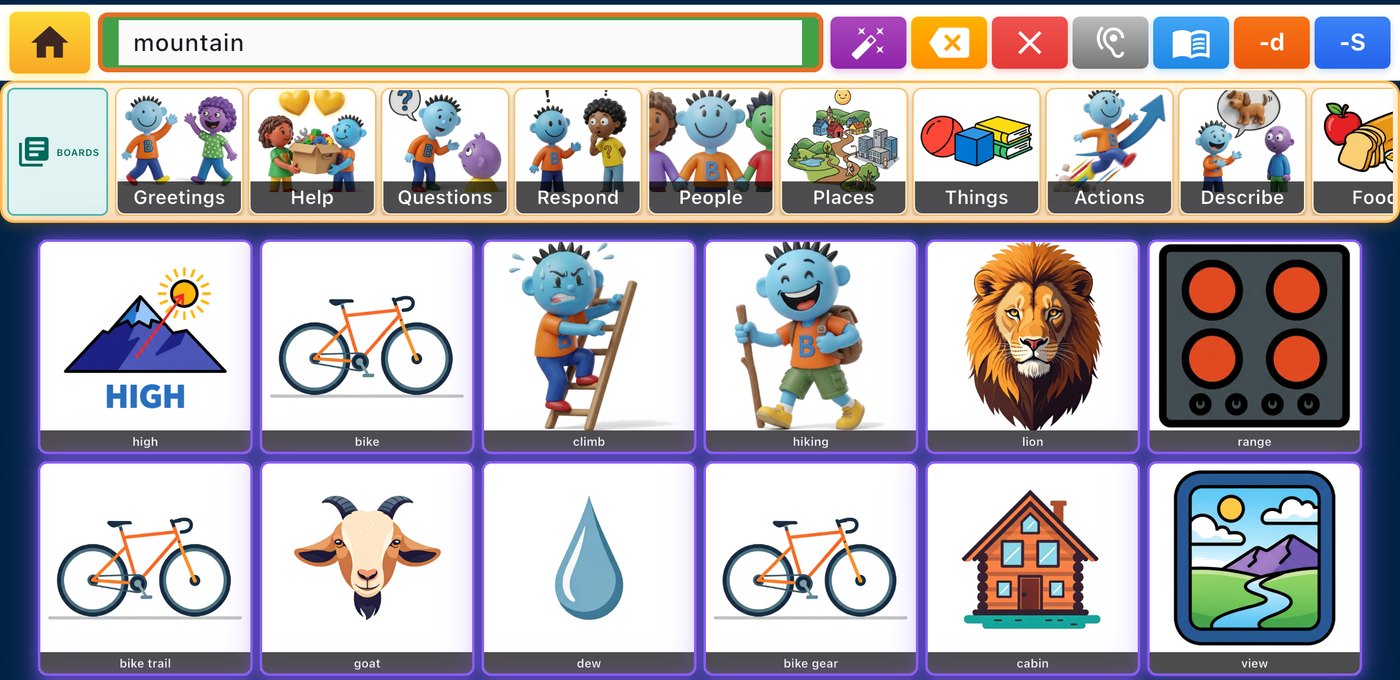
The answer is spoken aloud, and follow-up options keep coming until another board is chosen
Bravo University · 104 Using the Wake Word
11
Not the right words?
Four ways to find more options
More Options
Generates a new set
Something Else
Generates a new set
Another board
Go to any board you like
Free Style
Even more words and phrases
Bravo University · 104 Using the Wake Word
12
Troubleshooting
If the Wake Word doesn’t respond
Try another spelling
Set the name as “John” instead of “Jon”
Wait for it to finish
Listening may pause while the app works, like loading a page
Say it again
Repeat the Wake Word if it was paused or misheard
Bravo University · 104 Using the Wake Word
13
Recap
The Wake Word in five steps
Step
What happens
What you’ll see or hear
1
Say the Wake Word
“Hey Bobby”
2
Bravo confirms
“I’m listening”
3
Ask, with context
“Hearing: …” then “Give me a moment to respond”
4
Bravo offers answers
Phrases (Scan) or building blocks (Tap)
5
Select and keep talking
Answer spoken, follow-ups appear
Bravo University · 104 Using the Wake Word
14