Bravo University · Course 201 · Admin Tools
Updating Admin Settings
Every setting, section by section

Before we start
Three things to know
Tap and Scan
Every setting here applies to both interfaces
Set once, change anytime
Most were chosen in the New Profile Wizard
Restart the app
After any change, so it takes effect

Bravo University · 201 Updating Admin Settings
2
Getting in
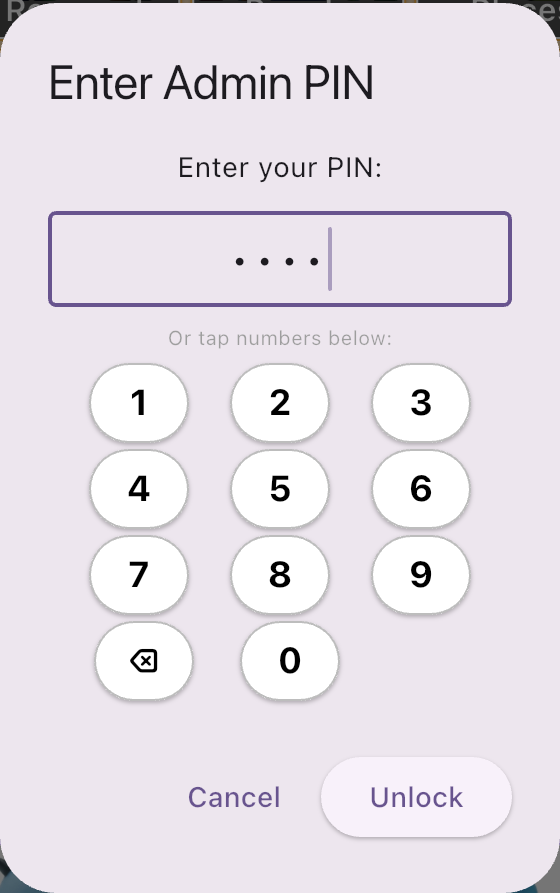
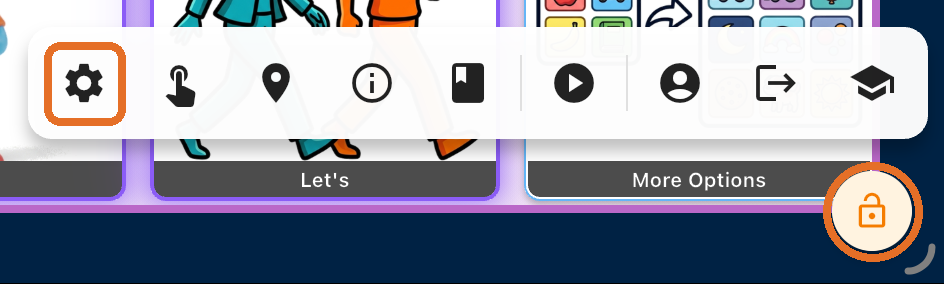
Opening Admin Settings
1
Tap the Lock icon
On Tap, press and hold for 3 seconds
2
Enter the Admin PIN
3
Tap the Settings gear
Bravo University · 201 Updating Admin Settings
3
The layout
Six sections
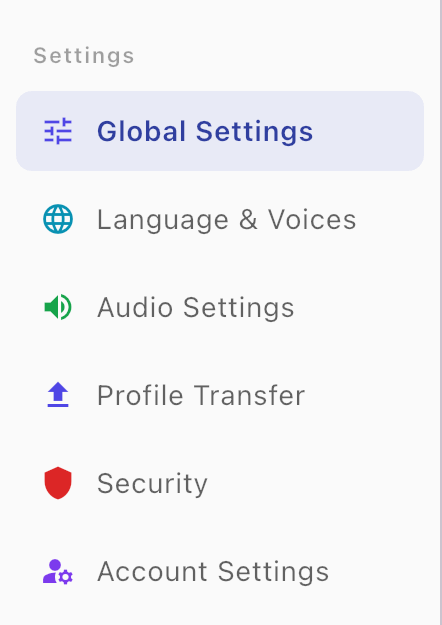
Global Settings
Interface, Wake Word, vocabulary, mood, mascot
Language & Voices
What’s shown and what’s spoken
Audio Settings
Speech rate and volume
Profile Transfer
Export and import a profile
Security
The Admin PIN
Account Settings
Therapist access and support
Bravo University · 201 Updating Admin Settings
4
Global Settings
Interface Mode and Wake Word
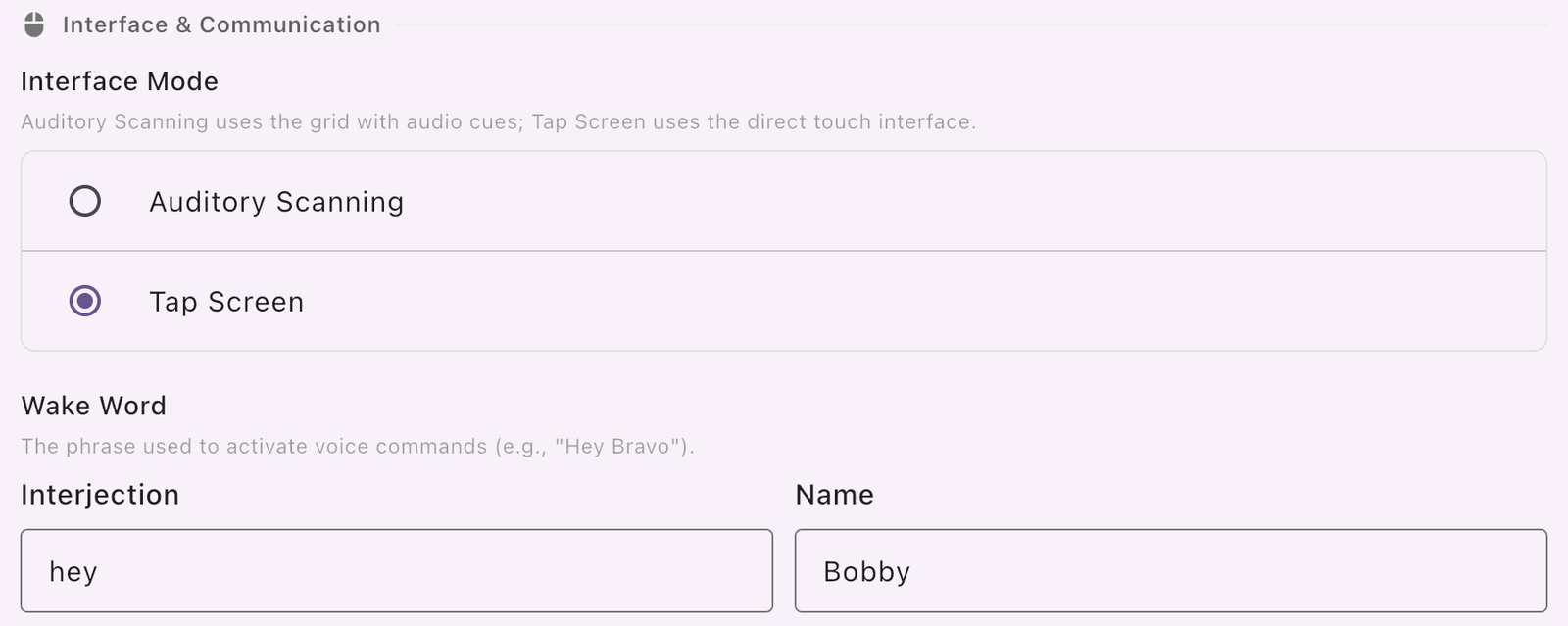
Interface Mode
Auditory Scanning or Tap Screen
Wake Word
An interjection plus a name, like “Hey Bobby”
Bravo University · 201 Updating Admin Settings
5
Global Settings
Vocabulary Level

Basic
“That was good.”
Advanced
“That was exemplary.”
Bravo University · 201 Updating Admin Settings
6
Global Settings
Mood Selection

Enable Mood Selection
On: Bravo asks how the user feels when the app starts
Manage Mood Options
Choose which moods appear in that window
Bravo University · 201 Updating Admin Settings
7
Global Settings
Managing mood options
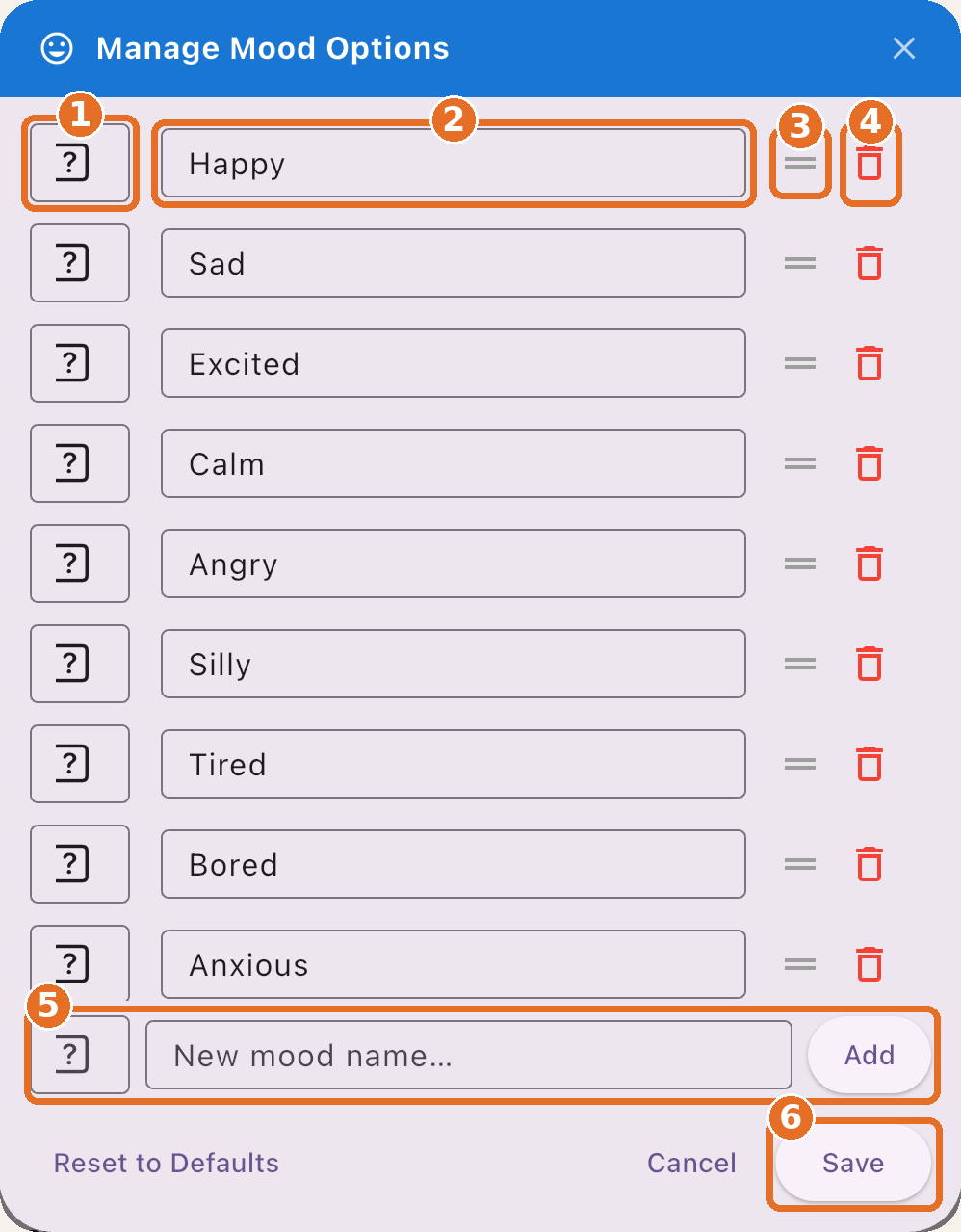
1
Change the picture
Tap the image box
2
Rename a mood
Edit the name
3
Move it
Drag the handle up or down
4
Delete it
Tap the trash can
5
Add a new mood
Type a name, then tap Add
6
Save
Or Reset to Defaults to start over
Bravo University · 201 Updating Admin Settings
8
Global Settings
Mascot

The face of the buttons
The character used in button images
Pick one that fits
Choose a mascot the user connects with
Bravo University · 201 Updating Admin Settings
9
Language & Voices
User Language

What it changes
The language of the options on screen
Includes AI
AI-generated options follow this language
To change the pre-defined boards, use the Page Admin tool
Bravo University · 201 Updating Admin Settings
10
Language & Voices
Partner Language

On screen
Hello
Spoken aloud
Hola
The two languages don’t need to match
Bravo University · 201 Updating Admin Settings
11
Language & Voices
Partner Voice
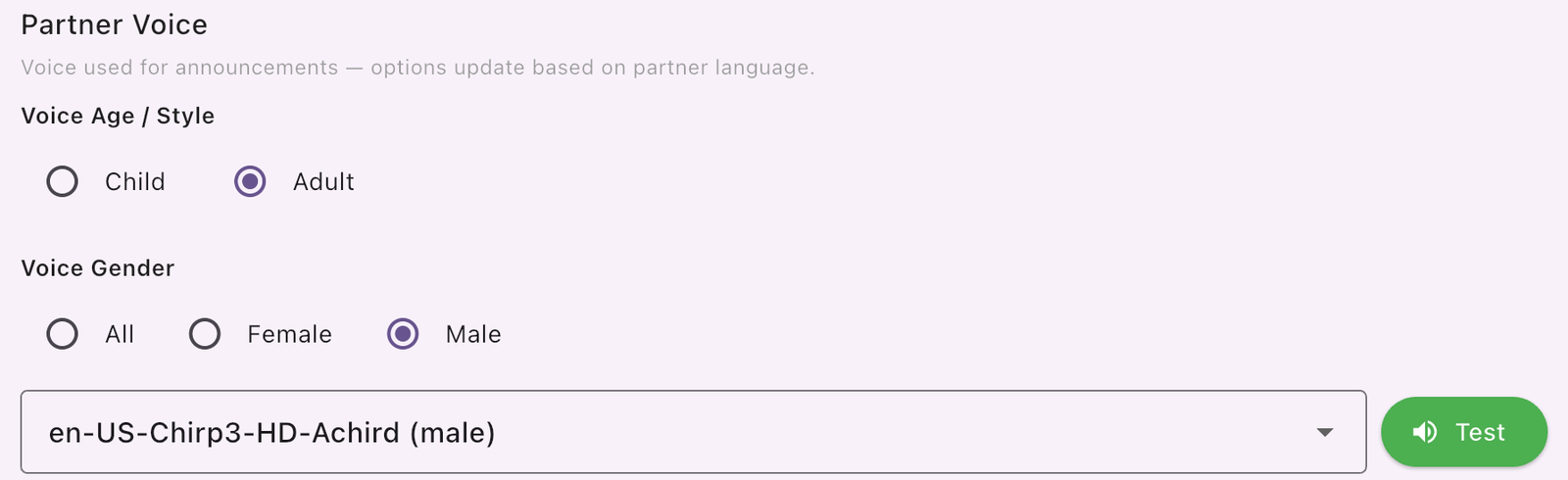
Chirp voices
More expressive and natural
Filter
By age and gender
Test
Hear a voice before you choose
Bravo University · 201 Updating Admin Settings
12
Language & Voices
Location Override Voices

At school
English voice
At home
Spanish voice
Pick a voice for each language, then choose it in the Location setting
Bravo University · 201 Updating Admin Settings
13
Audio Settings
Speech Rate

How fast Bravo speaks
Controls the speed of every announcement
Slow it down
If the user or partner needs more time to process
Bravo University · 201 Updating Admin Settings
14
Audio Settings
Volume Calibration

1
Tap the button
A short jingle plays
2
Adjust device volume
While the jingle plays
3
It saves
When the jingle stops
Personal: 3 / 10
Raise it in noisy places
System: 10 / 10
Recommended
Bravo University · 201 Updating Admin Settings
15
Profile Transfer
Export and import a profile
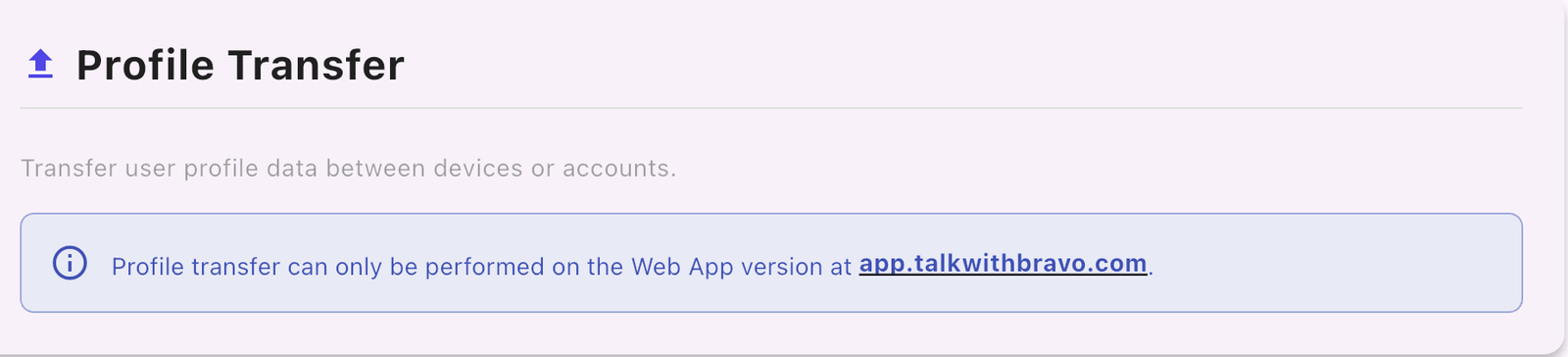
Export
Save a copy of the profile’s settings
Import
Load settings into a profile
Web App only: app.talkwithbravo.com
Bravo University · 201 Updating Admin Settings
16
Security
Change the Admin PIN
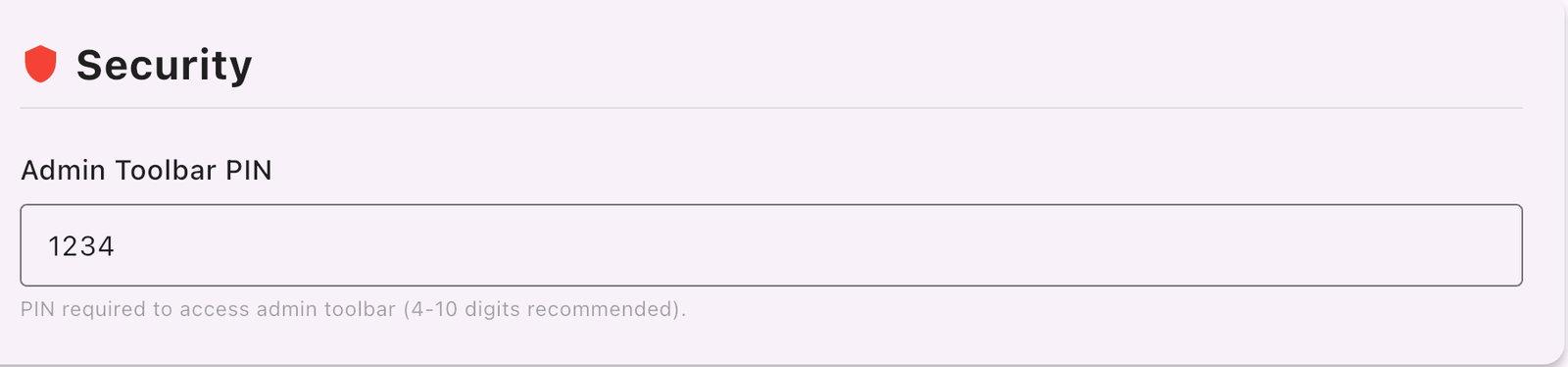
Default PIN is 1234
Everyone knows it
Change it
Choose a PIN only the adults know
Bravo University · 201 Updating Admin Settings
17
Account Settings
Access and support
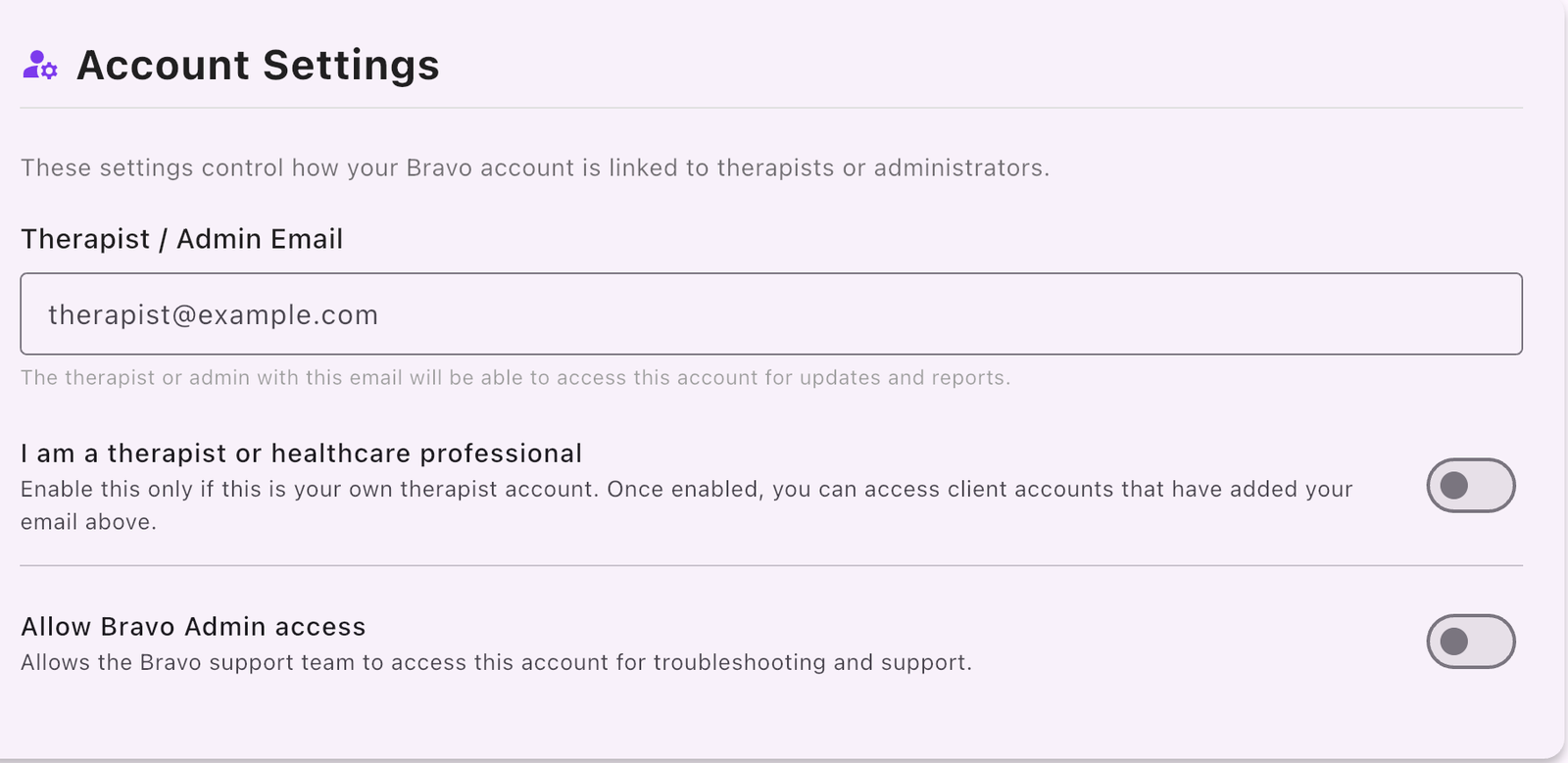
Therapist / Admin Email
Grants access without sharing the password
I am a Therapist
Turn on to access a client’s account
Allow Bravo Admin access
Lets Bravo support help; switch anytime
Bravo University · 201 Updating Admin Settings
18
Recap
Six sections, one restart
Section
What it controls
Global Settings
Interface, Wake Word, vocabulary, mood, mascot
Language & Voices
On-screen language, spoken language, voices
Audio Settings
Speech rate and volume
Profile Transfer
Export and import (Web App)
Security
Admin PIN
Account Settings
Therapist and support access
Restart the app after any change
Bravo University · 201 Updating Admin Settings
19