Bravo University · Course 202 · Admin Tools
Changing Global Settings on the Tap Interface
Grid layout, the dynamic row, sight words and pictograms

Getting in
Opening the Tap Interface Admin
1
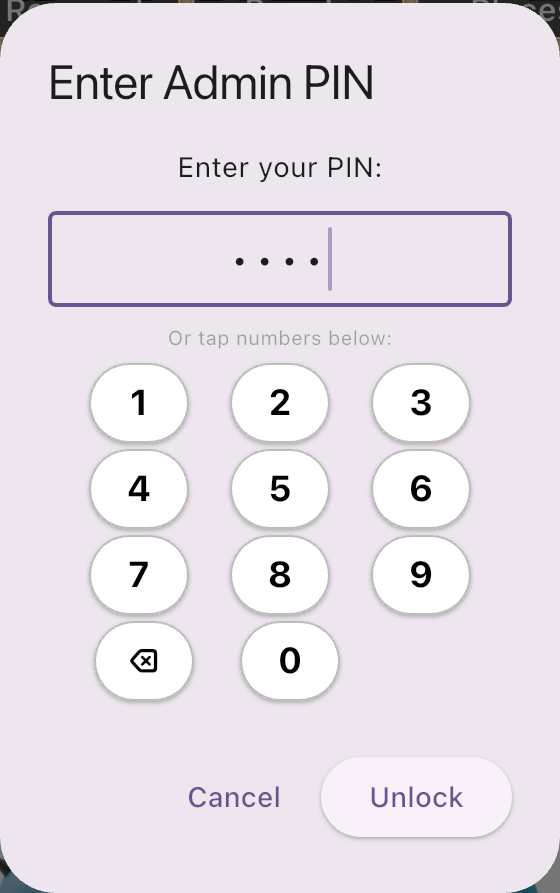
Press and hold the Lock icon
For 3 seconds
2
Enter the Admin PIN
The default is 1234
3
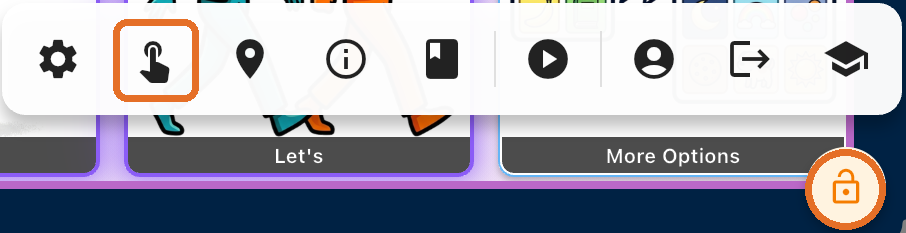
Tap the Tap Interface Admin icon
The finger tapping the screen

Bravo University · 202 Tap Interface Global Settings
2
The layout
Six sections
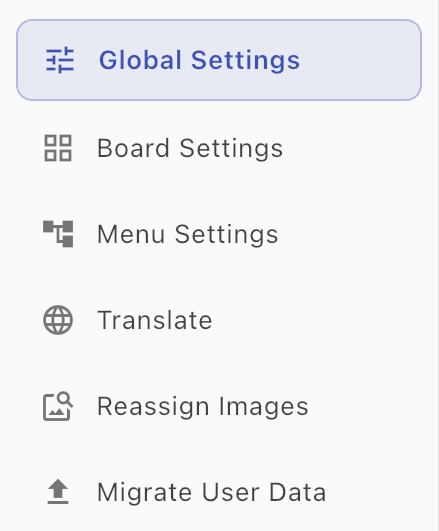
Global Settings
This lesson
Board Settings
Its own lesson
Menu Settings
Translate
Reassign Images
Migrate User Data
Bravo University · 202 Tap Interface Global Settings
3
Grid Layout
How many buttons, how big

Buttons per Row
How many buttons across
Word Rows
How many rows of buttons
Start with fewer buttons. Add more as the user becomes comfortable and proficient.
Bravo University · 202 Tap Interface Global Settings
4
Grid Layout
The buttons fill the screen
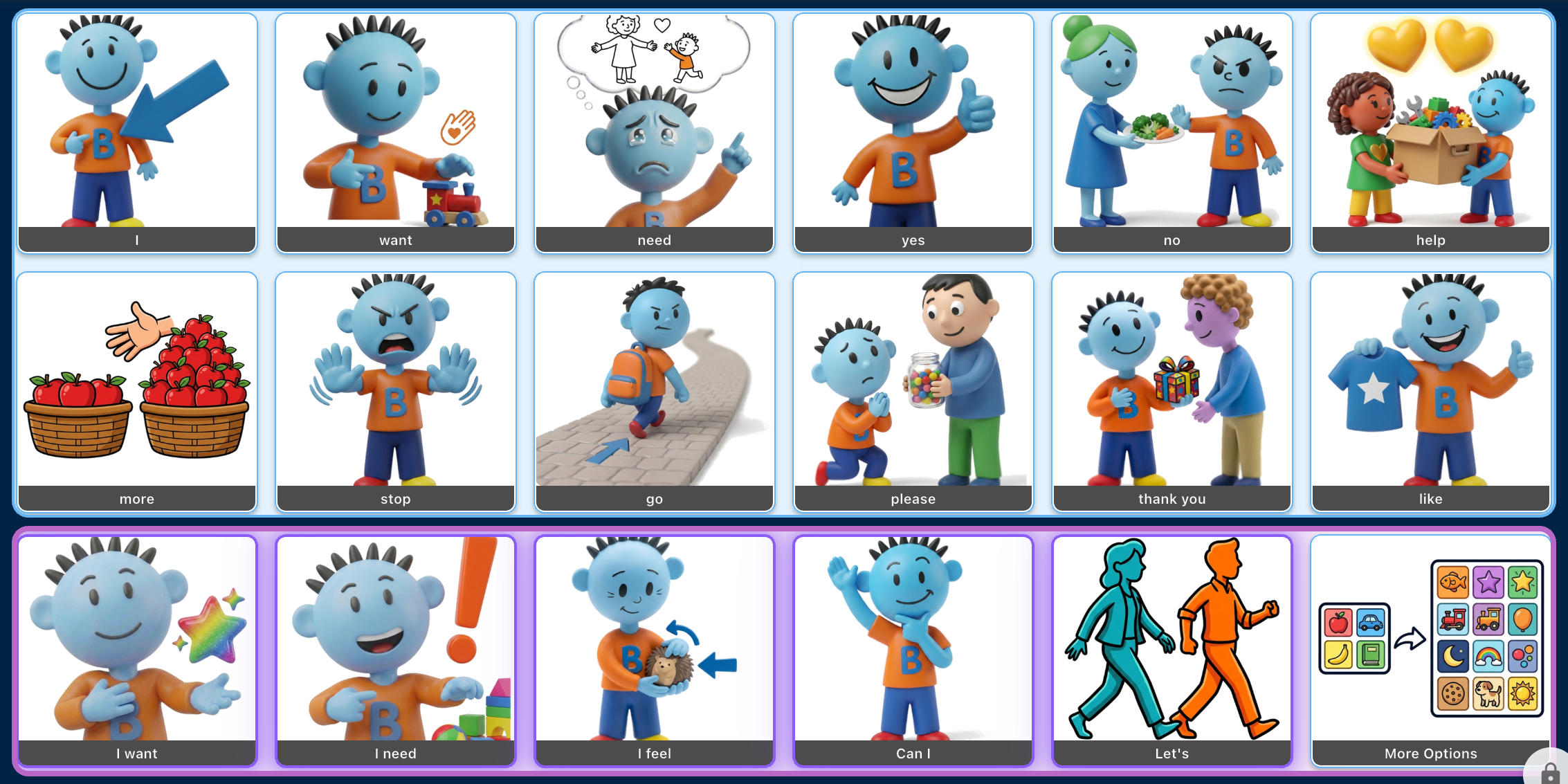
6 per row × 3 rows
The layout shown here
Sized automatically
Buttons grow or shrink to fill the screen
More buttons
Means smaller buttons
Bravo University · 202 Tap Interface Global Settings
5
Grid Layout
Boards split into pages
30
buttons on
a board
Page 1
Page 2
Page 3
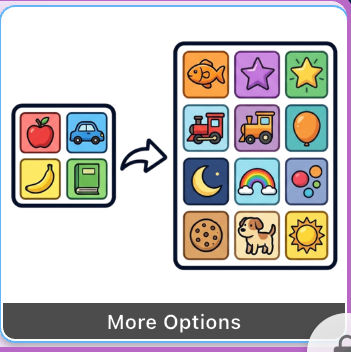
More Options
Showing 10 buttons at a time? The user taps More Options to move to the next page.
Bravo University · 202 Tap Interface Global Settings
6
Grid Layout
Include Dynamic Row

Row 1 · Static
Row 2 · Static
Row 3 · Dynamic (AI)
The dynamic row takes one of your rows
Bravo University · 202 Tap Interface Global Settings
7
Grid Layout
How the dynamic row decides
Speech History
“I want to eat”
Saved context
Dynamic row offers
Loves cheeseburgers
pizza
a cheeseburger
Has a sweet tooth
candy
AI uses the current Speech History plus saved context
Bravo University · 202 Tap Interface Global Settings
8
Sight Words & Pictograms
Enable Sight Word Logic

I can go
Only sight words:
no picture, bold red text
Other options
keep their picture
Builds sight word recognition
Bravo University · 202 Tap Interface Global Settings
9
Sight Words & Pictograms
Sight Words Grade Level
Dolch sight words
The standard lists the levels are based on
Pick a level
Defines which words count as sight words
Move it up
As the user masters the current list
Works with Sight Word Logic: words at or below this level appear as text only
Bravo University · 202 Tap Interface Global Settings
10
Sight Words & Pictograms
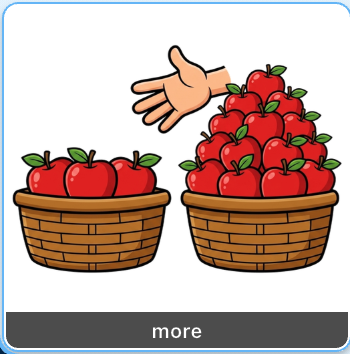
Disable Tap Interface Pictograms

Off
more
On: larger text
For users who can read the options
Bravo University · 202 Tap Interface Global Settings
11
Recap
Global Settings at a glance
Setting
What it does
Buttons per Row · Word Rows
How many buttons show, and how big
Include Dynamic Row
An AI row from Speech History and context
Enable Sight Word Logic
Sight-word-only options in bold red text
Sight Words Grade Level
Which Dolch words count
Disable Pictograms
Text only, larger and easier to read
Tap Save Settings when you’re done
Bravo University · 202 Tap Interface Global Settings
12