Bravo University · Course 203 · Admin Tools
Changing and Adding Boards and Buttons
Board Settings on the Tap Interface

Getting in
Opening Board Settings
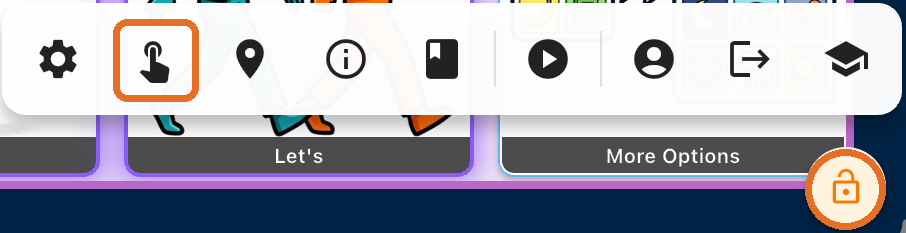
1
Press and hold the Lock icon
For 3 seconds
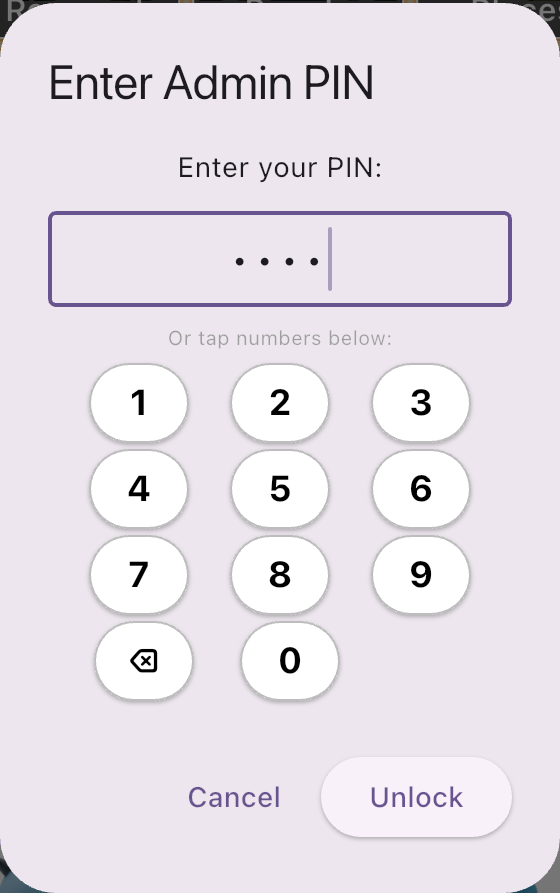
2
Enter the Admin PIN
3
Tap the Tap Interface Admin icon
The finger tapping the screen
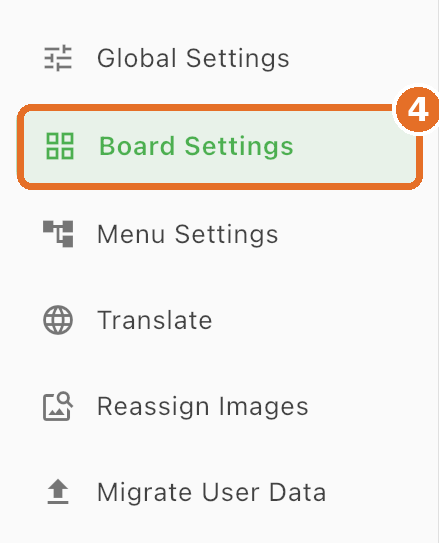
4
Tap Board Settings
In the menu on the left

Bravo University · 203 Changing and Adding Boards and Buttons
2
Board Settings
Your starting point
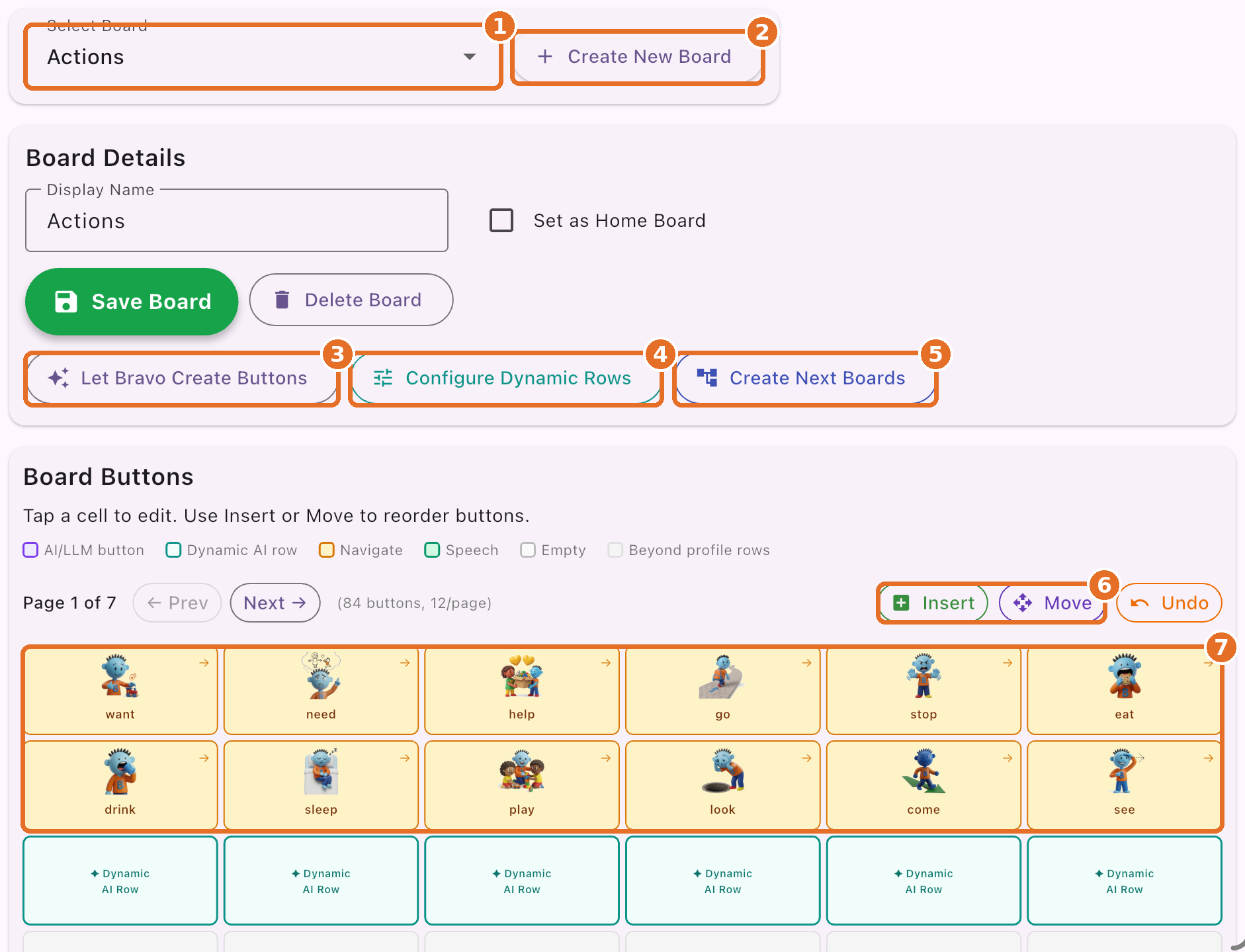
1
Select Board
Pick a board to edit
2
Create New Board
3
Let Bravo Create Buttons
4
Configure Dynamic Rows
5
Create Next Boards
6
Insert and Move
7
The board’s buttons
Tap one to edit it
Bravo University · 203 Changing and Adding Boards and Buttons
3
Create New Board
Name it, then choose how to build it
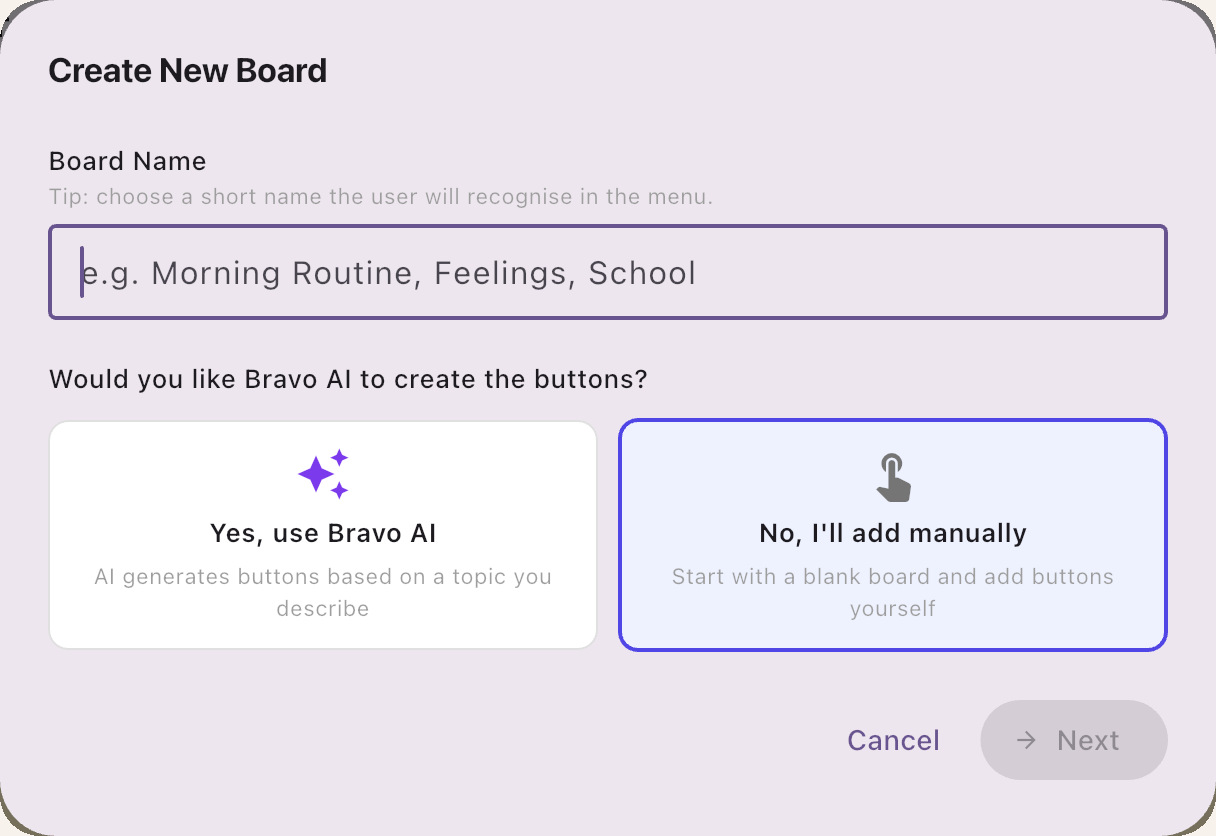
Build it yourself
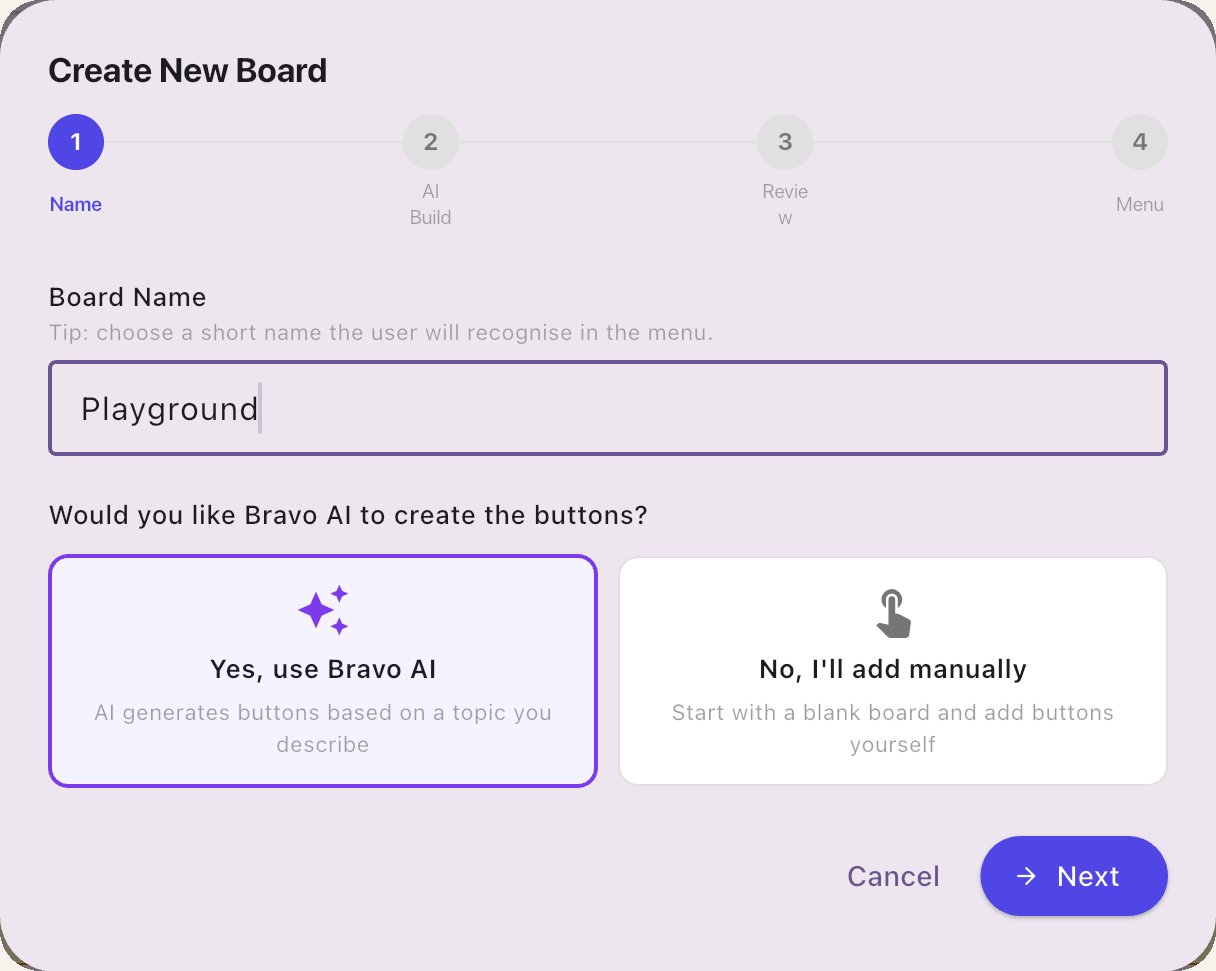
Or let Bravo AI build it
Bravo University · 203 Changing and Adding Boards and Buttons
4
Create with AI
What is this board about?
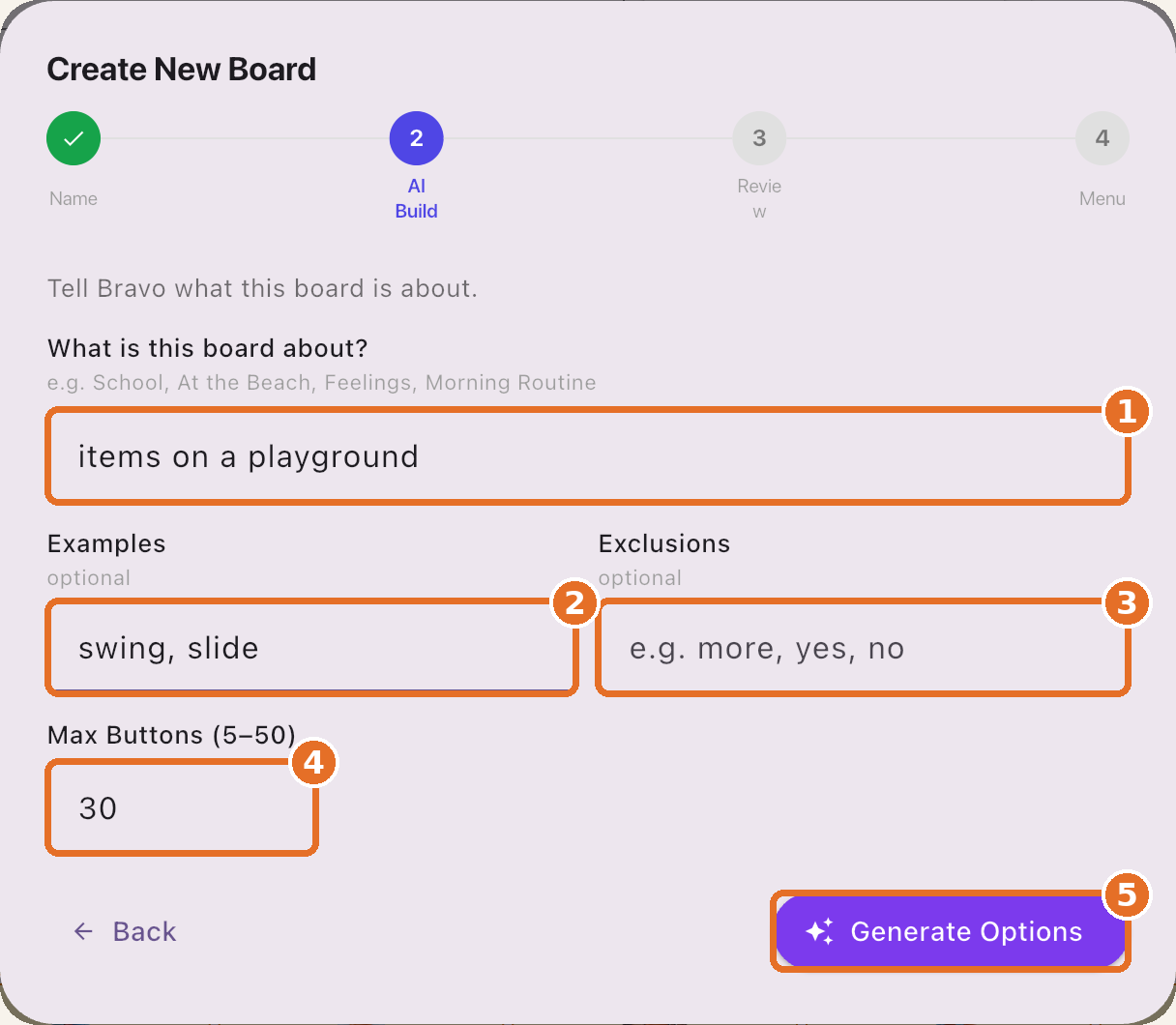
Simple or specific
candy
rides at Walt Disney World’s Magic Kingdom
Add a few examples for better results
Bravo University · 203 Changing and Adding Boards and Buttons
5
Create with AI
Examples, exclusions and limits
1
Subject
What the board is about
2
Examples
Values you’d like to see
3
Exclusions
Anything to leave out
4
Max Buttons
The most AI will create; it may make fewer
5
Generate Options
Runs the AI
Bravo University · 203 Changing and Adding Boards and Buttons
6
Create with AI
Review the buttons
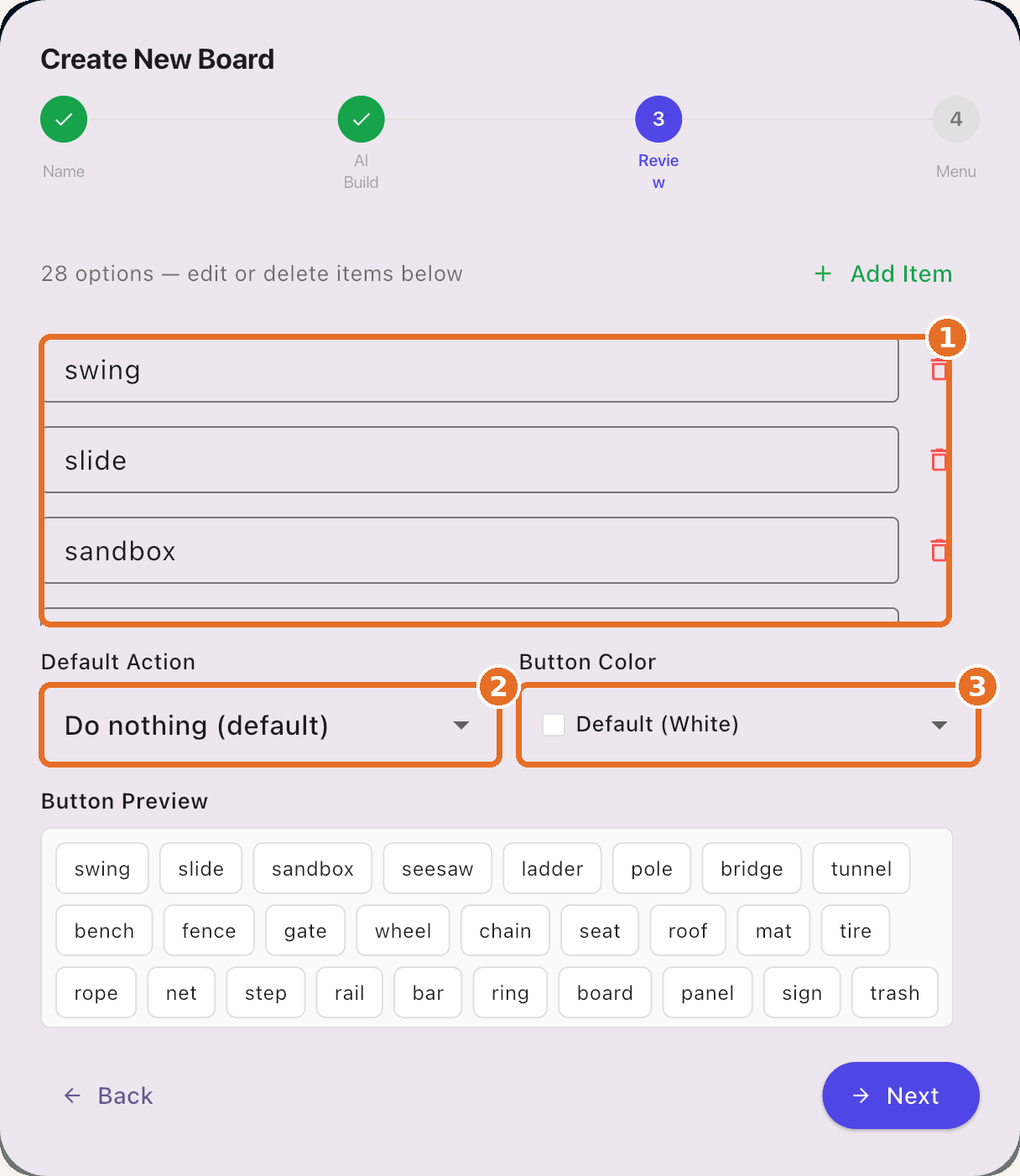
1
Edit, move or delete
Or add your own with Add Item
2
Default Action
What happens after a button is selected
3
Button Color
The default background color
Nothing is final: you can change any button later
Bravo University · 203 Changing and Adding Boards and Buttons
7
Create New Board
Where will the board live?
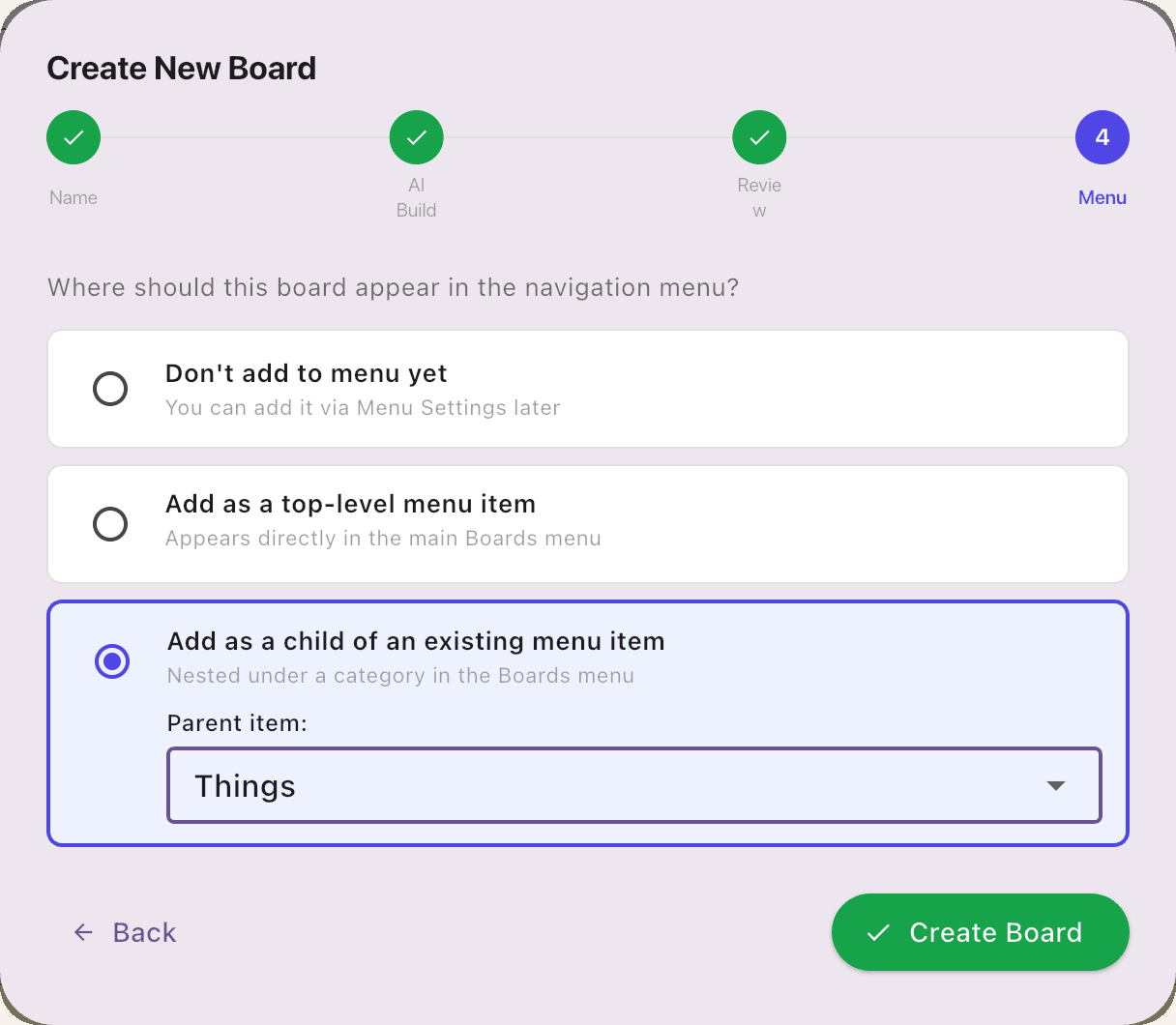
Don’t add yet
Add it later in Menu Settings
Top-level menu item
Right in the main Boards menu
Child of a menu item
Nested under a category, like Things
Bravo University · 203 Changing and Adding Boards and Buttons
8
Create New Board
Your new board
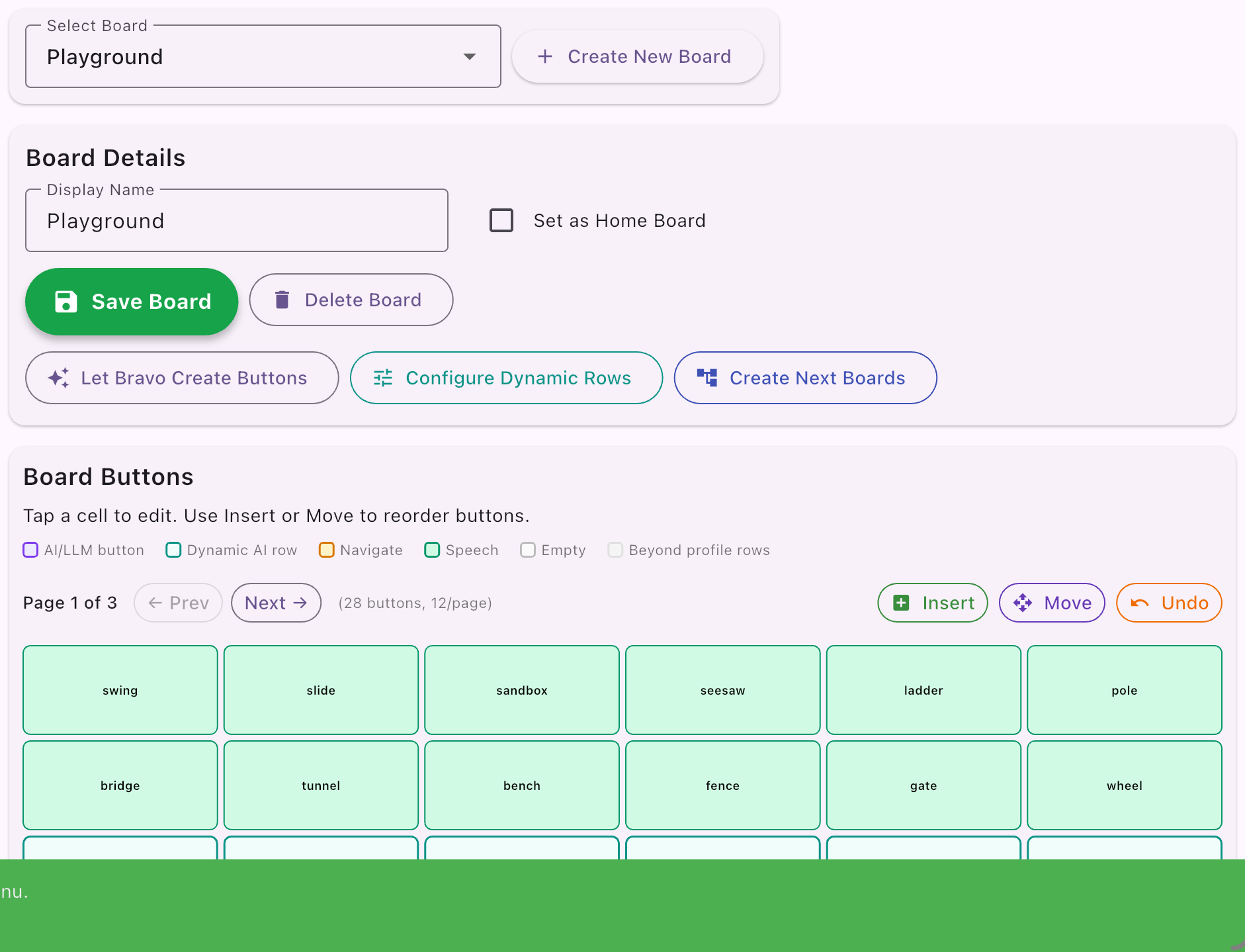
Added to the menu
“Playground” added to the menu
Paginated for you
28 buttons, 12 per page, 3 pages
Edit any time
Change it whenever you like
Bravo University · 203 Changing and Adding Boards and Buttons
9
Existing boards
Let Bravo Create Buttons
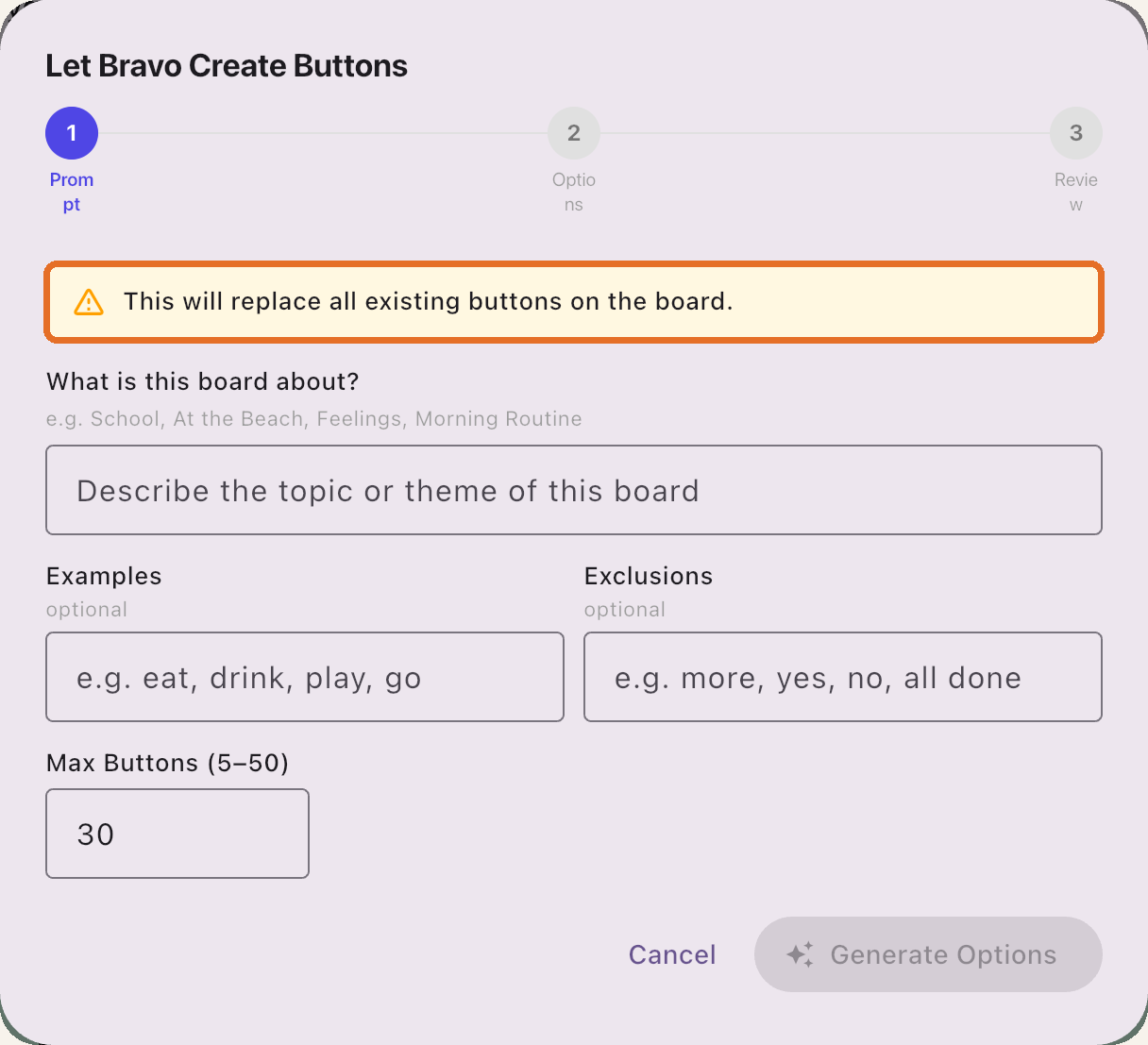
This replaces all the existing buttons on the board
Same as creating a board
Subject, examples, exclusions, max buttons
Bravo University · 203 Changing and Adding Boards and Buttons
10
Existing boards
Prompt, options, review
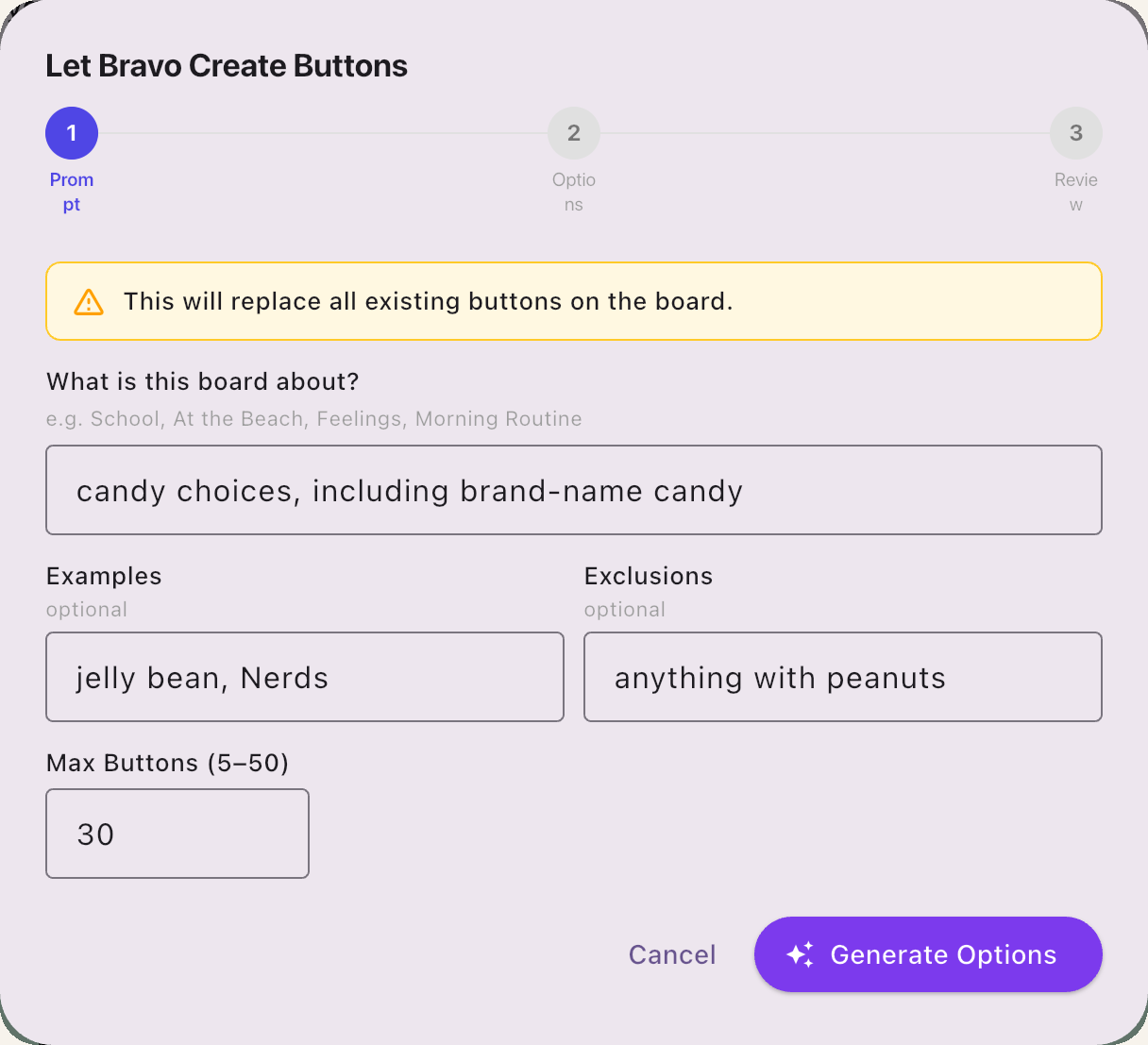
1 · Prompt
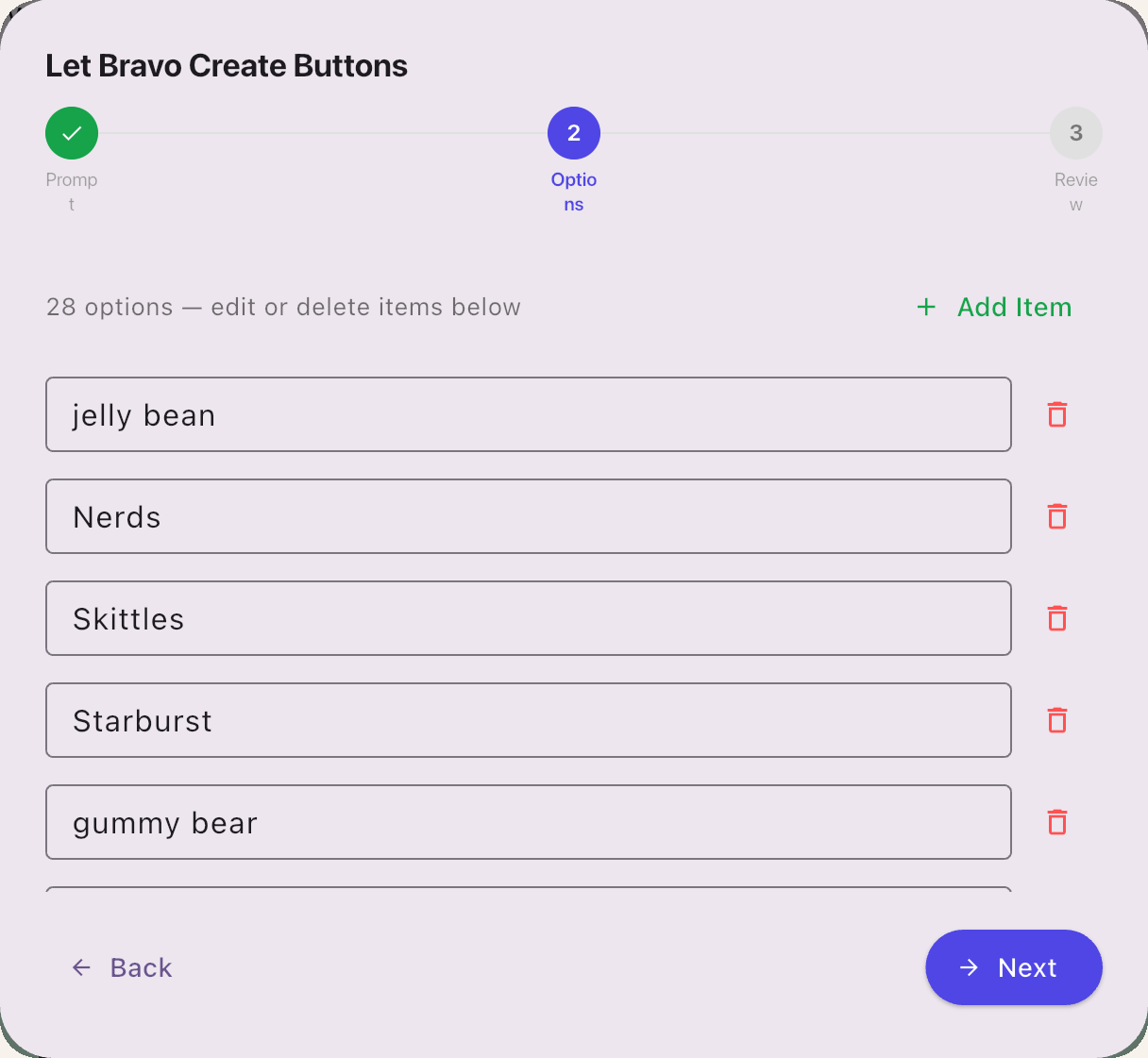
2 · Options
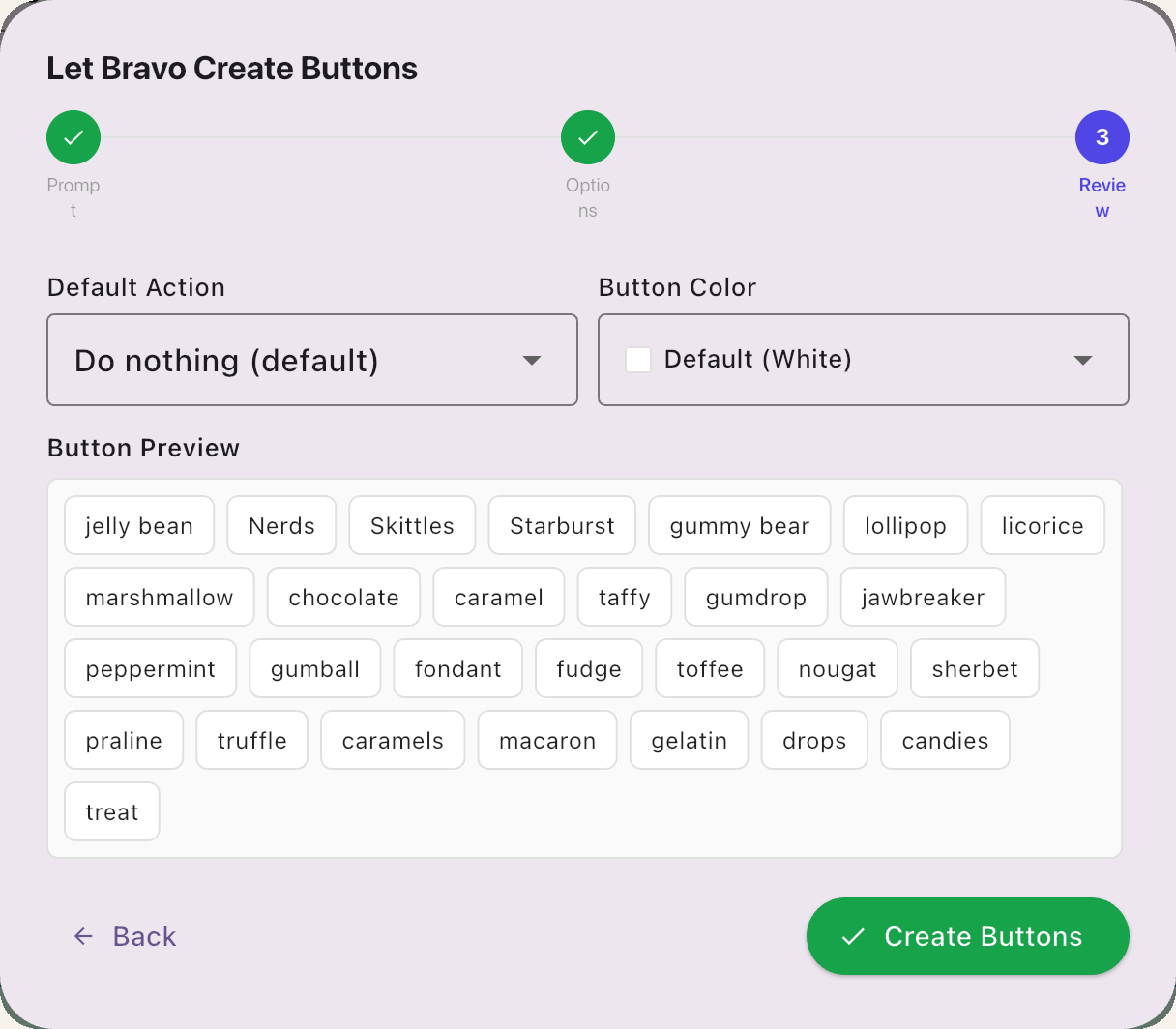
3 · Review
Example: “candy choices, including brand-name candy” · examples “jelly bean, Nerds” · excluding “anything with peanuts”
Bravo University · 203 Changing and Adding Boards and Buttons
11
Existing boards
Configure Dynamic Rows
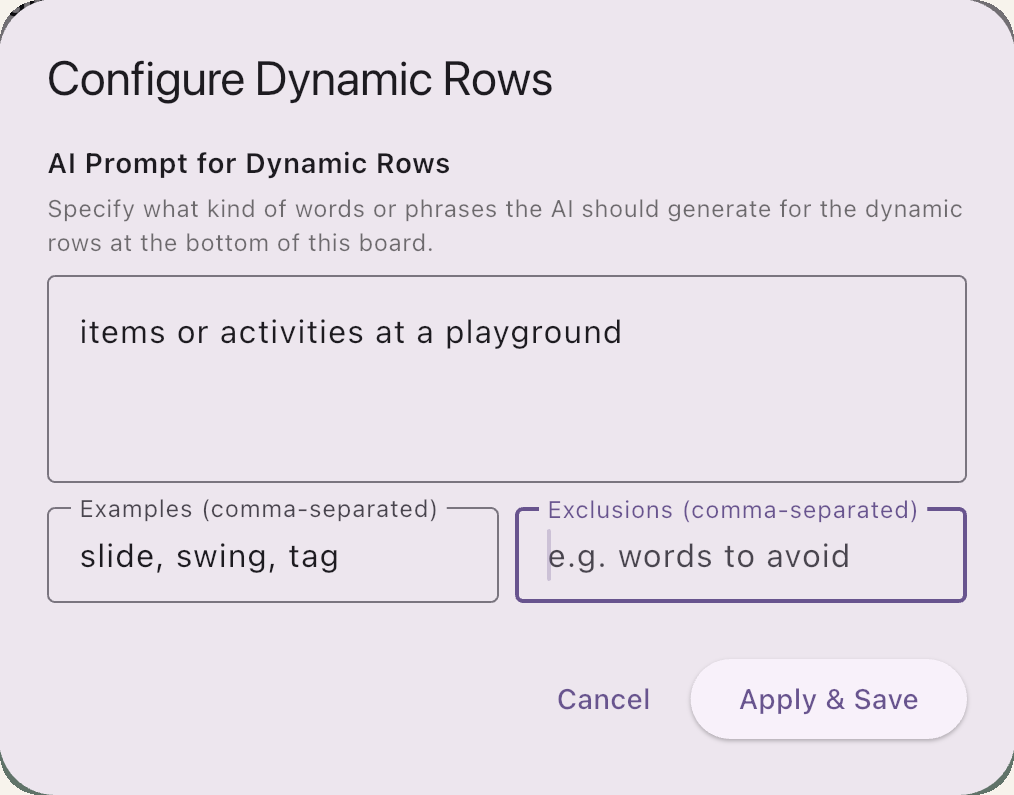
The prompt for the dynamic row
Subject, examples and exclusions, like the static buttons
Consistent
Match the static buttons
Or different
To offer more options
Bravo University · 203 Changing and Adding Boards and Buttons
12
Existing boards
Create Next Boards
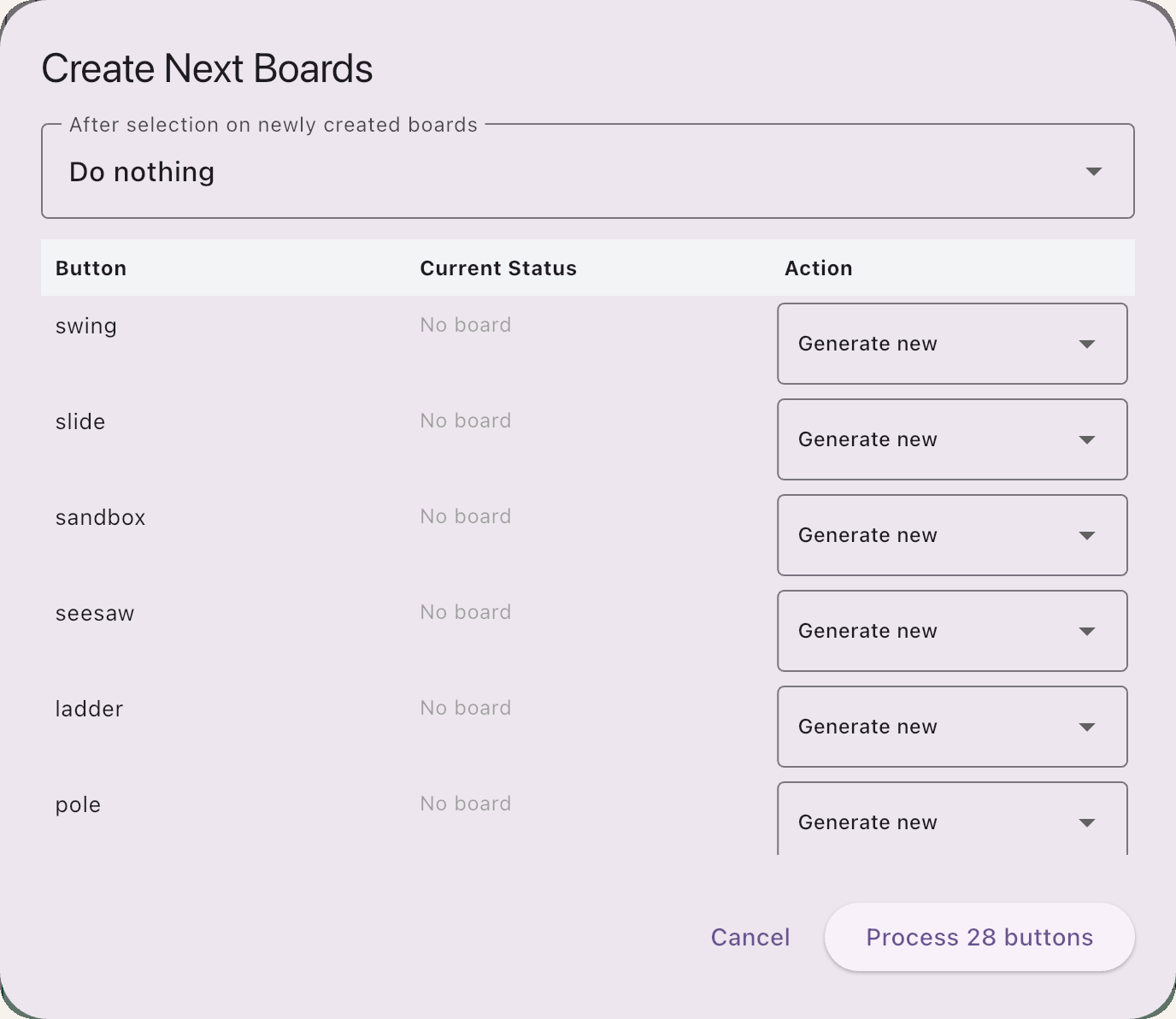
want
New “want” board
to go
to eat
to play
Runs for every button
On the selected board
Board already exists?
Use the existing board, or generate a new one
Bravo University · 203 Changing and Adding Boards and Buttons
13
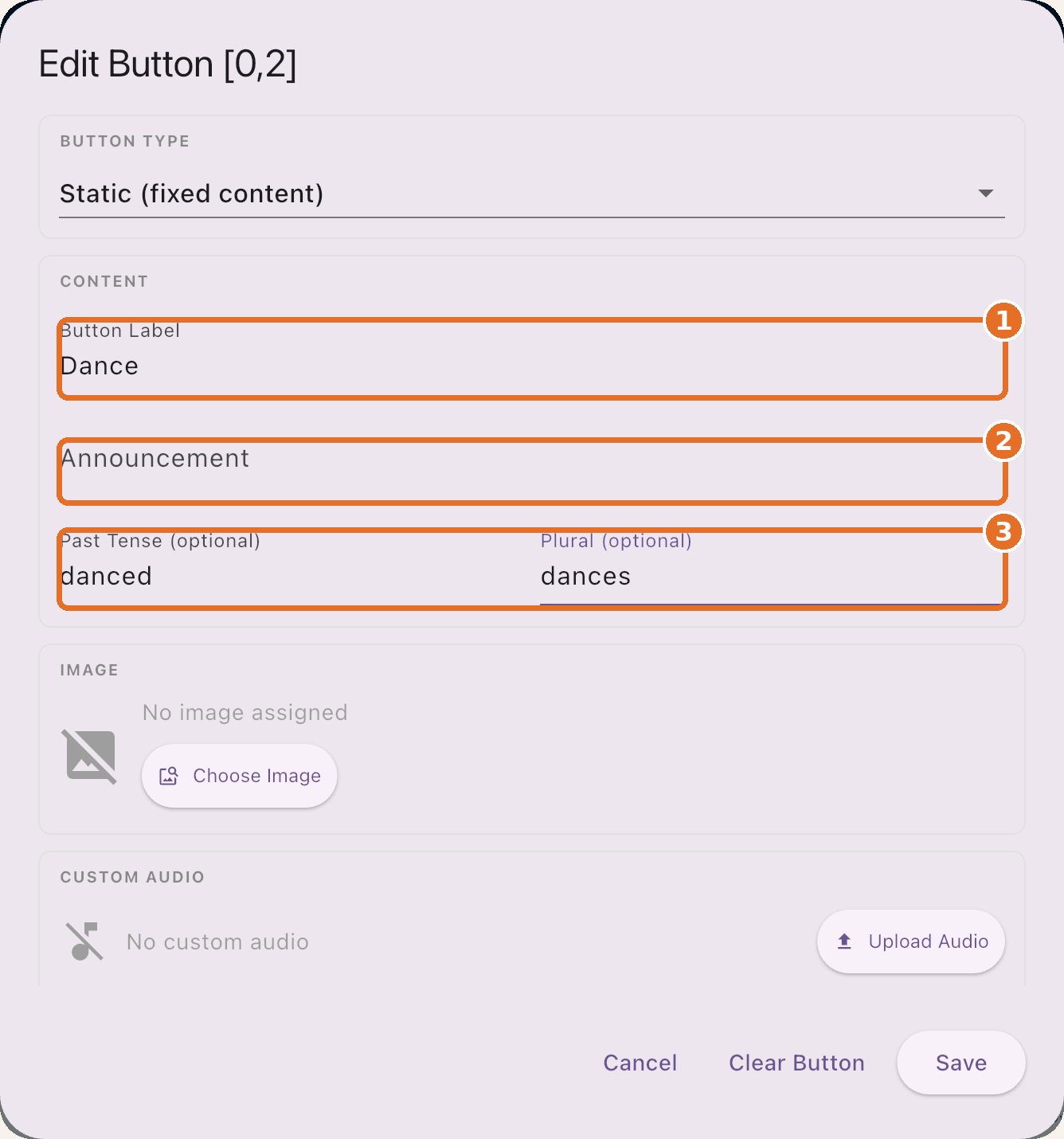
Edit Button
Label, announcement and word forms
1
Button Label
The text shown. Also used to find an image if none is assigned
2
Announcement
What’s spoken when selected. Blank = the label
3
Past Tense · Plural
Shown when the Past Tense or Plural buttons are used
Bravo University · 203 Changing and Adding Boards and Buttons
14
Edit Button
What gets announced
Button Label
Announcement
Bravo says
Dance
(blank)
“Dance”
Dance
I want to dance
“I want to dance”
A short label on the button, a full sentence out loud
Bravo University · 203 Changing and Adding Boards and Buttons
15
Edit Button
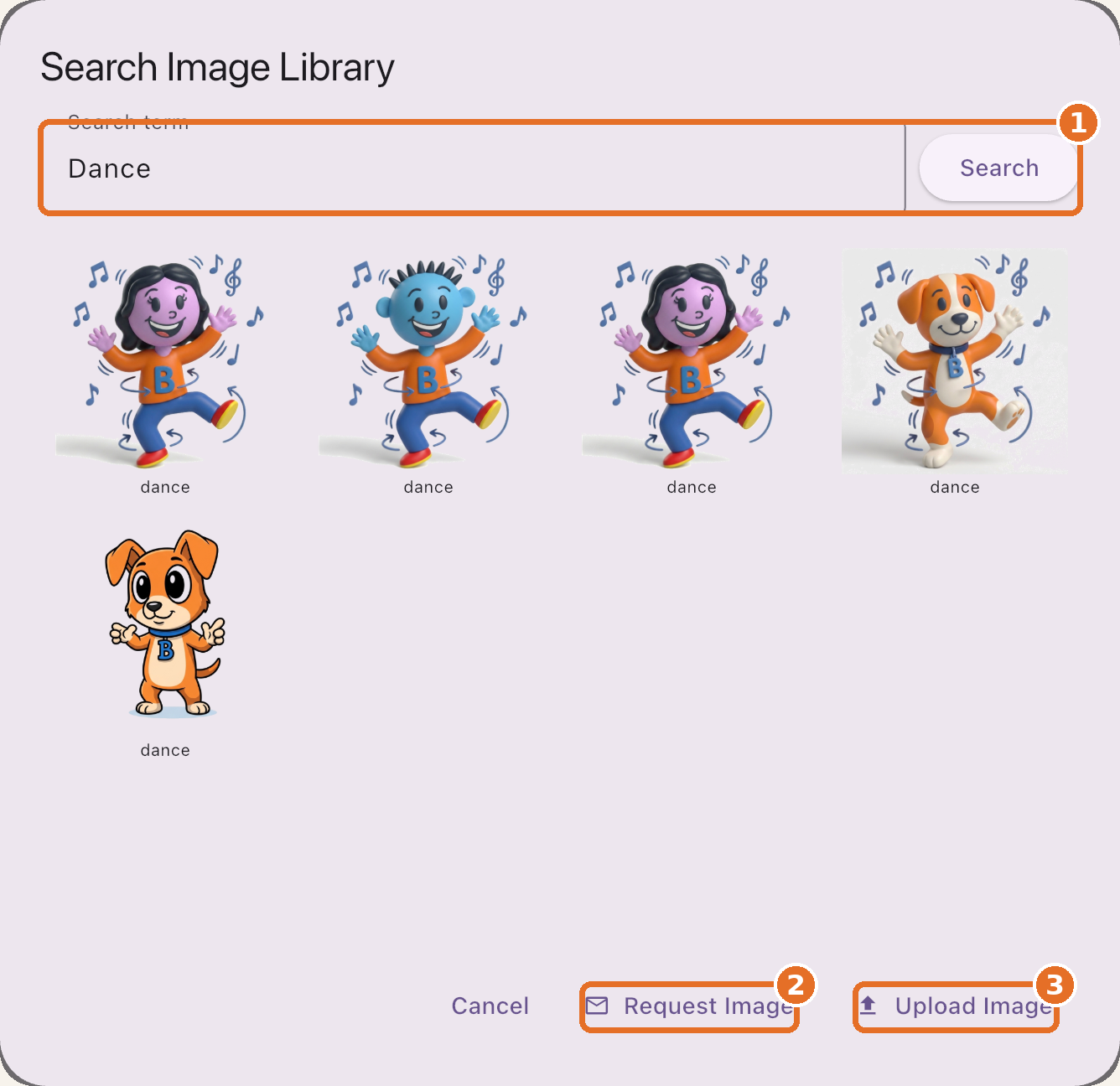
Choosing an image
1
Search the library
Find the image that best shows the term
2
Request Image
Ask the Bravo team to create a new one
3
Upload Image
Use your own image
Left empty? Bravo assigns an image when the board loads
Bravo University · 203 Changing and Adding Boards and Buttons
16
Edit Button
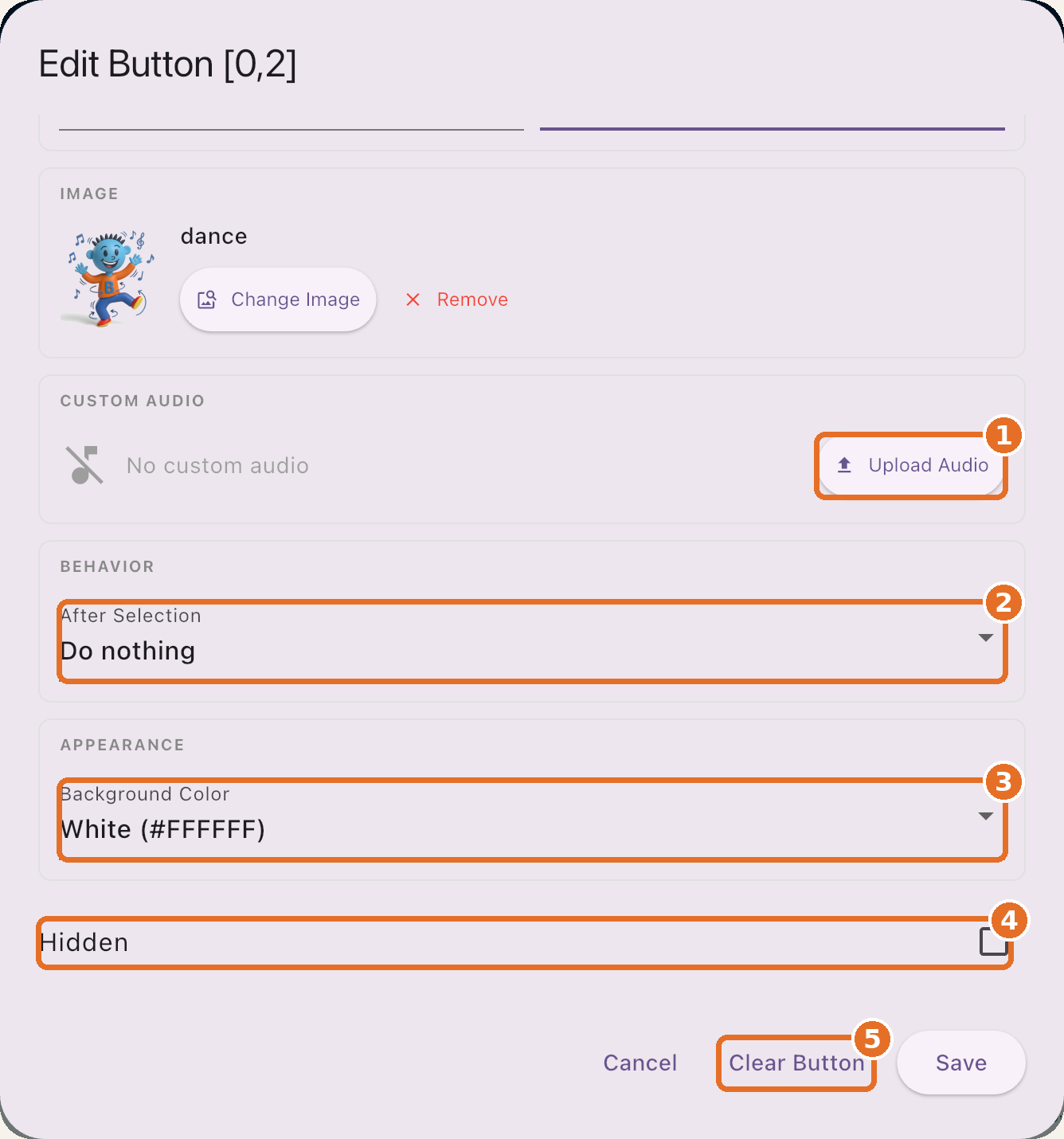
Audio, behavior and appearance
1
Upload Audio
An MP3 that plays instead of the announcement
2
After Selection
What navigation happens, if any
3
Background Color
The button’s color
4
Hidden
Hide it without deleting it
5
Clear Button
Removes the button
Bravo University · 203 Changing and Adding Boards and Buttons
17
Board Buttons
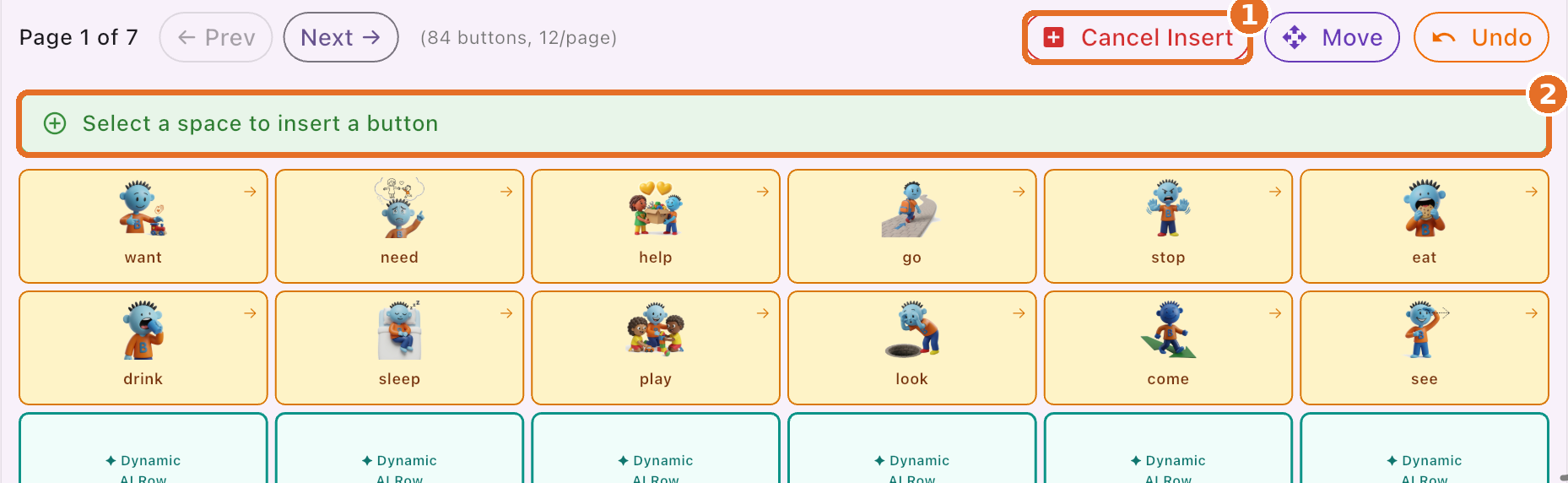
Insert a button
1
Tap Insert
2
Select a space
Where the new button goes
3
Define the button
Same Edit Button settings
Bravo University · 203 Changing and Adding Boards and Buttons
18
Board Buttons
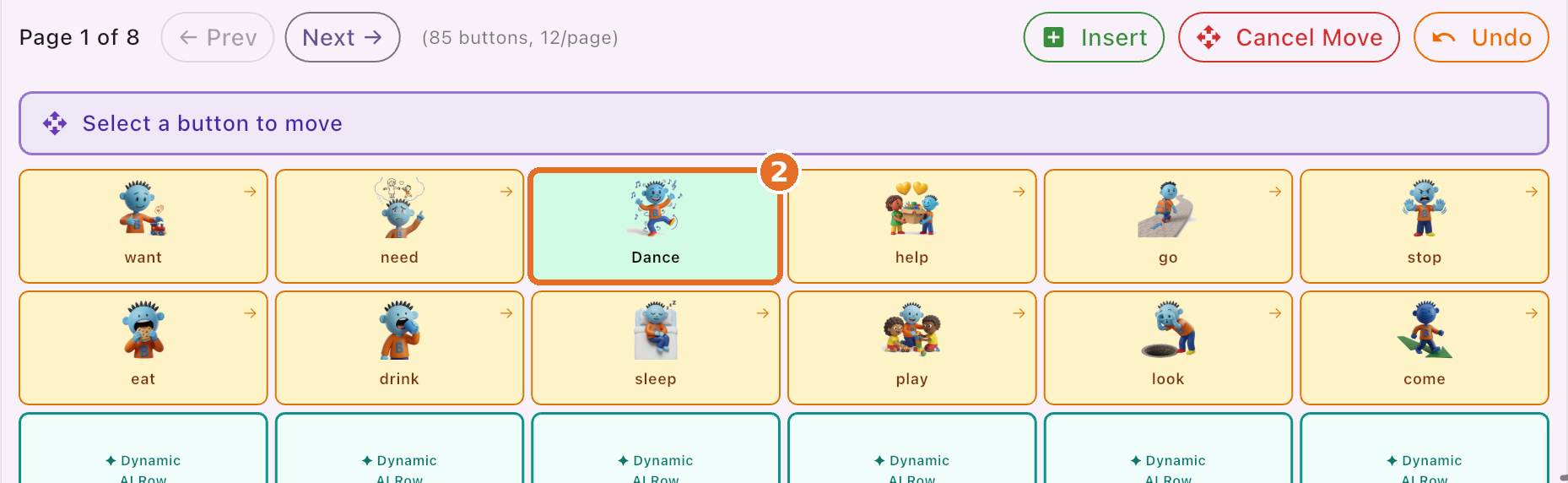
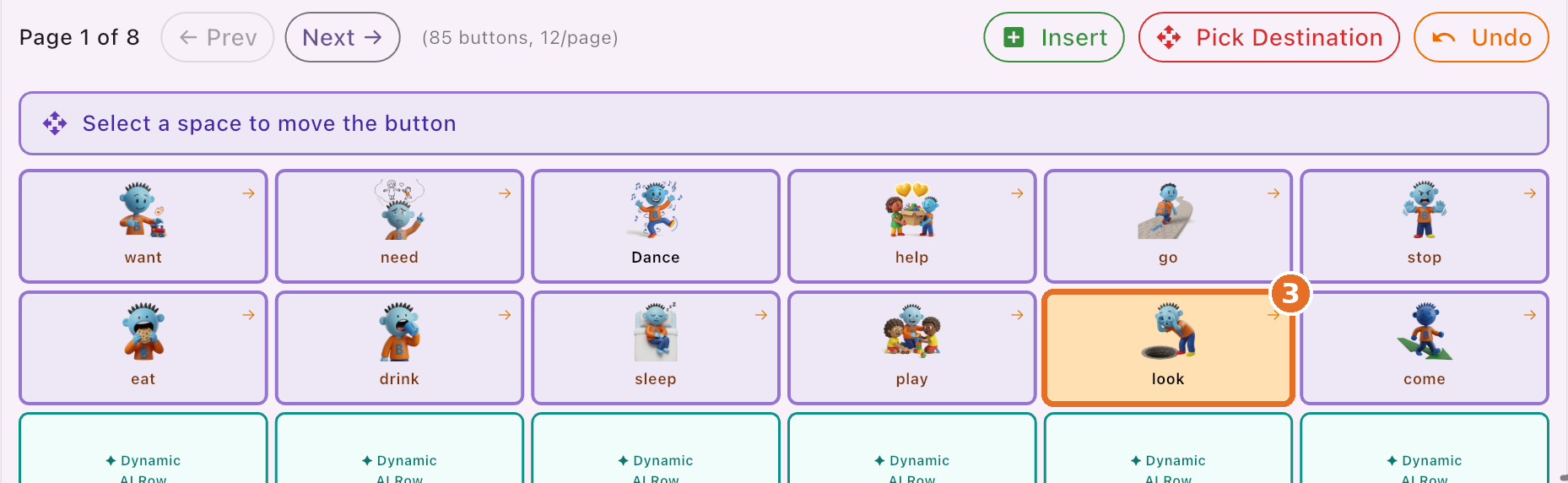
Move a button
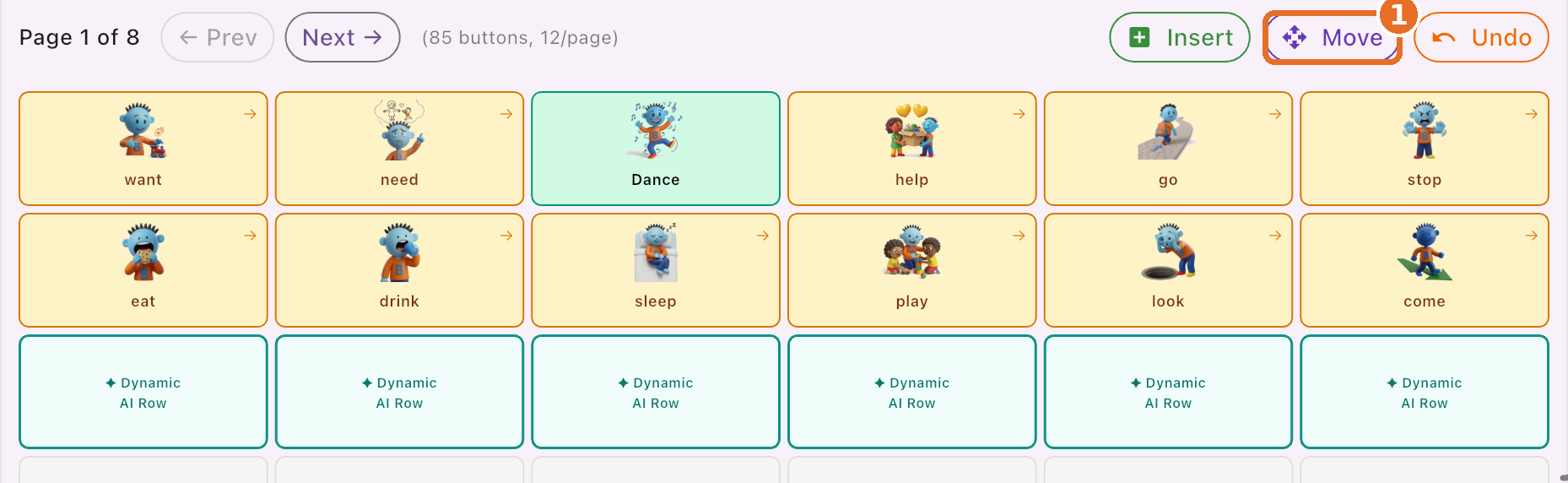
1
Tap Move
2
Select the button to move
3
Select the space to move it to
Buttons can move between pages
Bravo University · 203 Changing and Adding Boards and Buttons
19
Recap
Boards and buttons at a glance
Tool
What it does
Create New Board
Name it, build by hand or with AI, choose its menu spot
Let Bravo Create Buttons
AI rebuilds an existing board’s buttons
Configure Dynamic Rows
The prompt behind the dynamic row
Create Next Boards
A follow-up board for every button
Edit Button
Label, announcement, image, audio, color
Insert · Move
Add a button or rearrange across pages
Bravo University · 203 Changing and Adding Boards and Buttons
20