Bravo University · Course 204 · Admin Tools
Menu Settings
How the user gets to every board

Getting in
Opening Menu Settings
1
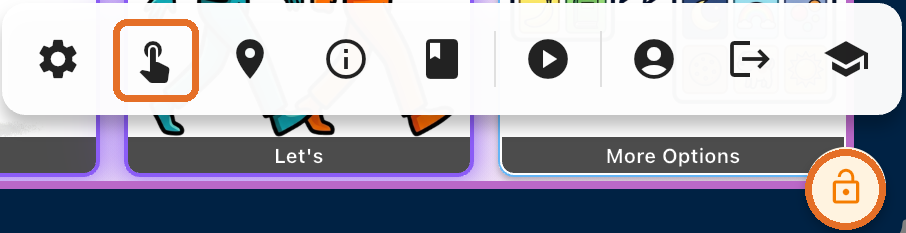
Press and hold the Lock icon
For 3 seconds
2
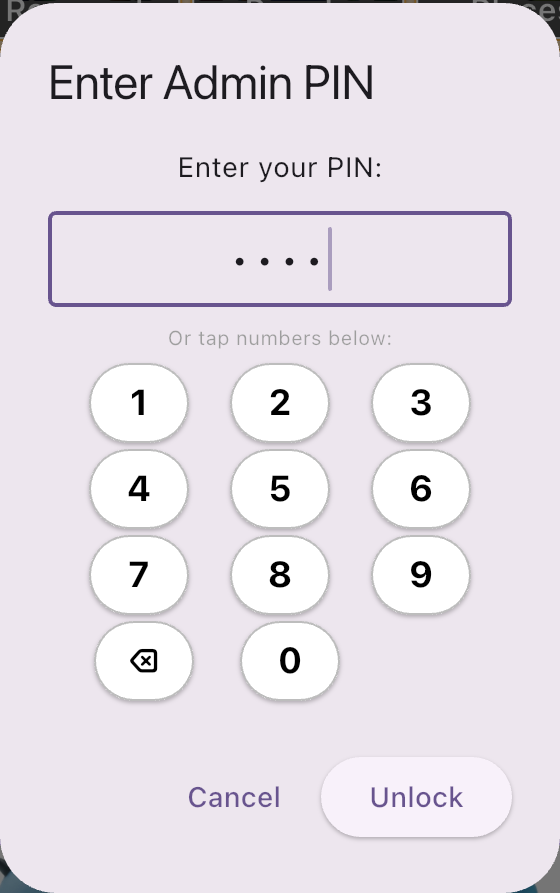
Enter the Admin PIN
3
Tap the Tap Interface Admin icon
The finger tapping the screen
4
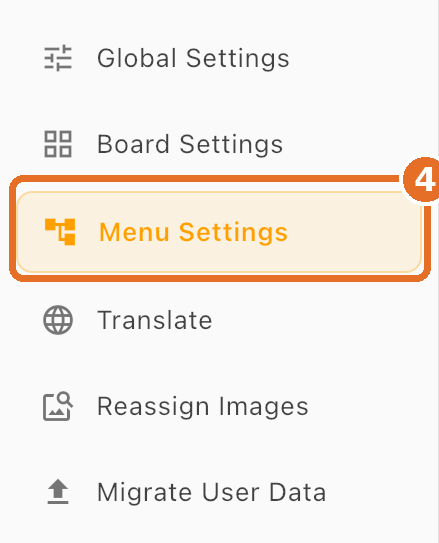
Tap Menu Settings
In the menu on the left

Bravo University · 204 Menu Settings
2
How menus work
Two kinds of menu items
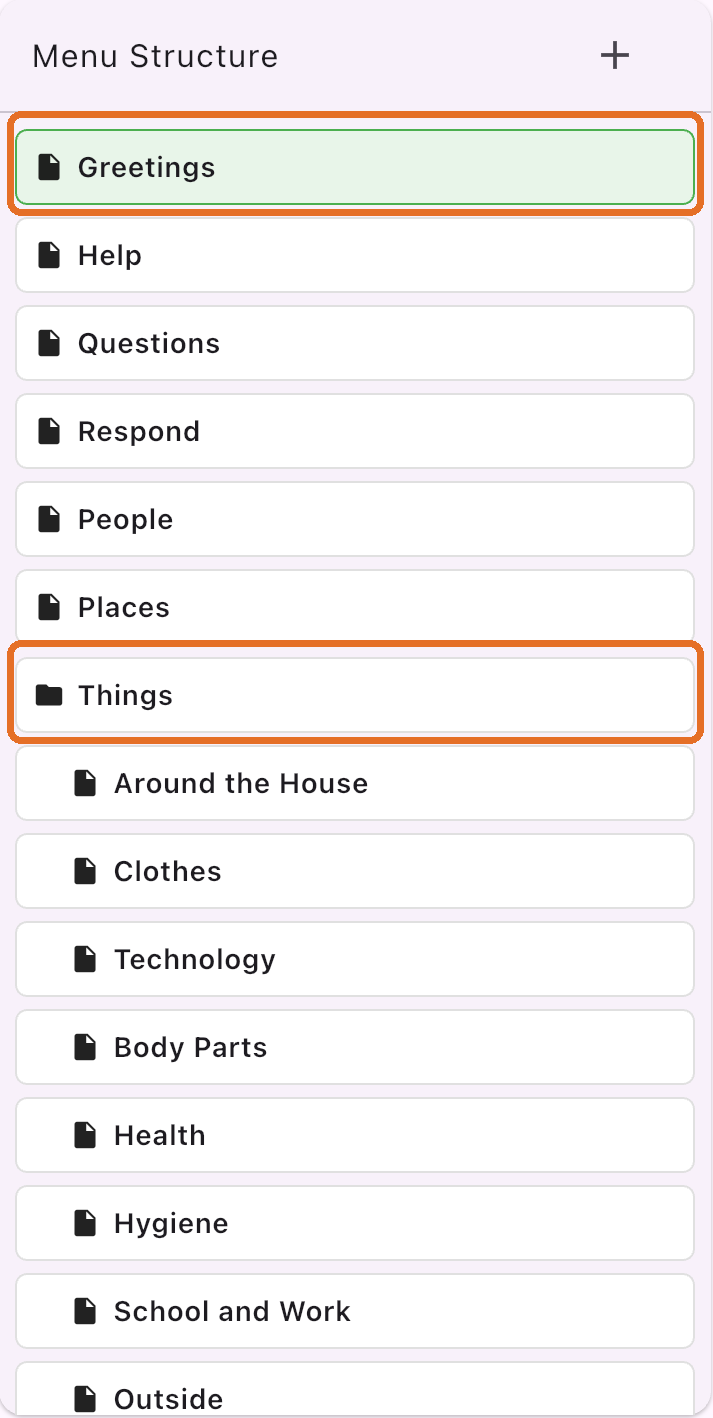
Opens a board
Like Greetings: tap it and the Greetings board opens
Holds other menus
Like Things: it contains Around the House, Clothes, Technology and more
Menus are how the user navigates to every board
Bravo University · 204 Menu Settings
3
Edit Menu Item
Label, board and speech
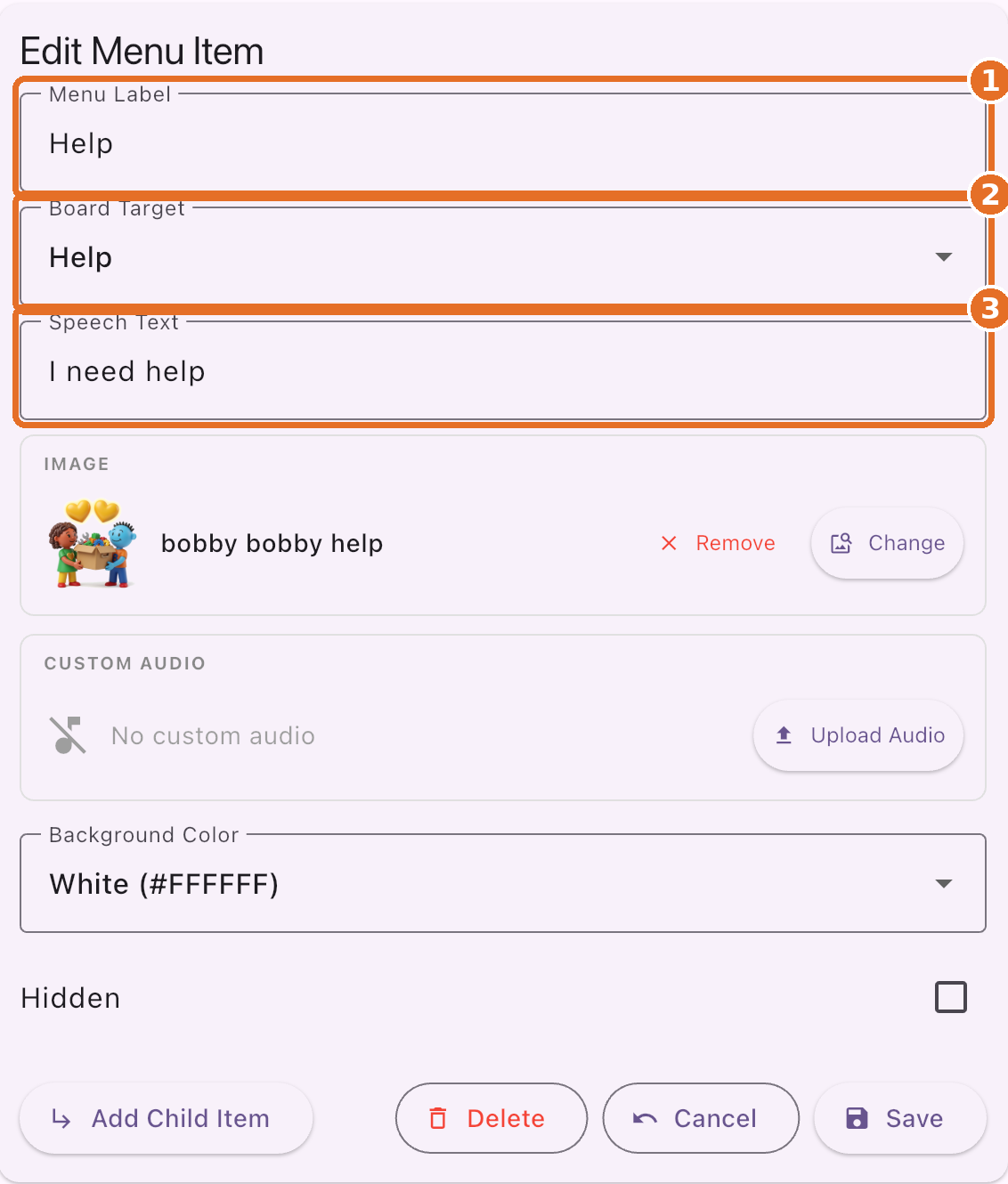
1
Menu Label
The text shown on the menu item
2
Board Target
The board that opens when it’s selected
3
Speech Text
Optional: what Bravo says when it’s selected
Help
“I need help”
Bravo University · 204 Menu Settings
4
Edit Menu Item
Choosing an image
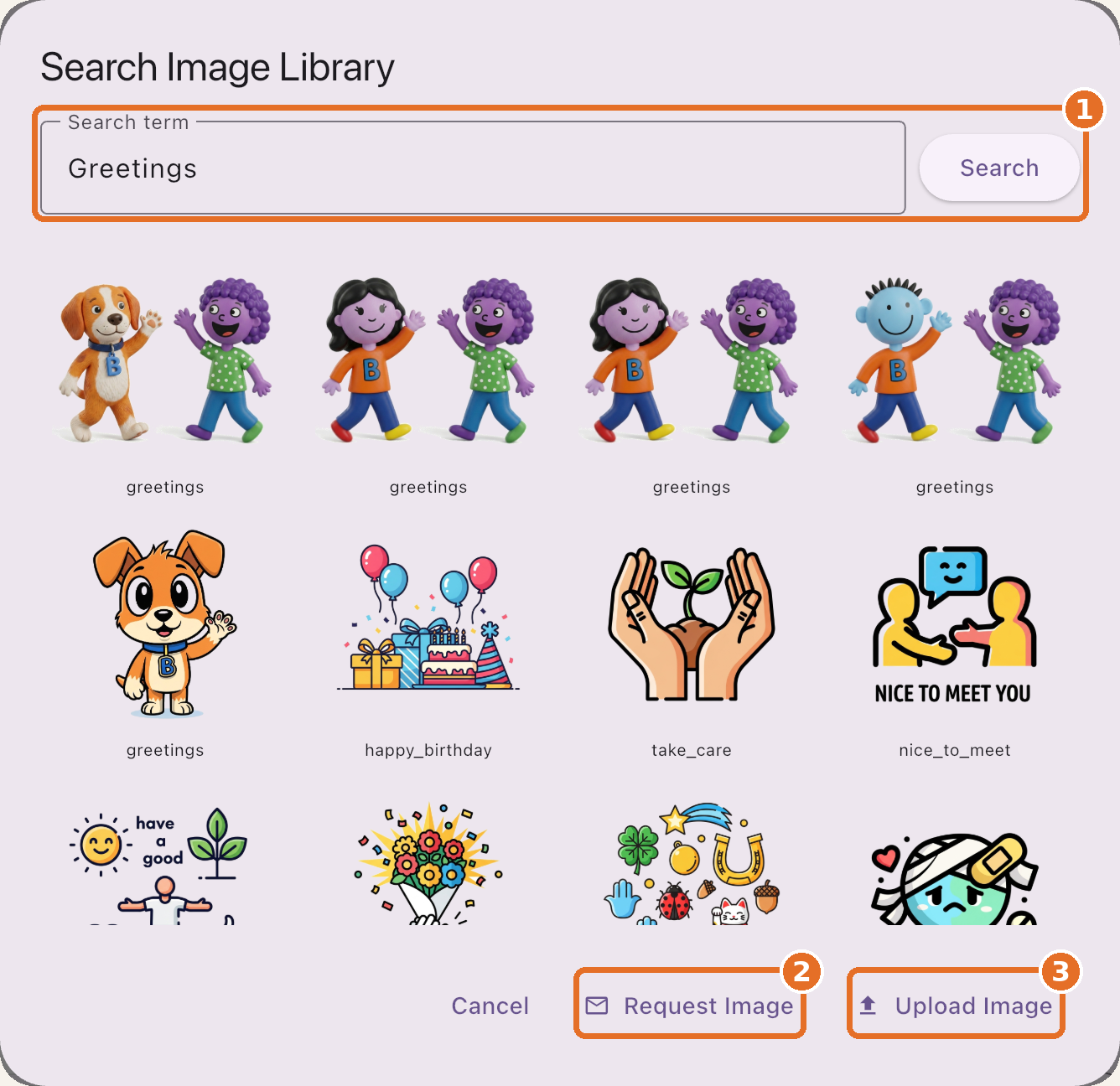
Choose Image or Change
Opens the image library
1
Search the library
Find the image that fits the menu item
2
Request Image
Ask the Bravo team to create a new one
3
Upload Image
Use your own image
Bravo University · 204 Menu Settings
5
Edit Menu Item
Audio, color and hidden
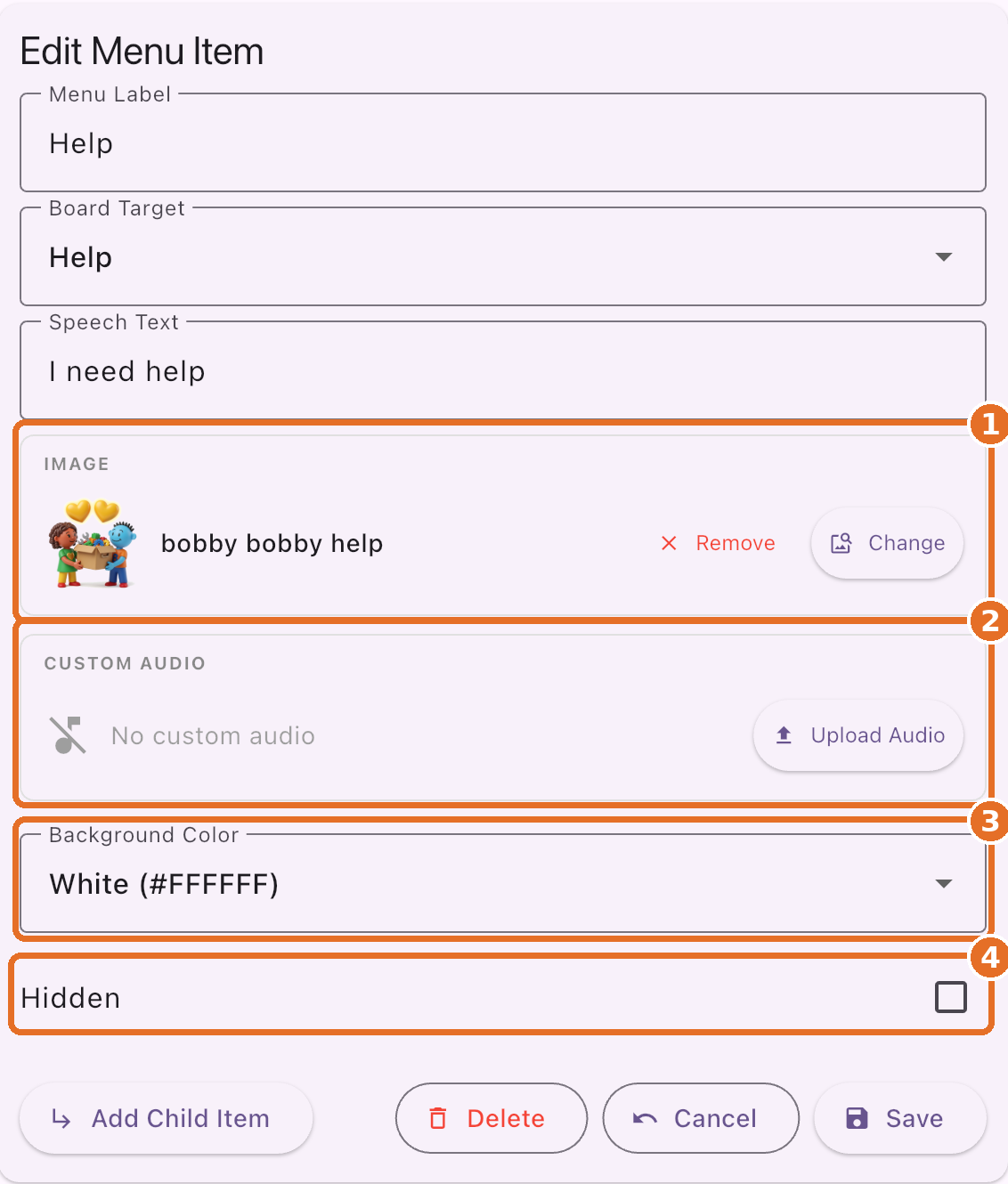
1
Image
The picture on the menu item
2
Custom Audio
Upload an MP3 to play when it’s selected
3
Background Color
The color of the menu item
4
Hidden
Hide it without deleting it
Bravo University · 204 Menu Settings
6
Edit Menu Item
The buttons at the bottom
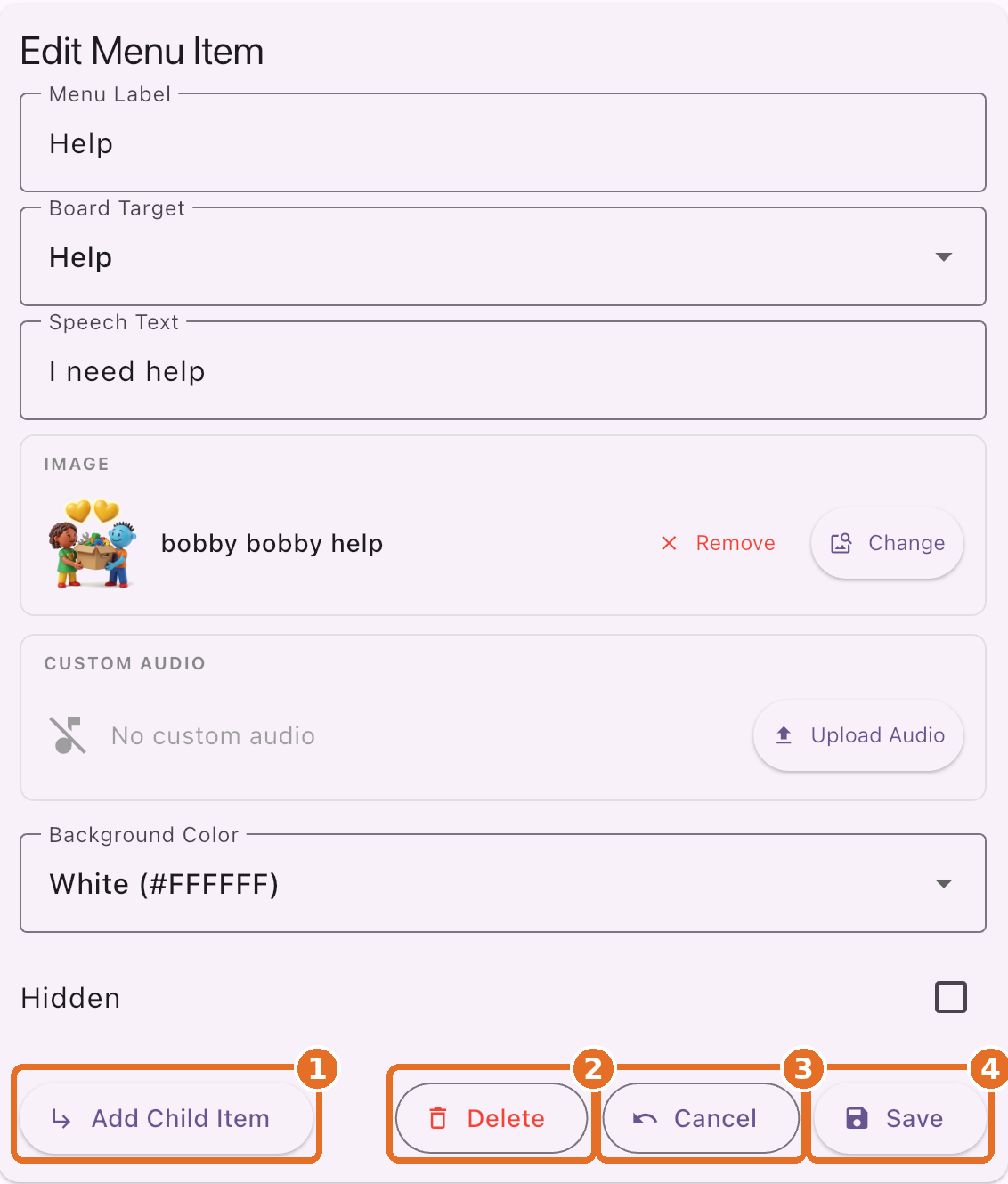
1
Add Child Item
Adds a new menu item under this one
2
Delete
Deletes the menu item
3
Cancel
Throws away any unsaved changes
4
Save
Keeps your changes
Bravo University · 204 Menu Settings
7
Adding menu items
A new item or a new category
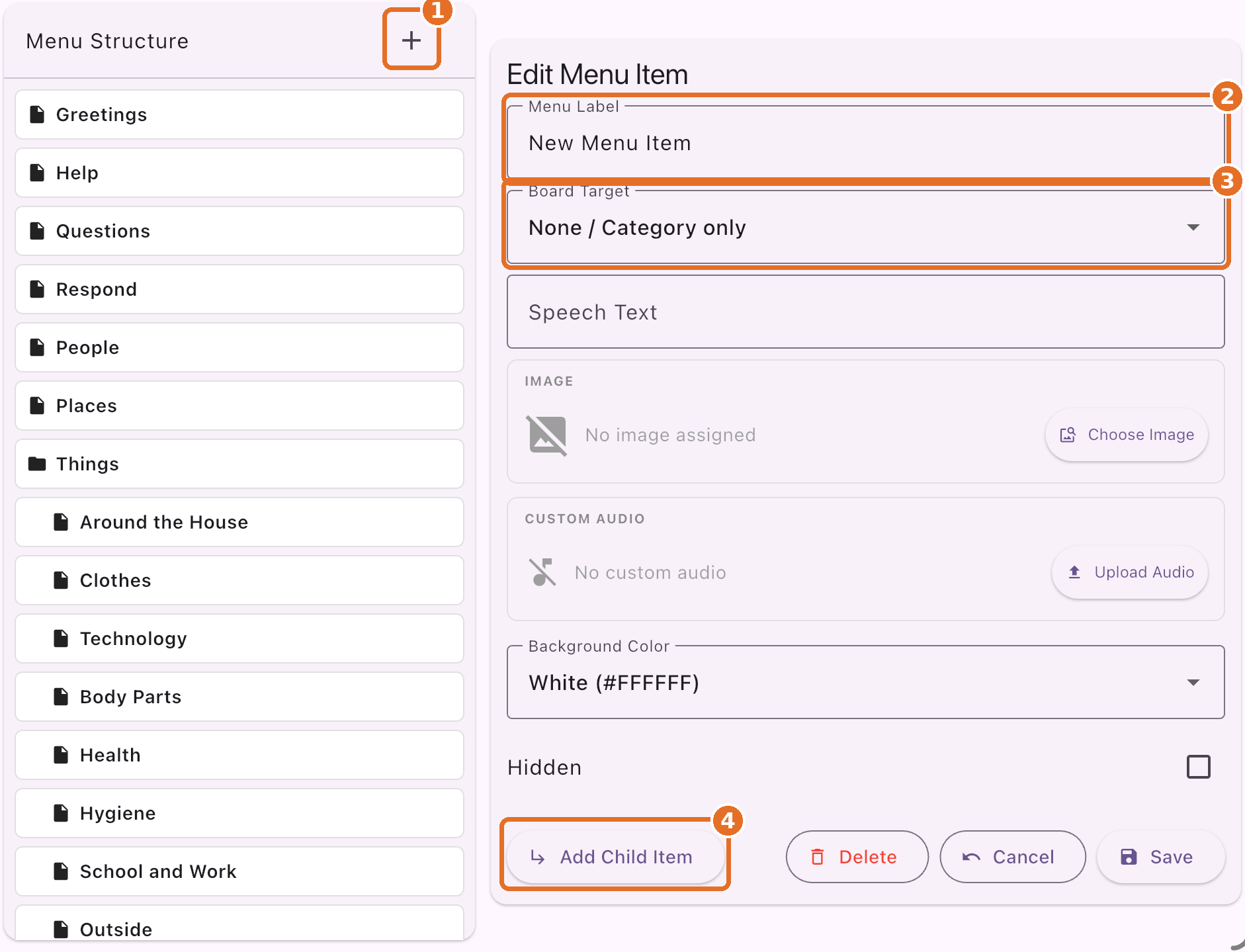
1
The + button
Adds a new menu item
2
Menu Label
Name it
3
Board Target
Pick a board, or None / Category only to hold other menus
4
Add Child Item
Adds items under it
Bravo University · 204 Menu Settings
8
Recap
Menu Settings at a glance
Setting
What it does
Menu Label
The text on the menu item
Board Target
The board it opens, or none for a category
Speech Text
Optional words Bravo says
Image · Custom Audio
The picture, and an MP3 to play
Background Color · Hidden
Its color; hide without deleting
Add Child · Delete · Cancel
Add below, remove, undo changes
Bravo University · 204 Menu Settings
9