Bravo University · Course 208 · Admin Tools
Text Messages for Scan Interface Users
Set it up once, then text independently

How it works
Bravo writes it, iOS iMessage sends it
Bravo
The user picks a contact and builds the message
An iOS Shortcut
“Bravo Text Dad” hands the text to iOS iMessage
iOS iMessage
Sends the text, then returns to Bravo
Set up once
An iOS Shortcut per contact, a button, and Contacts access
Then fully independent
The user writes and sends texts on their own

Bravo University · 208 Text Messages for Scan Interface Users
2
Part 1
Create an iOS Shortcut for each contact
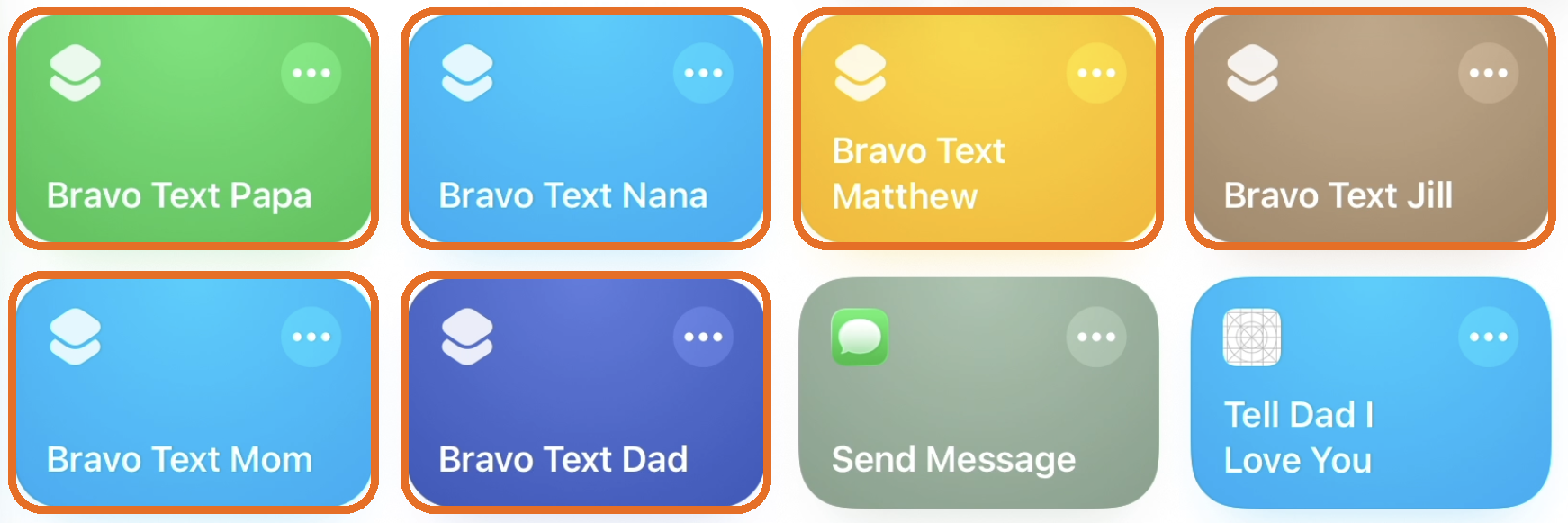
One iOS Shortcut per contact, named exactly “Bravo Text” + the contact’s name.
Bravo University · 208 Text Messages for Scan Interface Users
3
Shortcuts app
Start a new shortcut
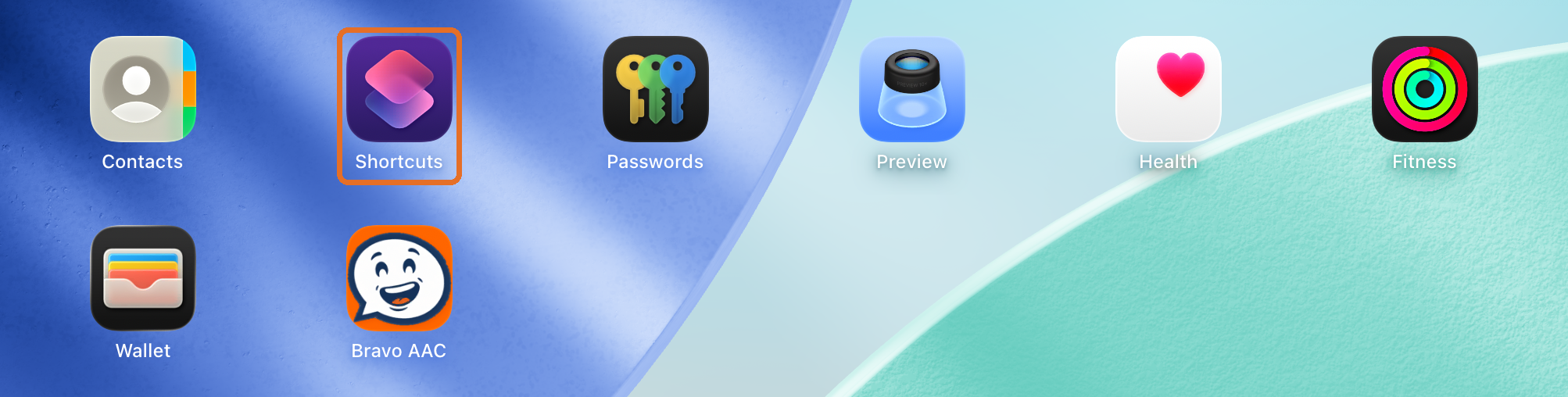
1 · Open the Shortcuts app
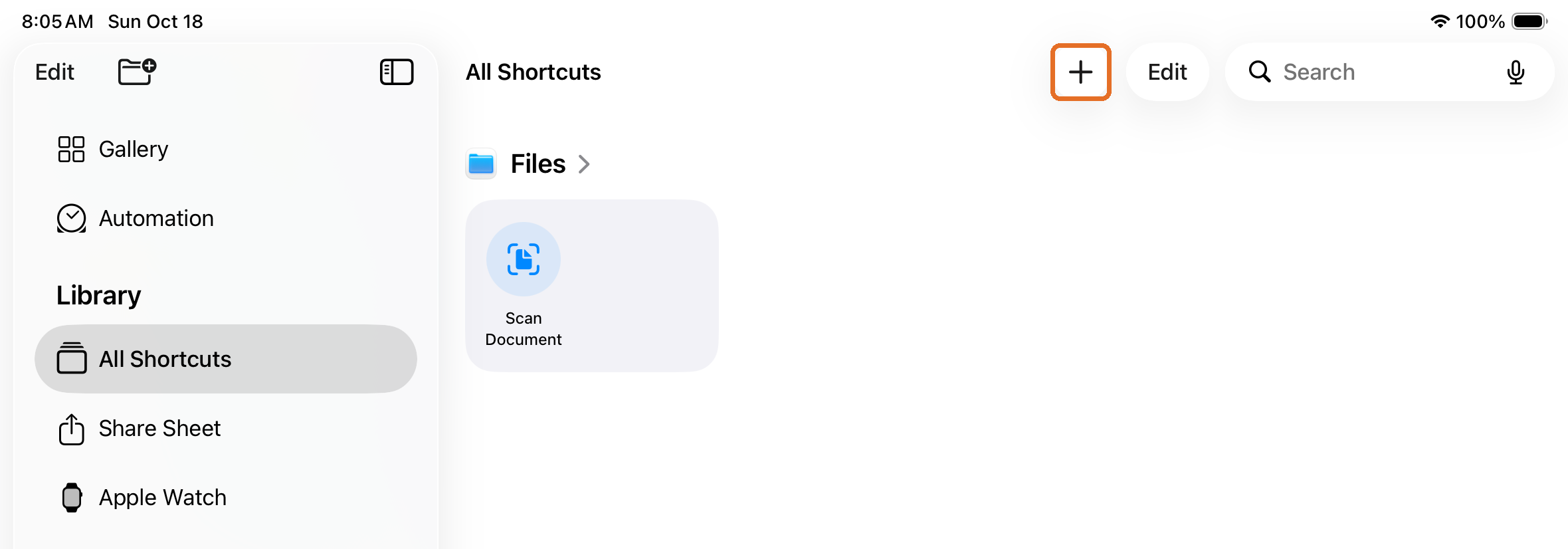
2 · Tap the + to add a shortcut
Bravo University · 208 Text Messages for Scan Interface Users
4
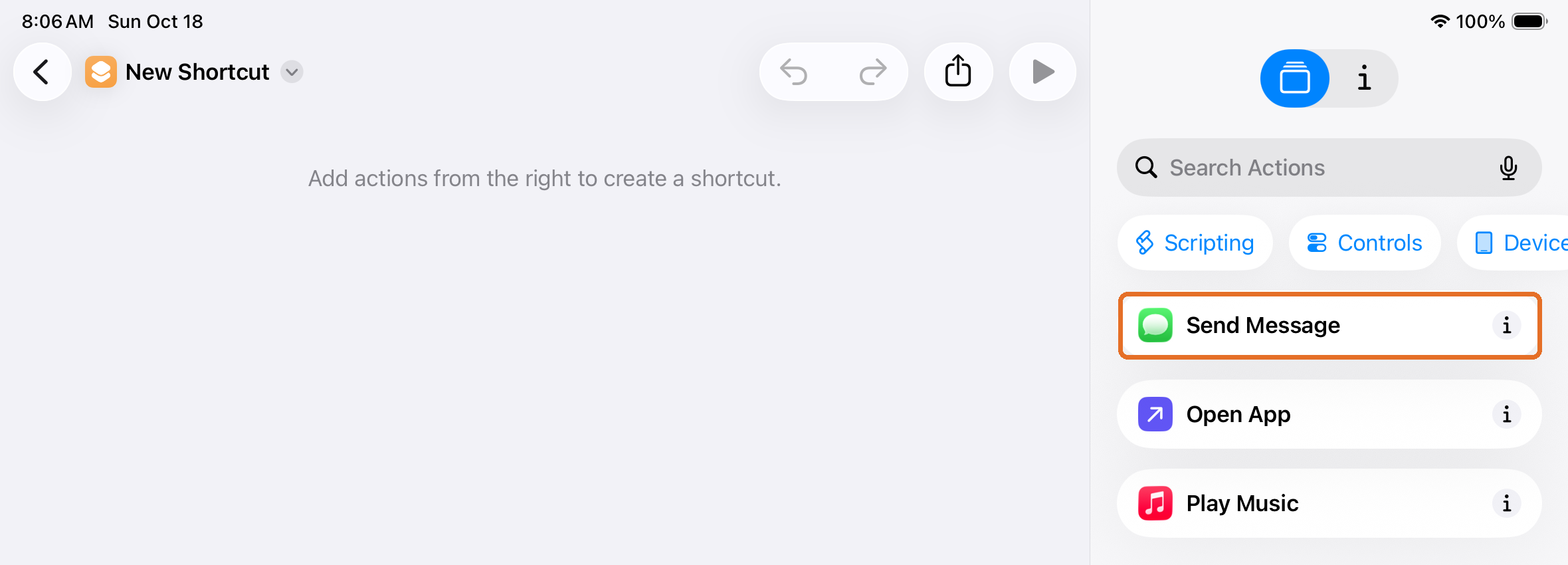
Step 1
Add Send Message
Bravo University · 208 Text Messages for Scan Interface Users
5
Step 2
Message = Shortcut Input
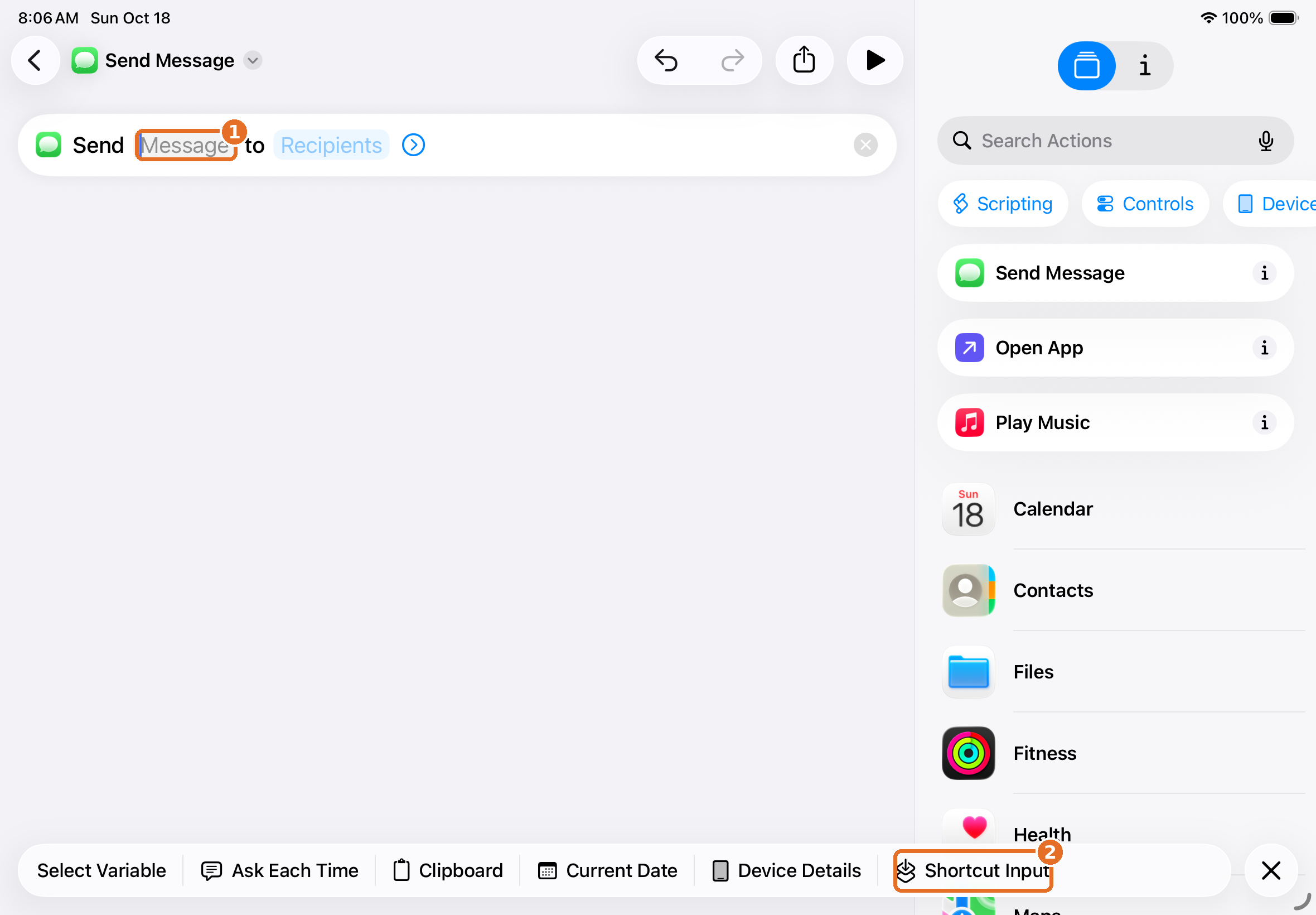
1
Tap the Message field
The input options appear
2
Choose Shortcut Input
The text Bravo sends
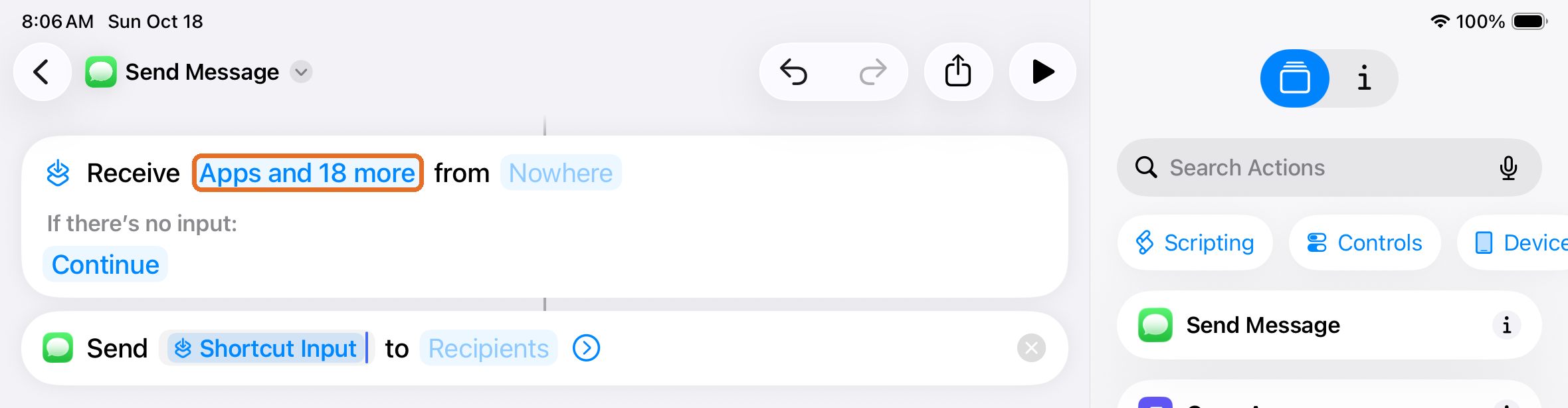
A Receive step is added automatically
Bravo University · 208 Text Messages for Scan Interface Users
6
Step 3
Receive Text only
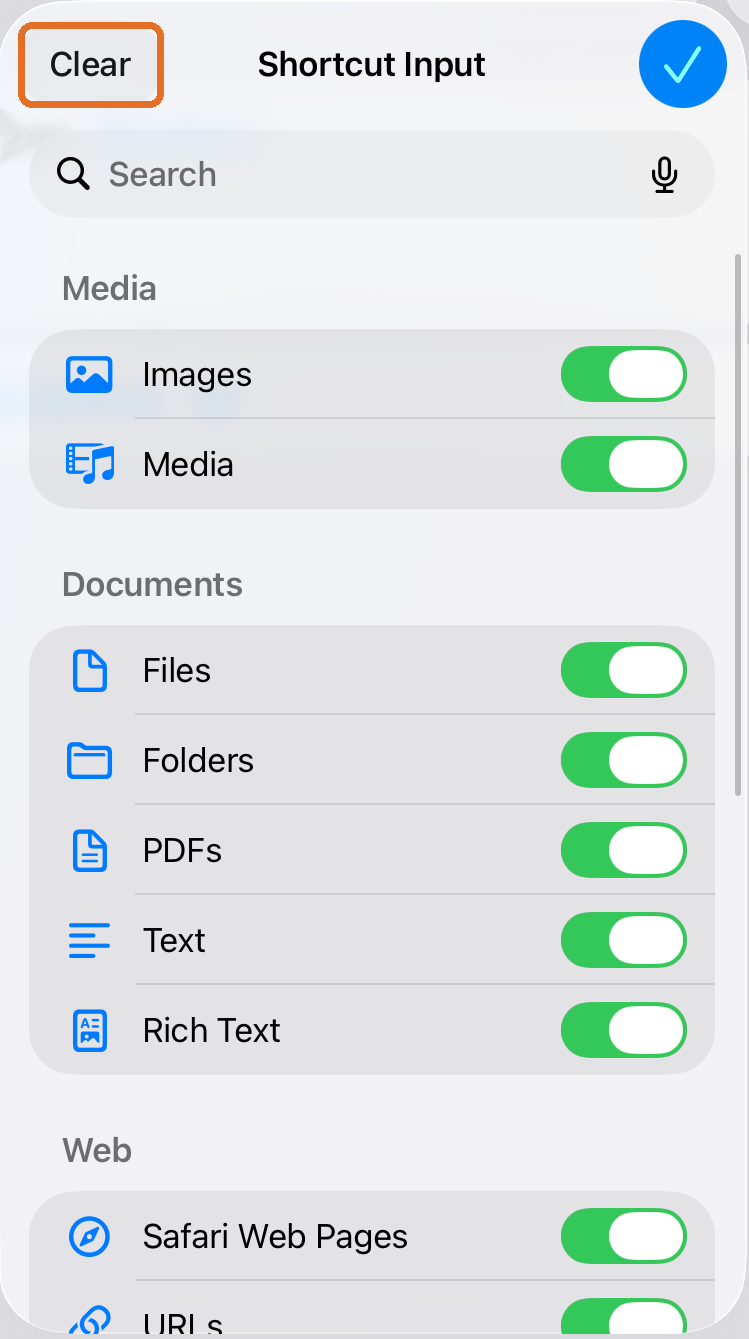
Tap Clear to turn all off
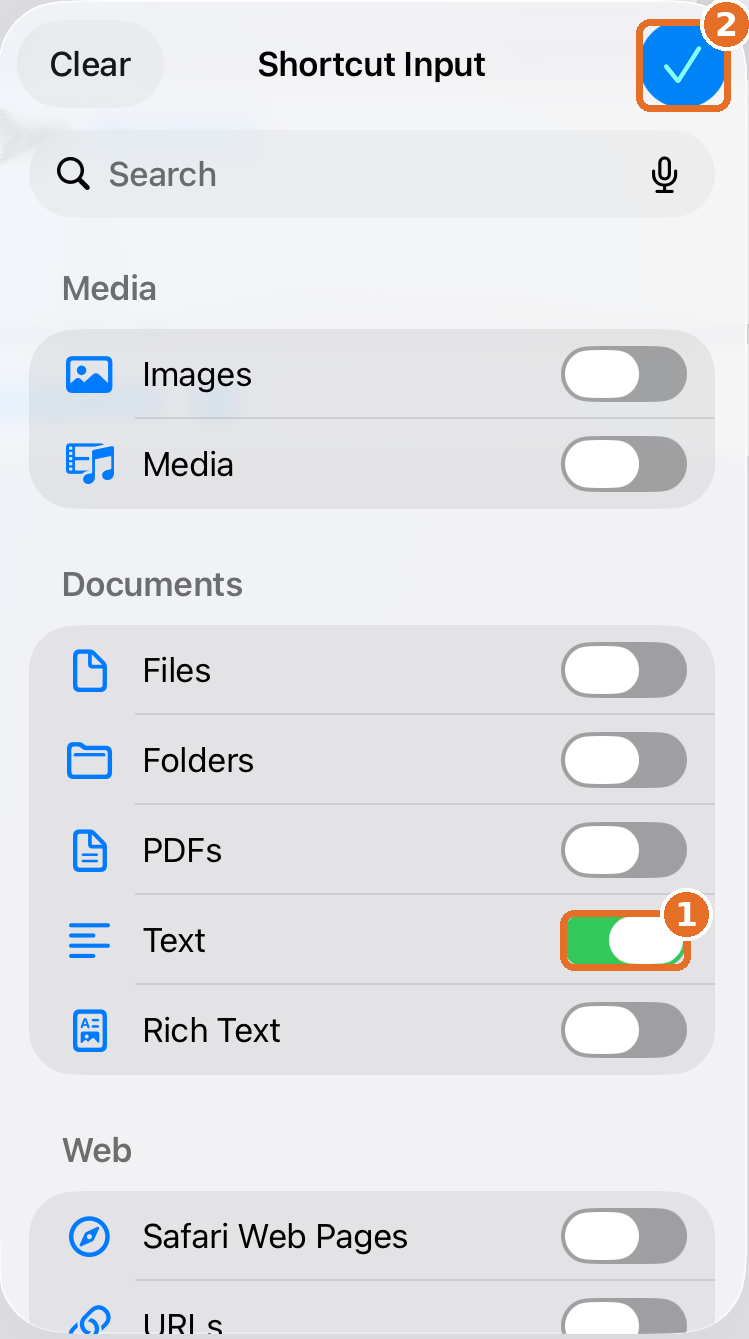
Turn on Text, then ✓
Bravo University · 208 Text Messages for Scan Interface Users
7
Step 4
Choose the contact
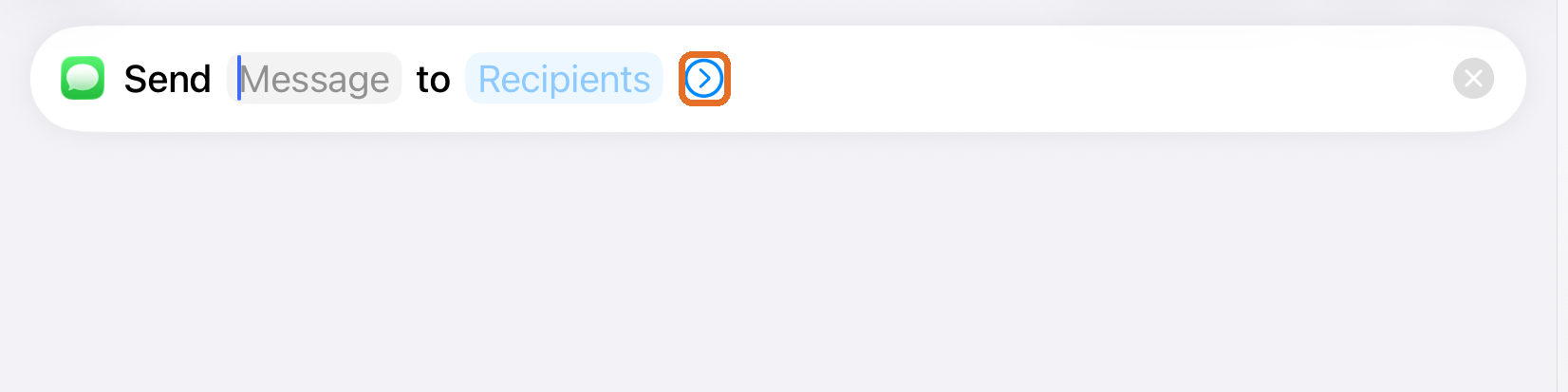
1 · The arrow by Recipients
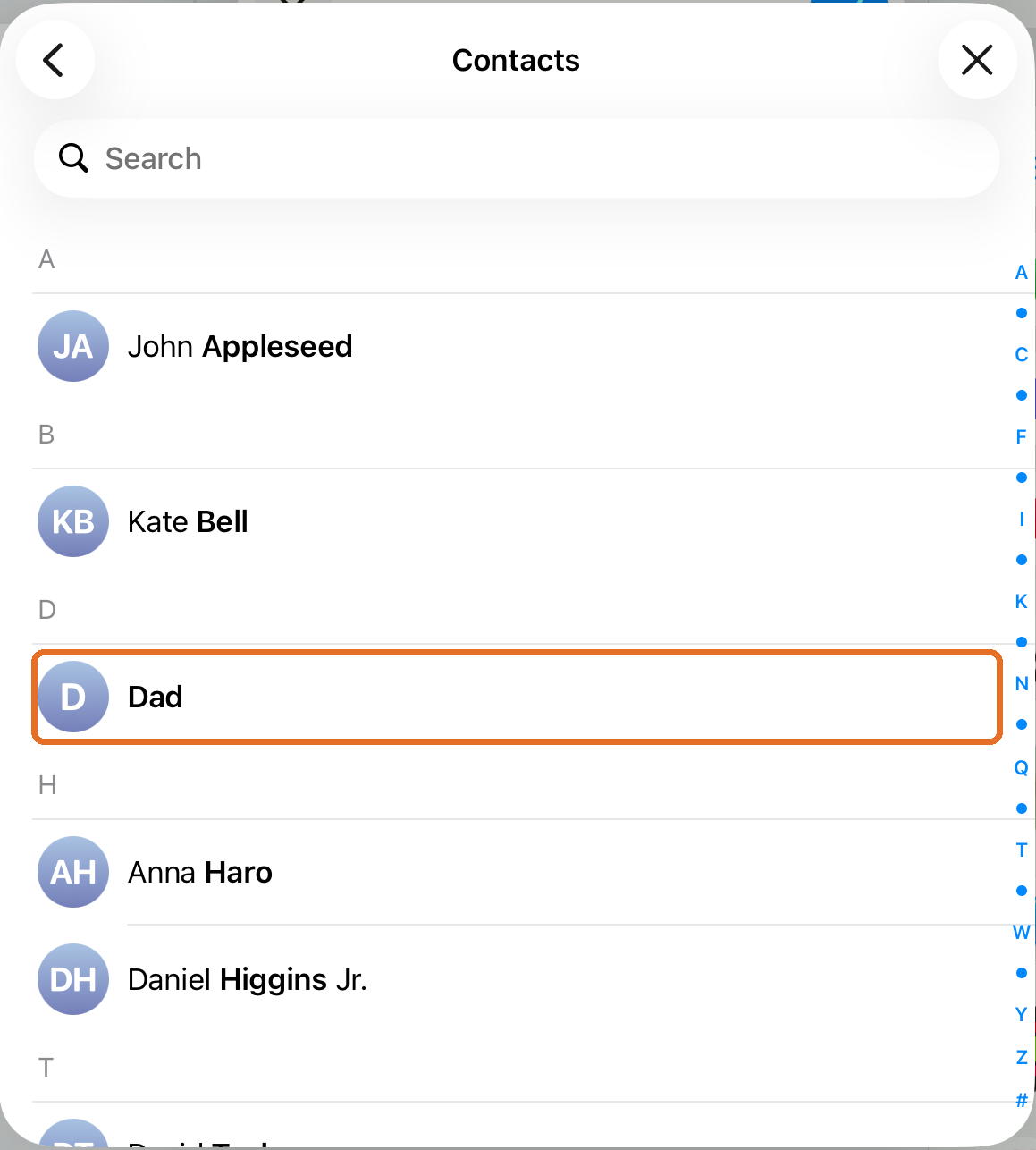
2 · Pick the contact
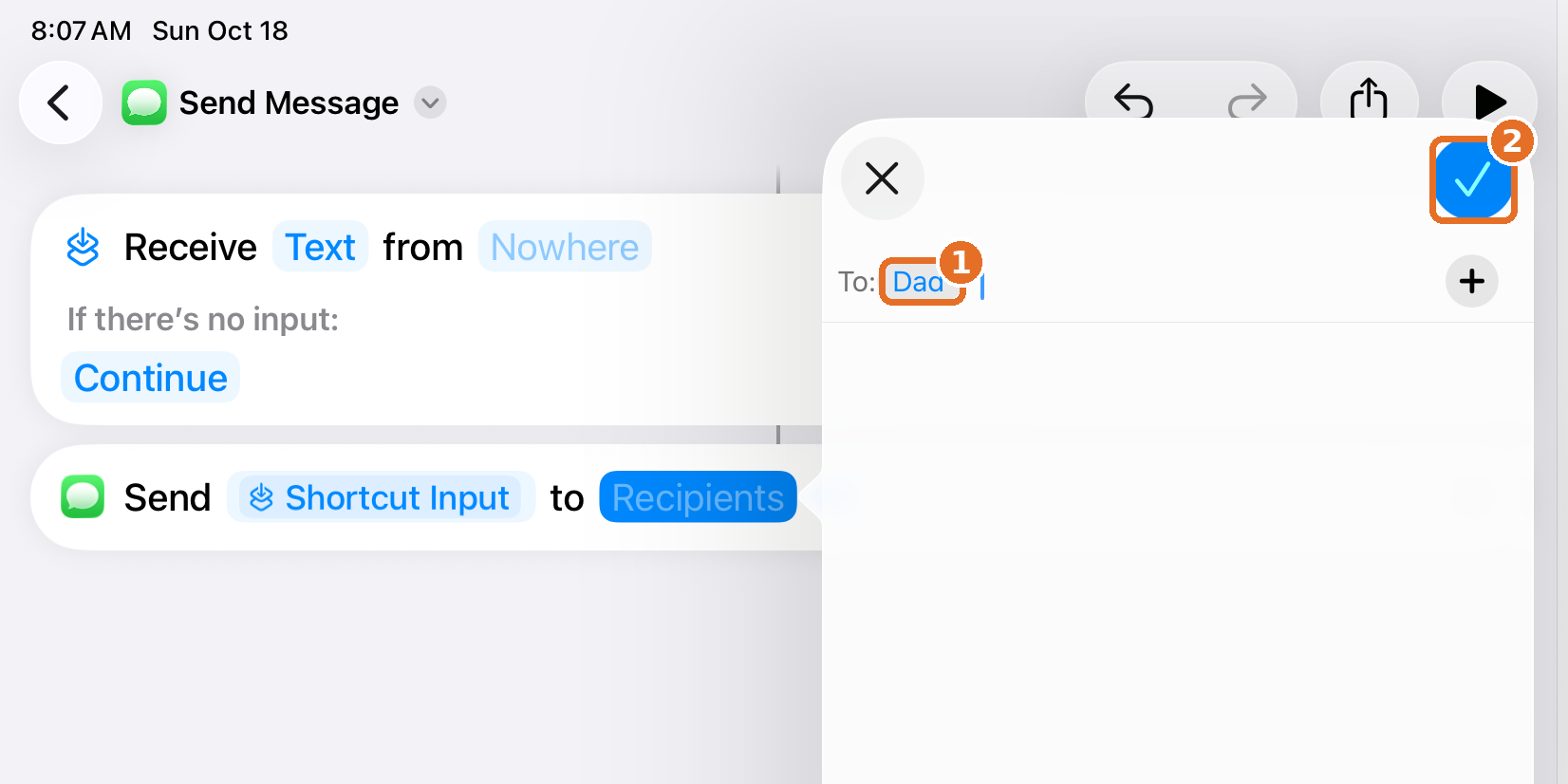
3 · Tap ✓
Not in the list? Add them in the Contacts app first, then come back.
Bravo University · 208 Text Messages for Scan Interface Users
8
Step 5
Open Bravo when it’s done
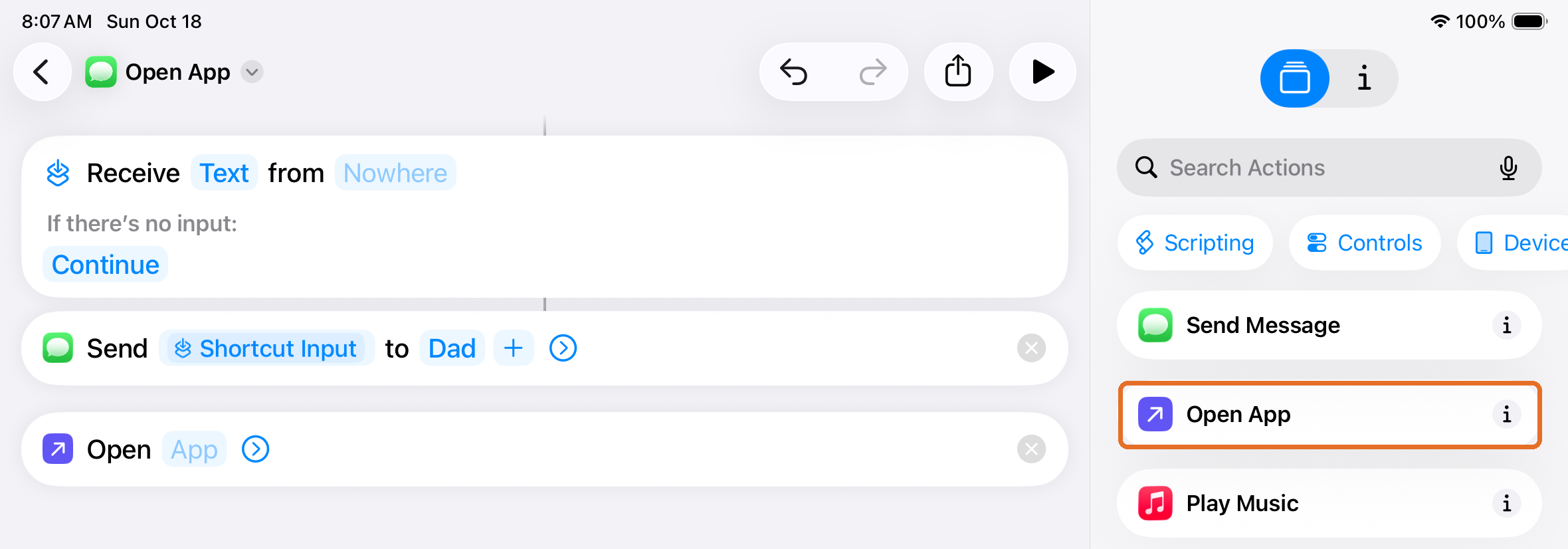
Add an Open App step
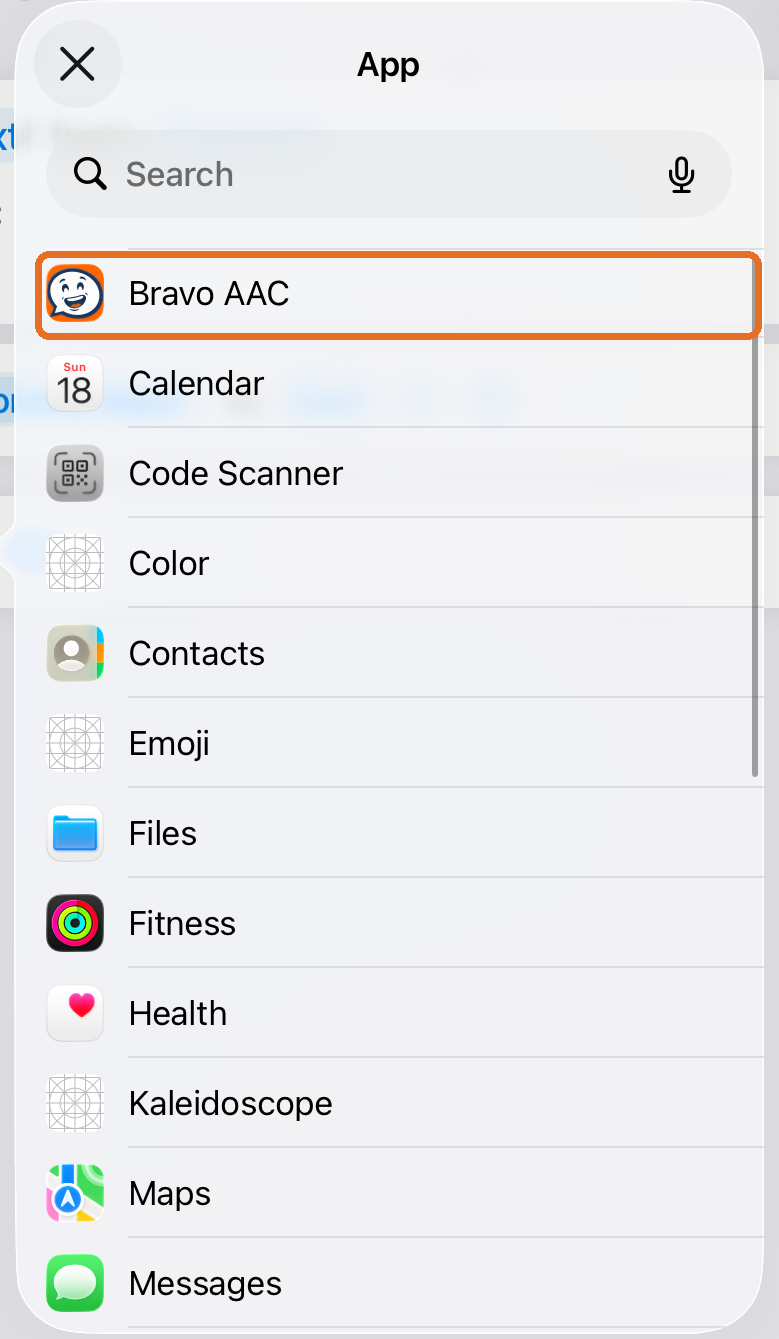
Choose Bravo AAC
Bravo University · 208 Text Messages for Scan Interface Users
9
Step 6
Name it “Bravo Text” + the contact
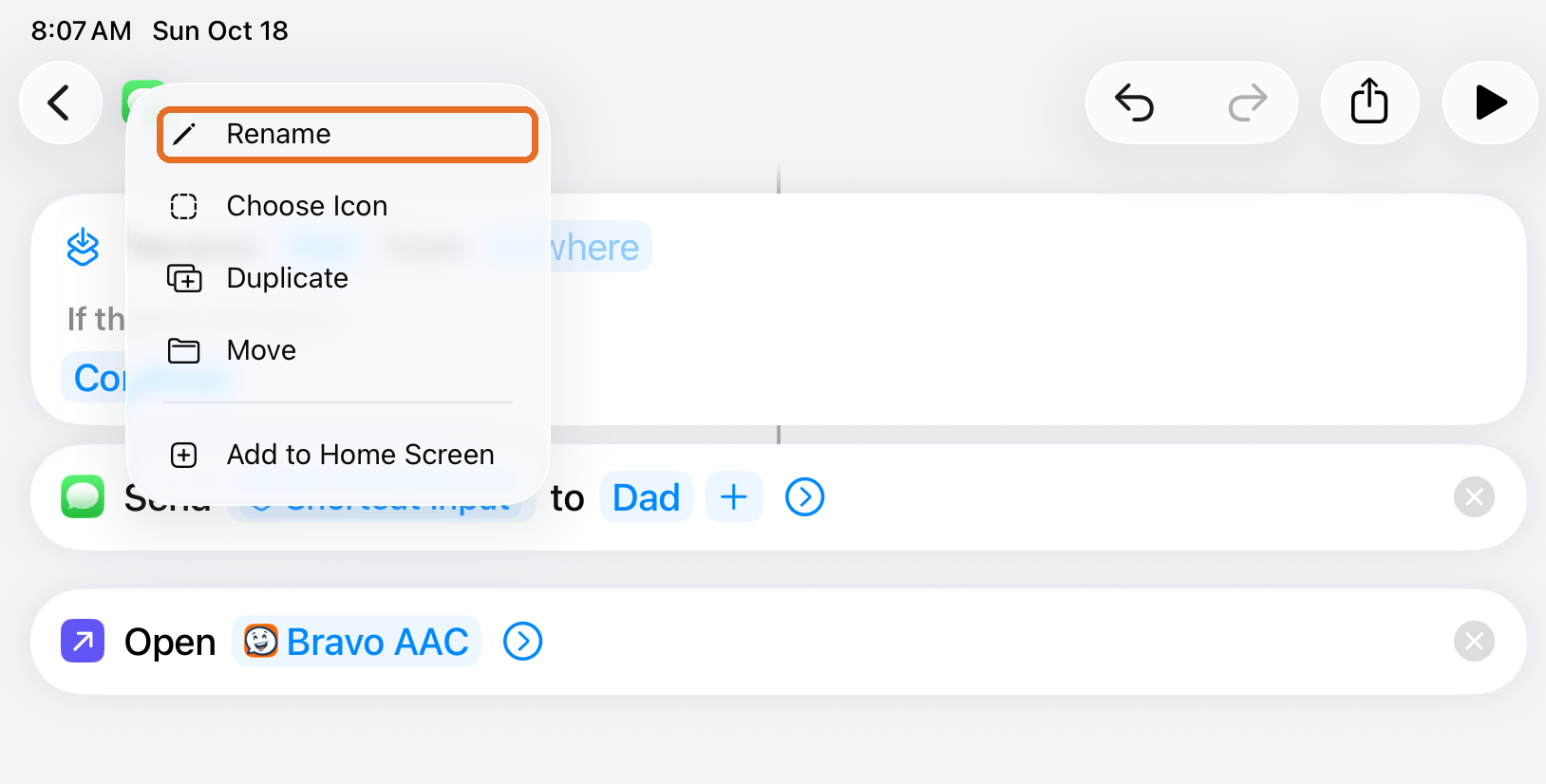
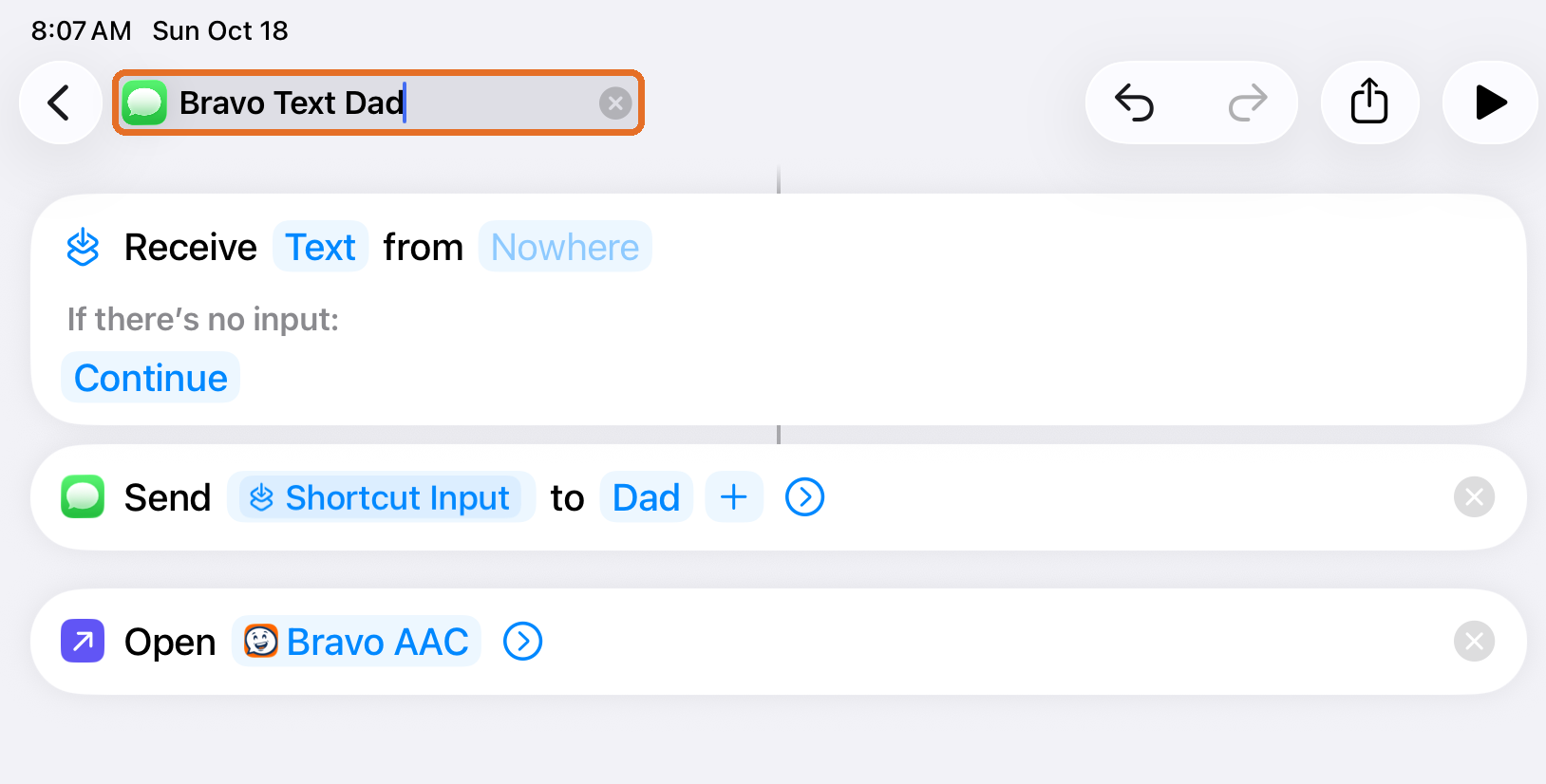
Bravo Text Dad
The name must follow this pattern exactly
Bravo University · 208 Text Messages for Scan Interface Users
10
Done
The finished shortcut
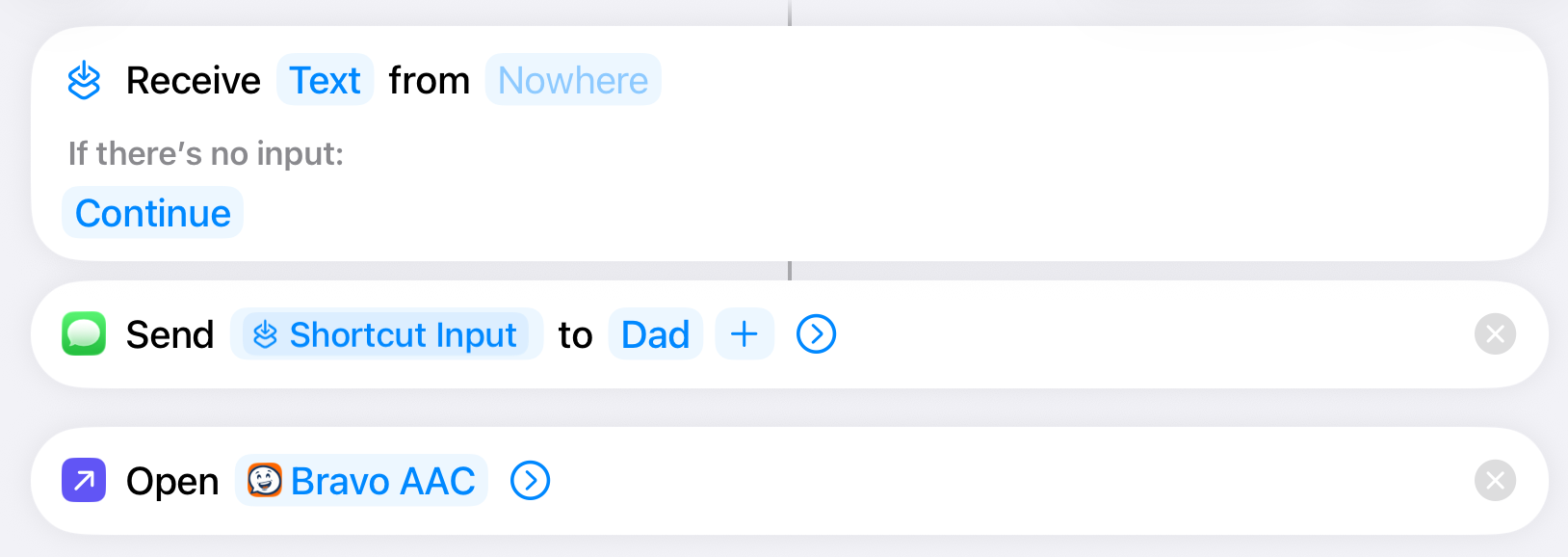
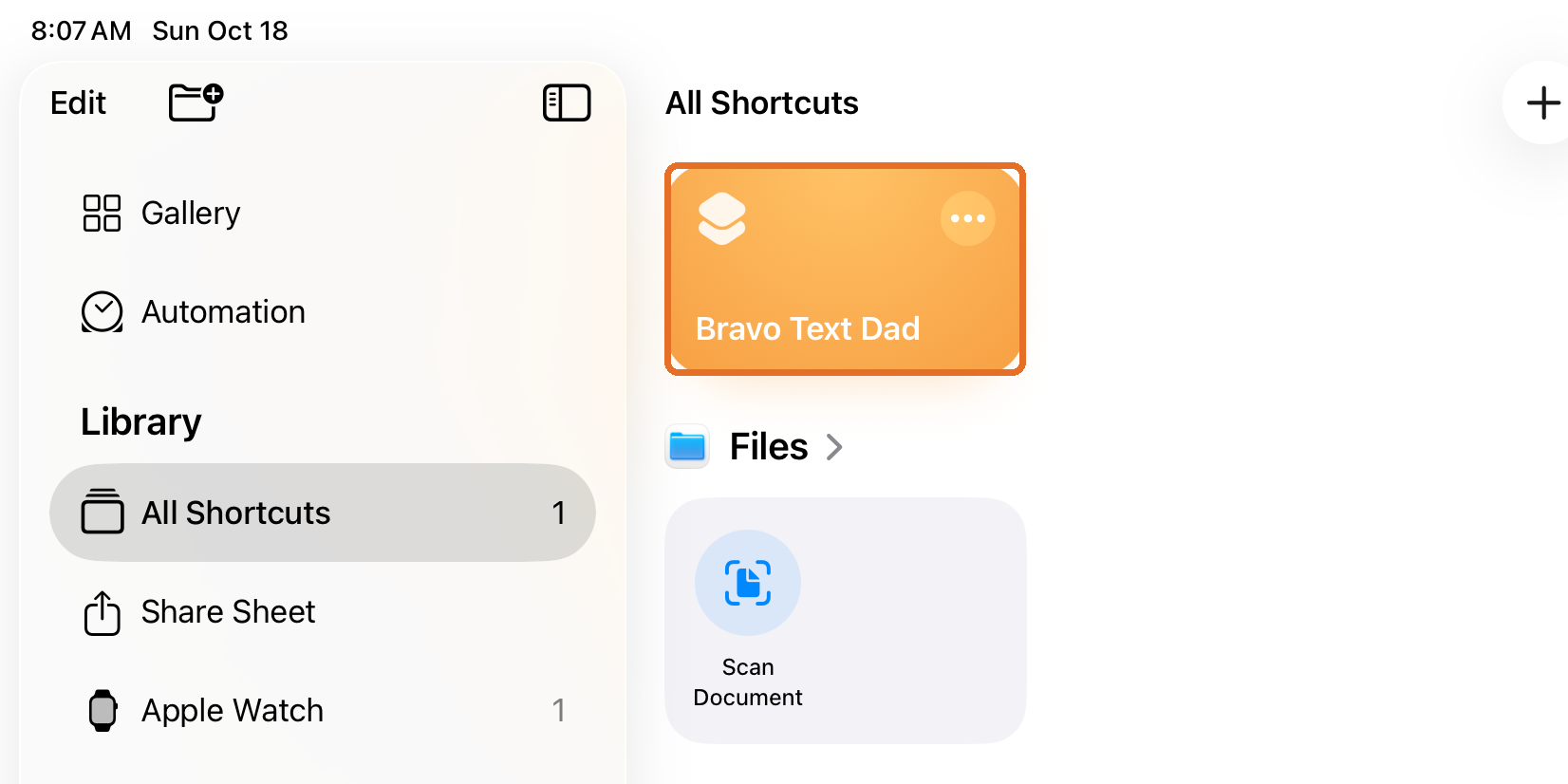
Repeat for each person the user wants to text
Bravo University · 208 Text Messages for Scan Interface Users
11
Part 2
Two Special page options for texting
Partner-Assisted Text
A partner copies the message and sends it from a messaging app
Independent Text
The user sends texts on their own. A partner only reads a recent text to reply to.
Special pages are built-in Scan pages with extra functions. Open one by making it a button’s Target Page.
Bravo University · 208 Text Messages for Scan Interface Users
12
In Bravo
Open Page & Button settings

1
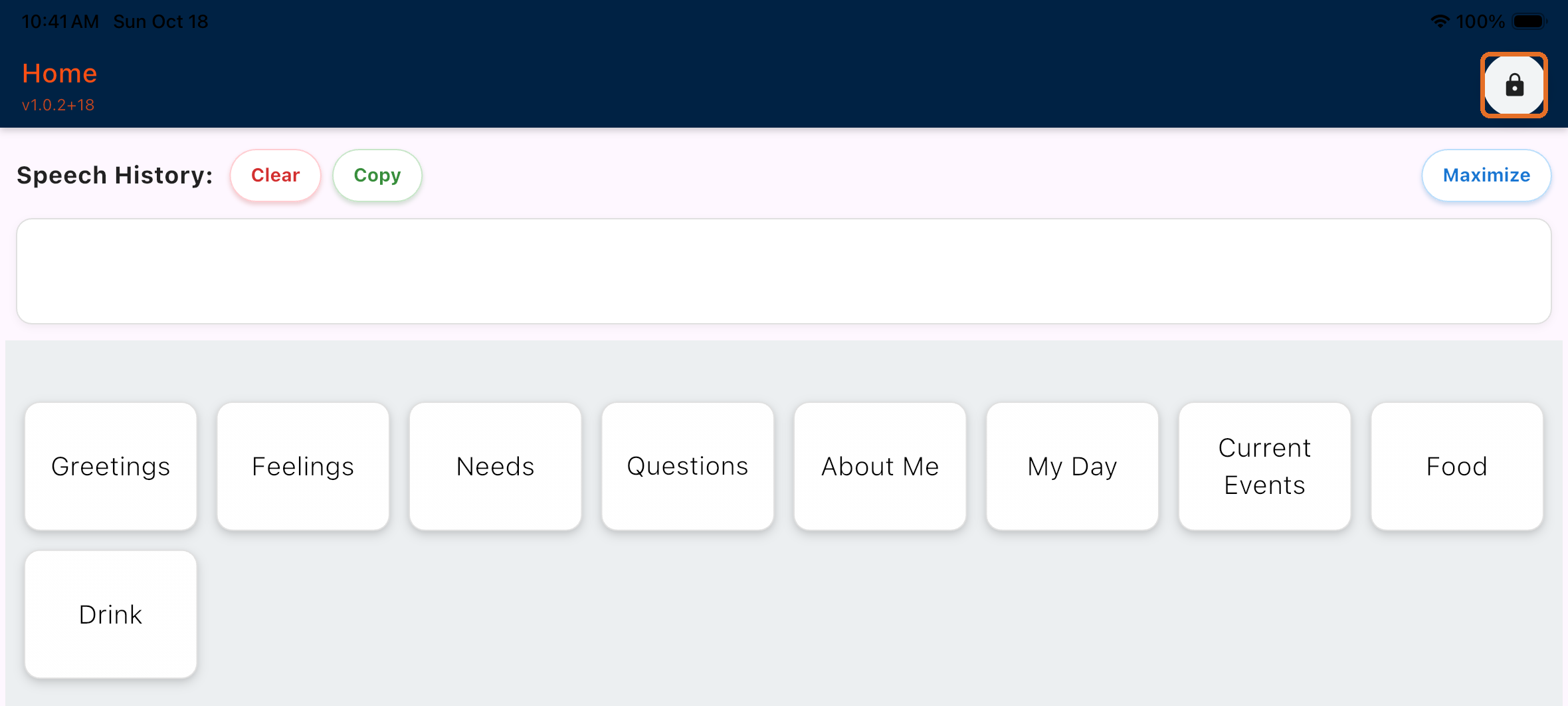
Tap the Lock icon
2
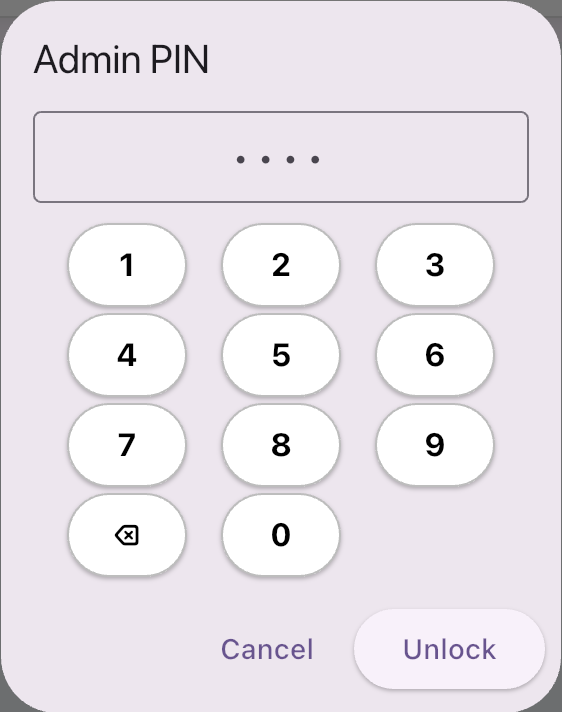
Enter the Admin PIN
The default is 1234
3
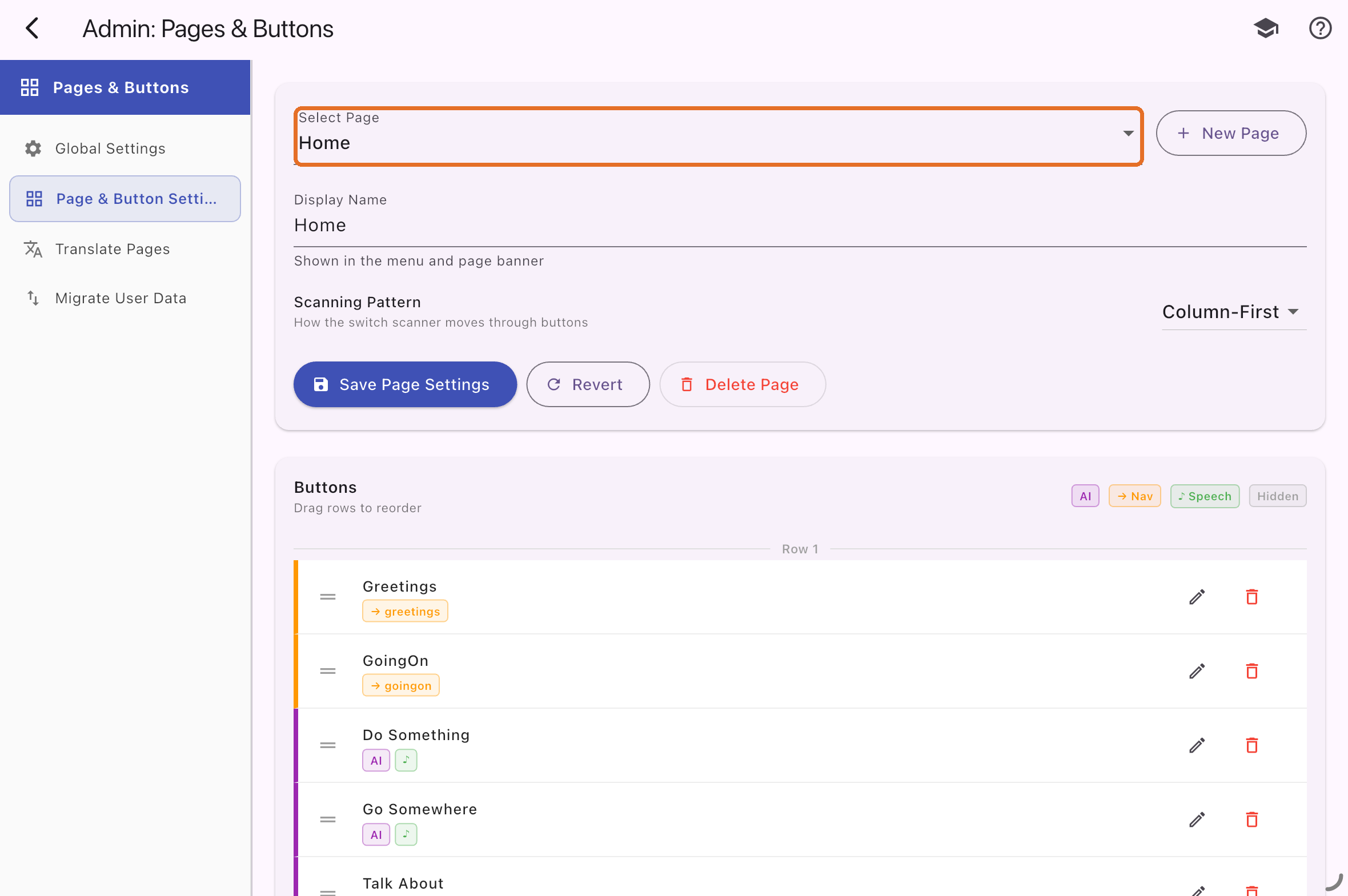
Tap Page & Button settings
The grid icon
4
Select the page
Where the Text button will go
Bravo University · 208 Text Messages for Scan Interface Users
13
In Bravo
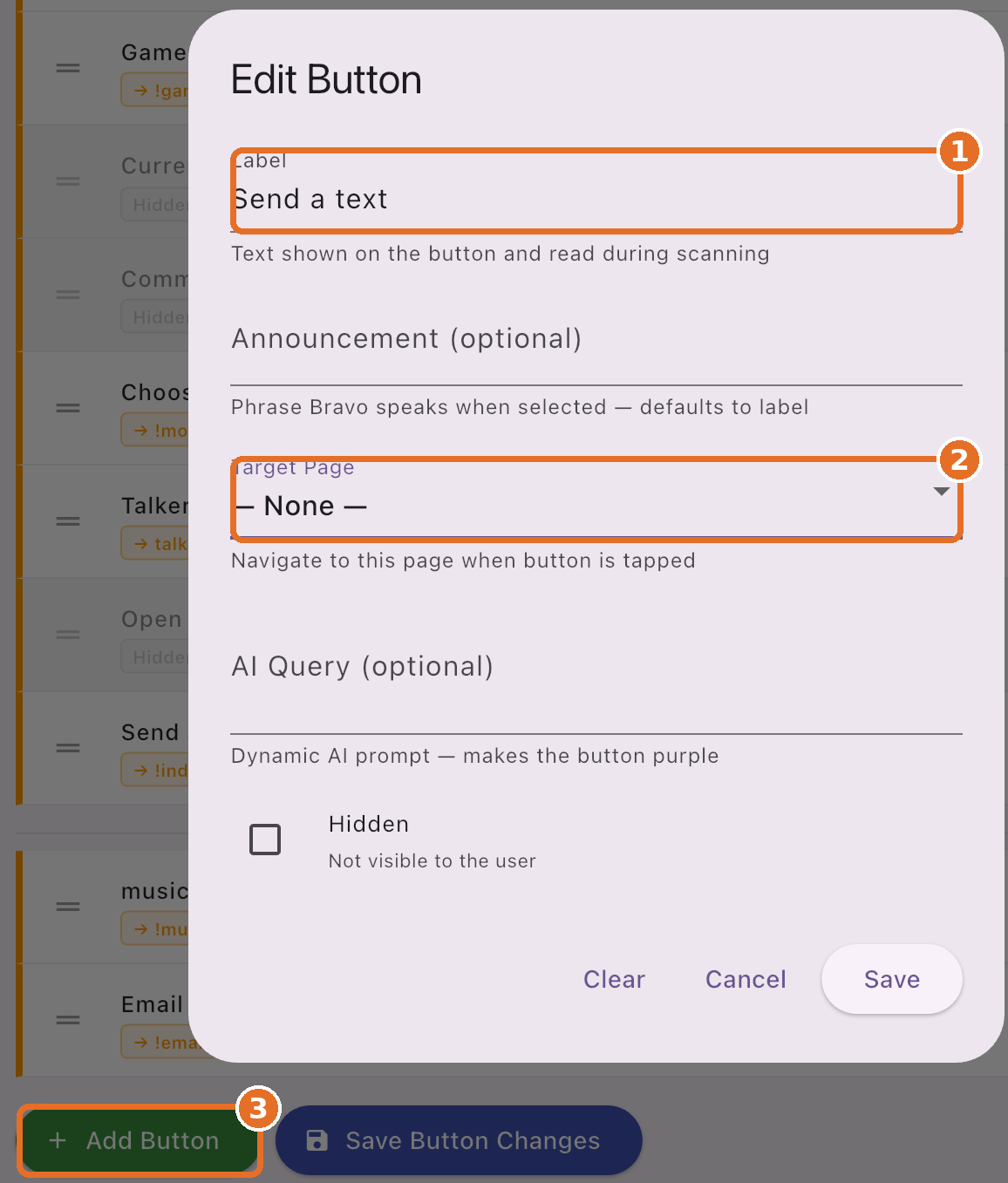
Adding the Text button
Select the page first, then tap Add Button
Bravo University · 208 Text Messages for Scan Interface Users
14
In Bravo
Target: Independent Text Page
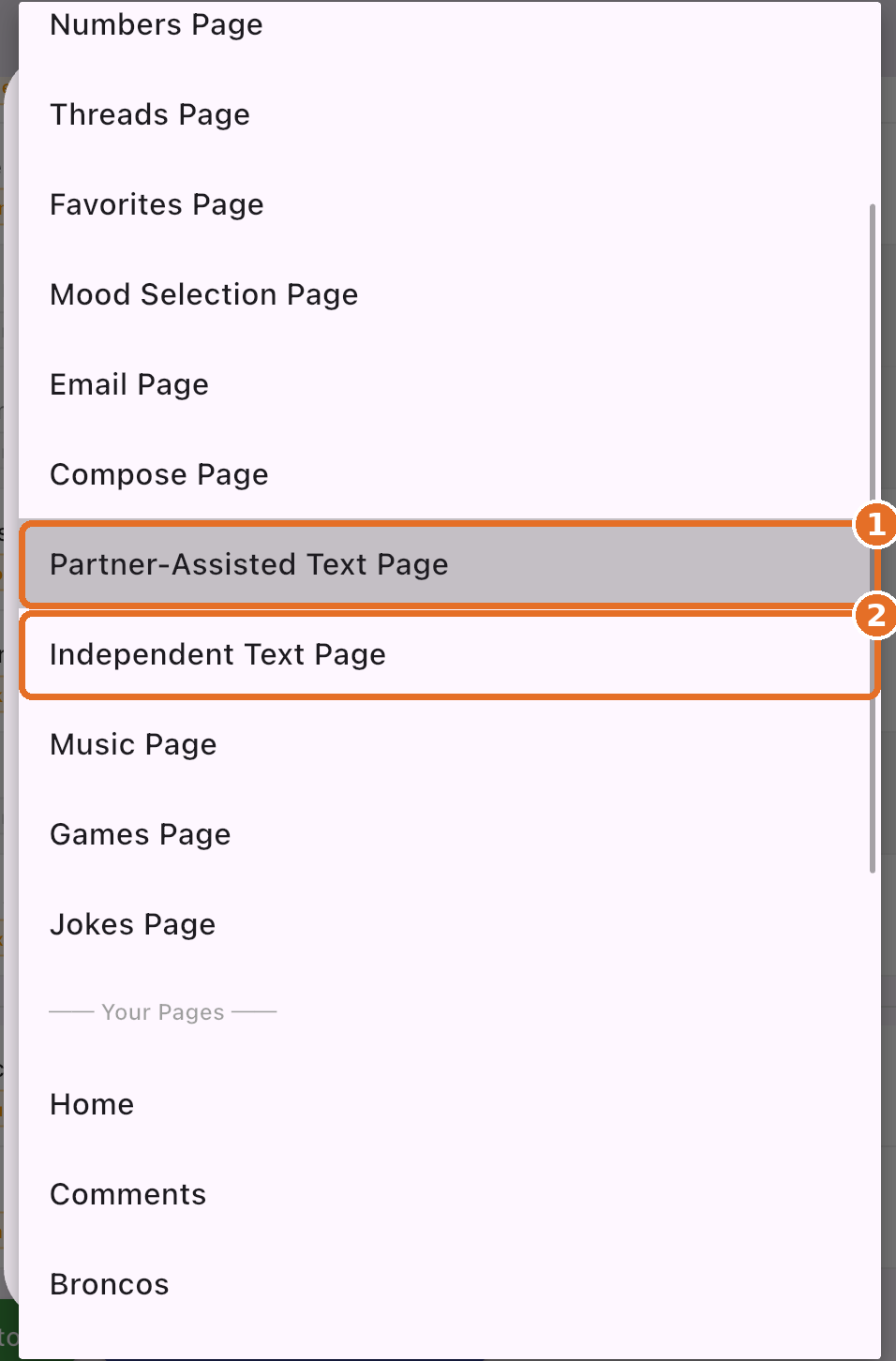
1 Partner-Assisted · 2 Independent
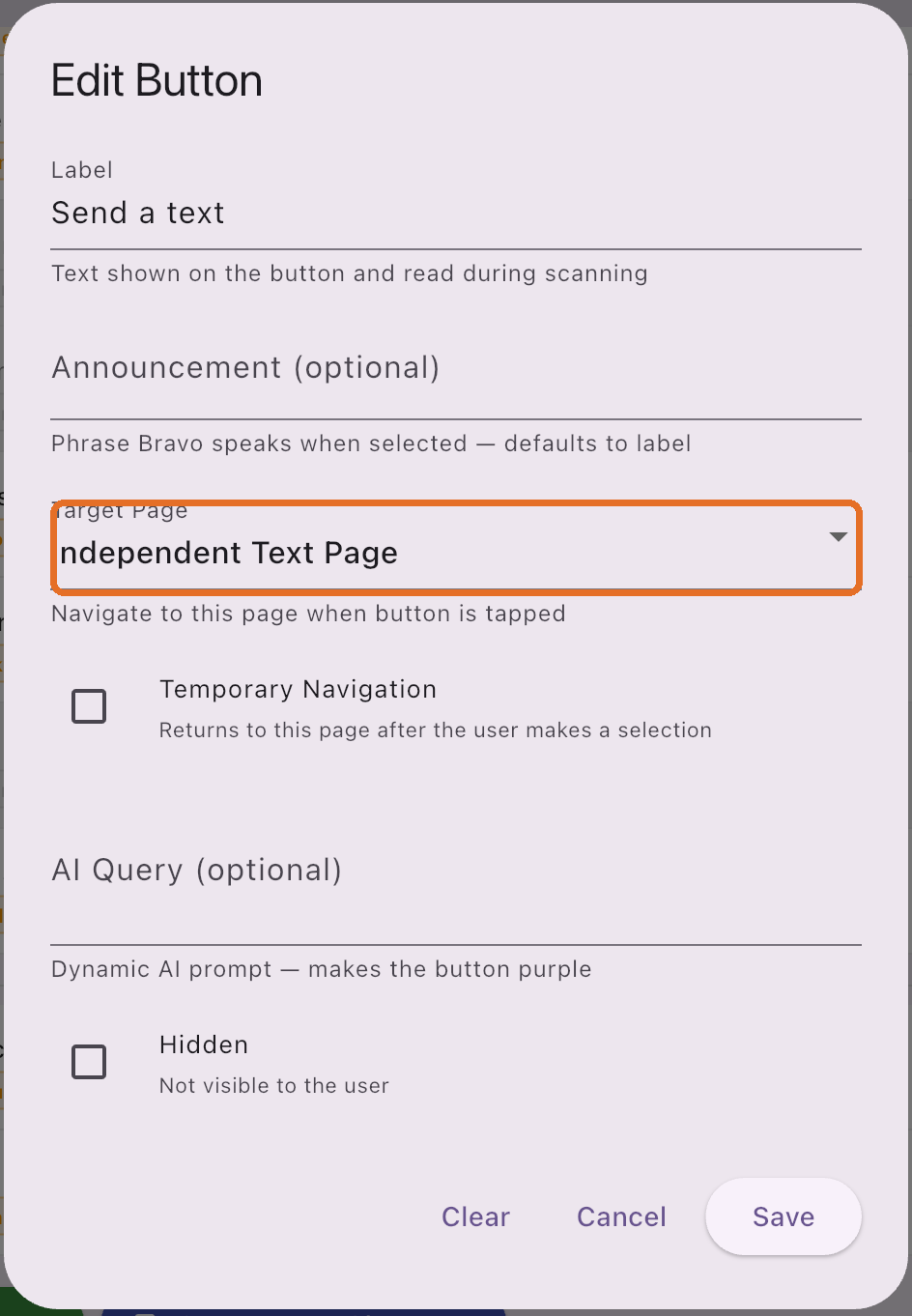
Save
Bravo University · 208 Text Messages for Scan Interface Users
15
In Bravo
Select the new button
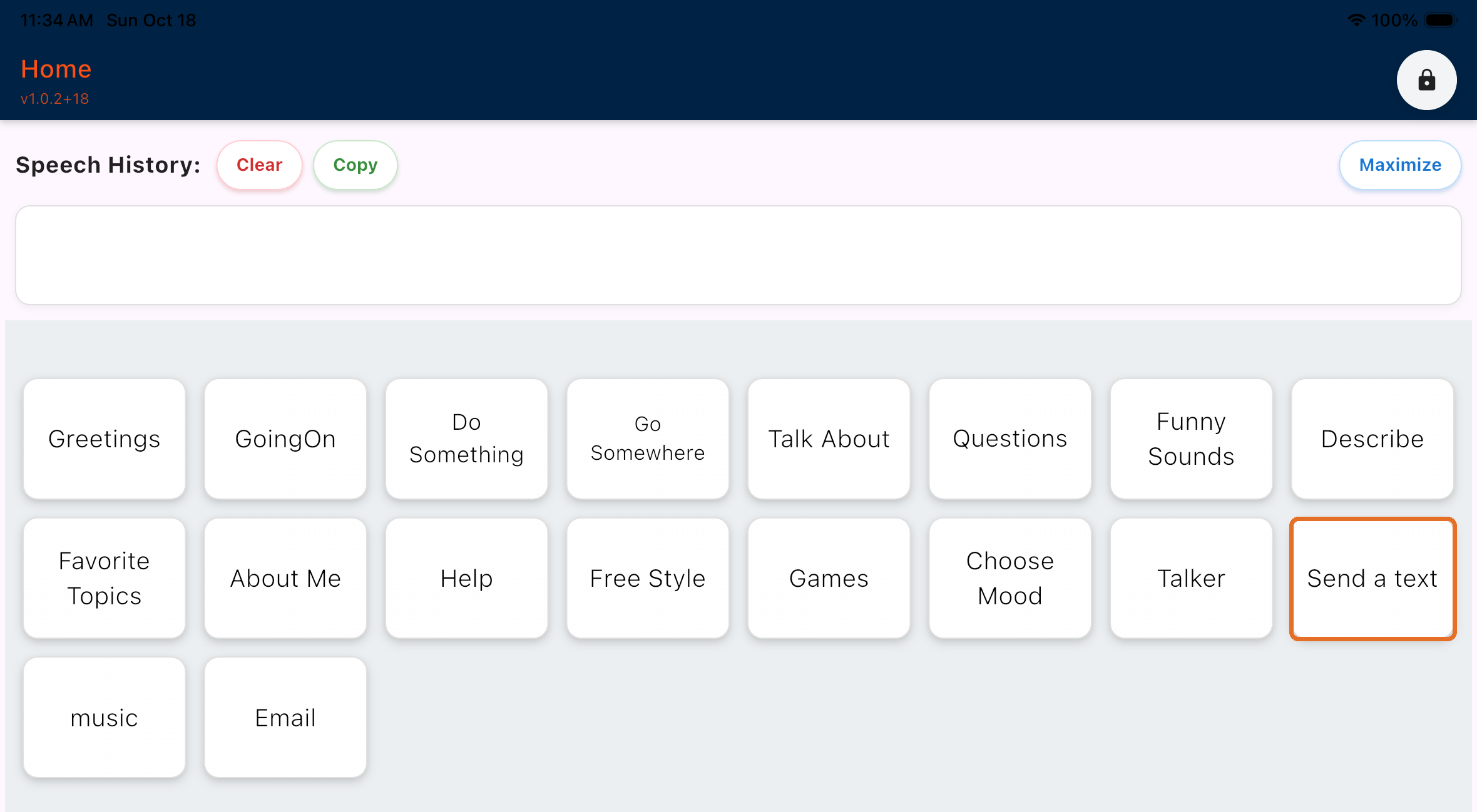
Before handing off to the user, select it yourself once to finish setup.
Bravo University · 208 Text Messages for Scan Interface Users
16
Admin, first time only
Allow access to Contacts
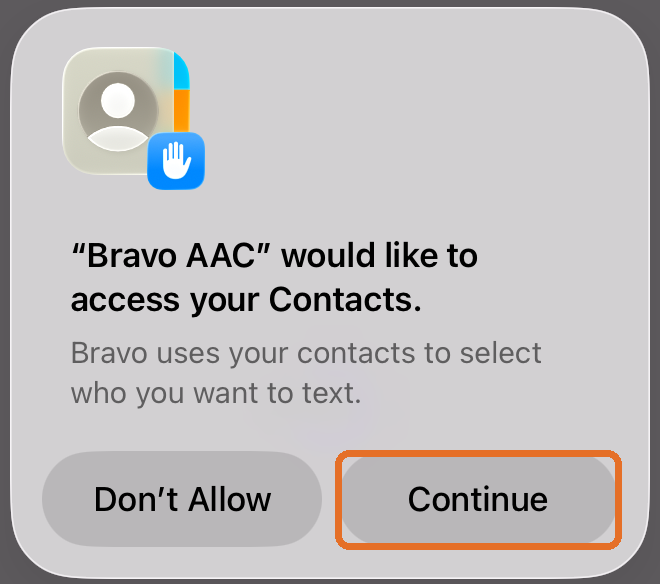
Tap Continue
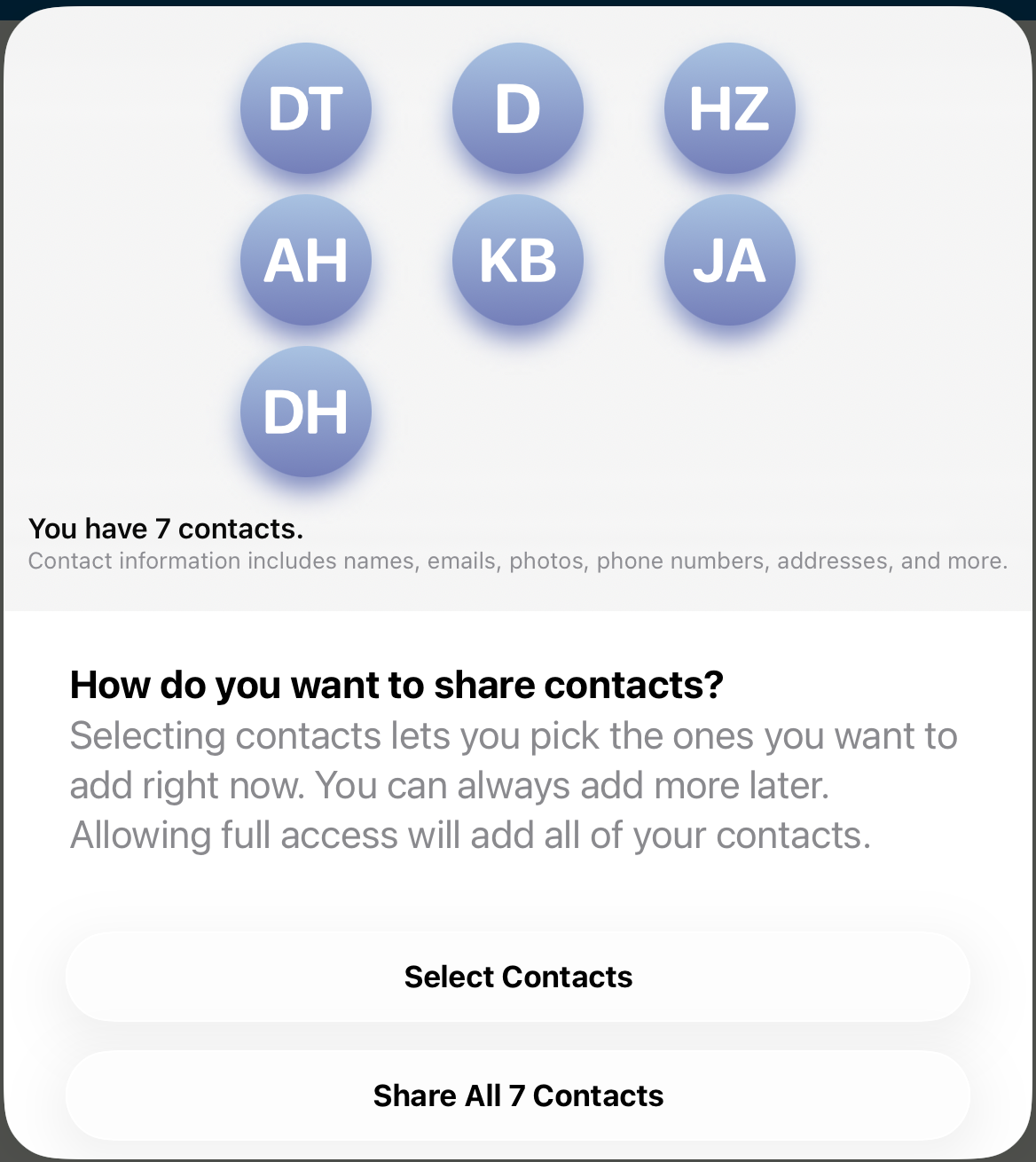
Select Contacts or Share All
Bravo University · 208 Text Messages for Scan Interface Users
17
Step 1
Choose a contact
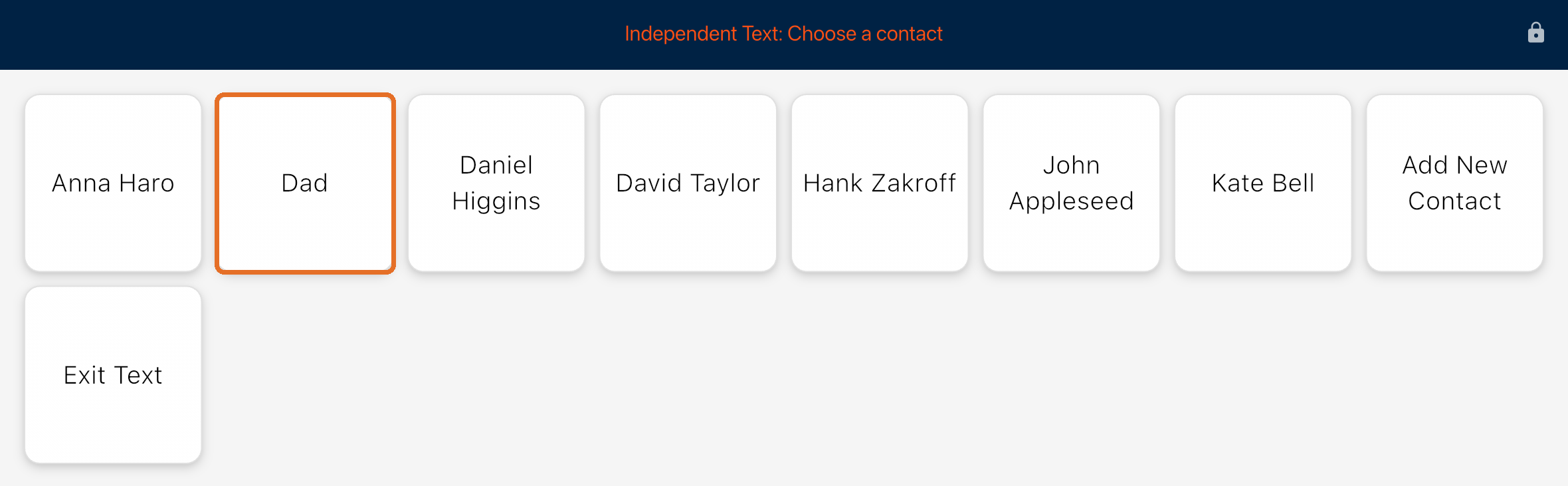
Contacts to text
The people you shared
Add New Contact
Bravo announces the user wants to add someone. An adult asks who, then sets up the Contact and iOS Shortcut.
Bravo University · 208 Text Messages for Scan Interface Users
19
Step 2
Reply or new topic?
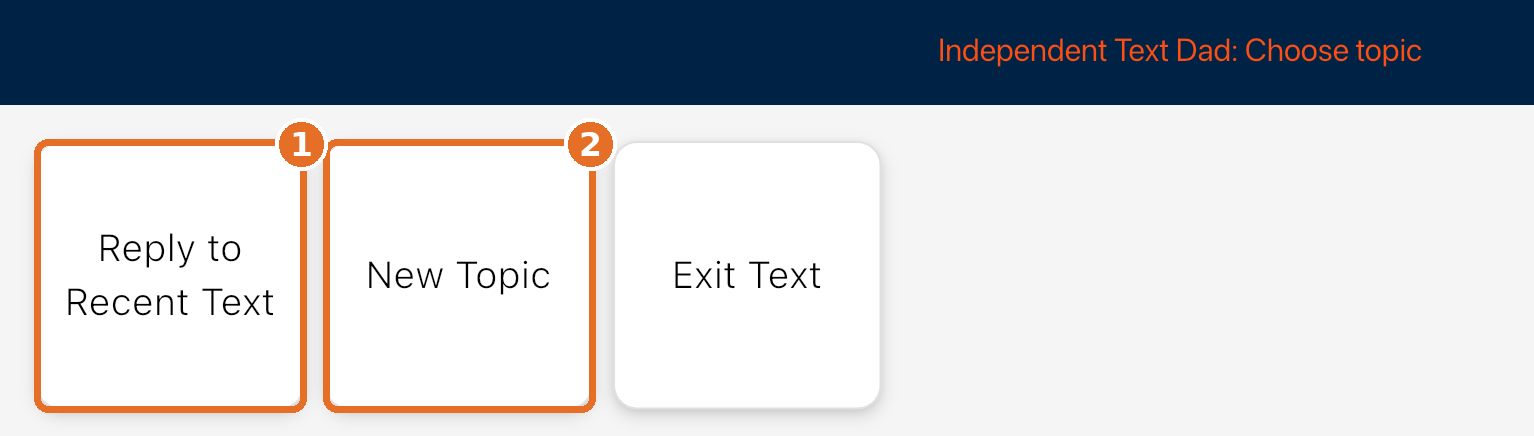
1
Reply to Recent Text
A partner reads Dad’s last text
2
New Topic
Start a new conversation
Bravo University · 208 Text Messages for Scan Interface Users
20
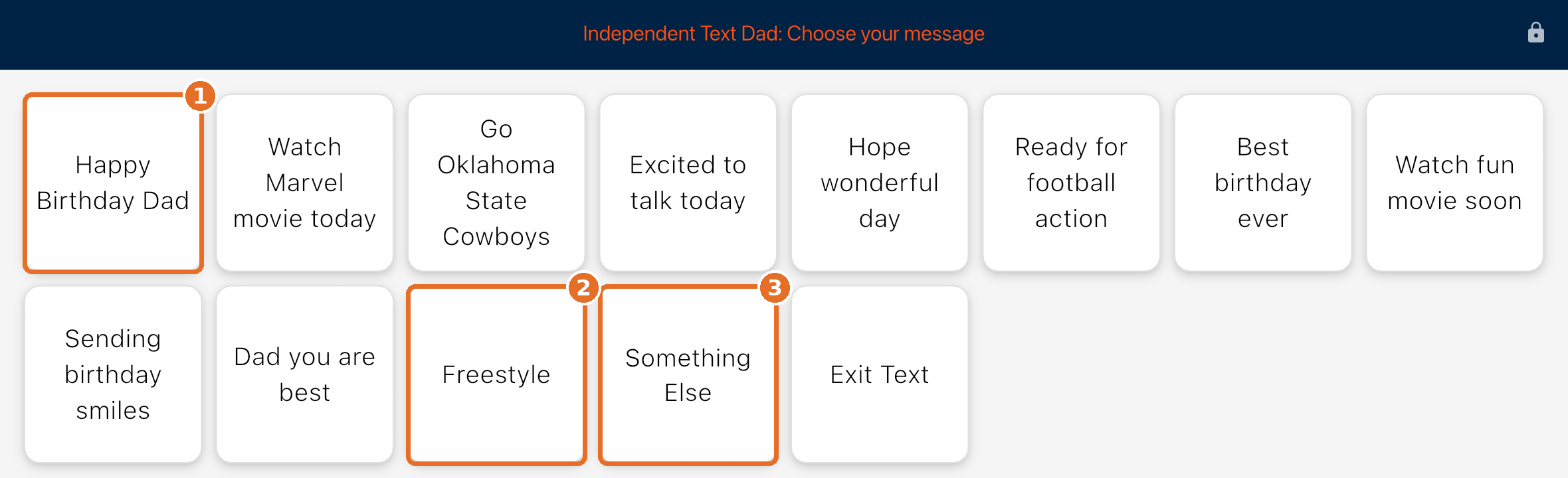
New Topic
Options that know the person
1
Happy Birthday Dad
From Dad’s birthday in Family & Friends
2
Freestyle
Choose your own words
3
Something Else
A new set of options
Bravo University · 208 Text Messages for Scan Interface Users
21
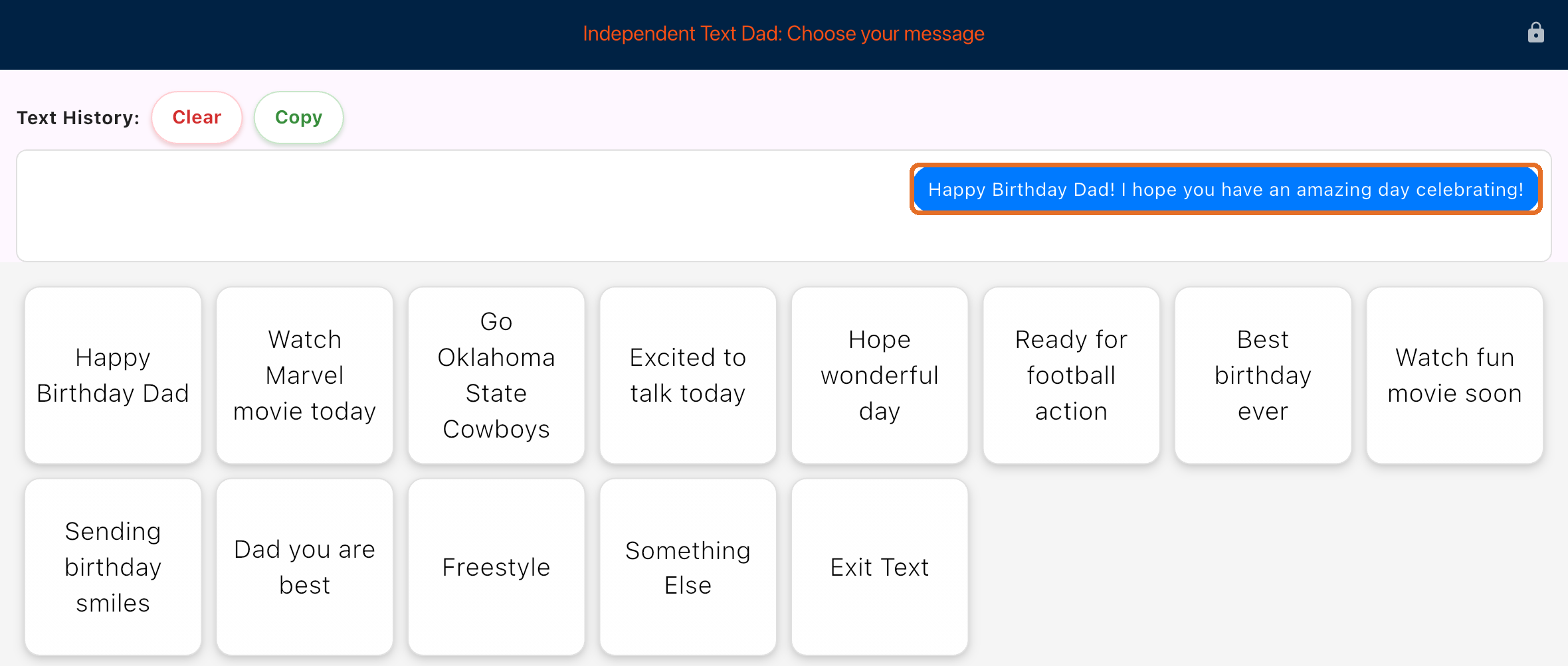
New Topic
Bravo writes the full message
Bravo University · 208 Text Messages for Scan Interface Users
22
New Topic
Send it, or keep going
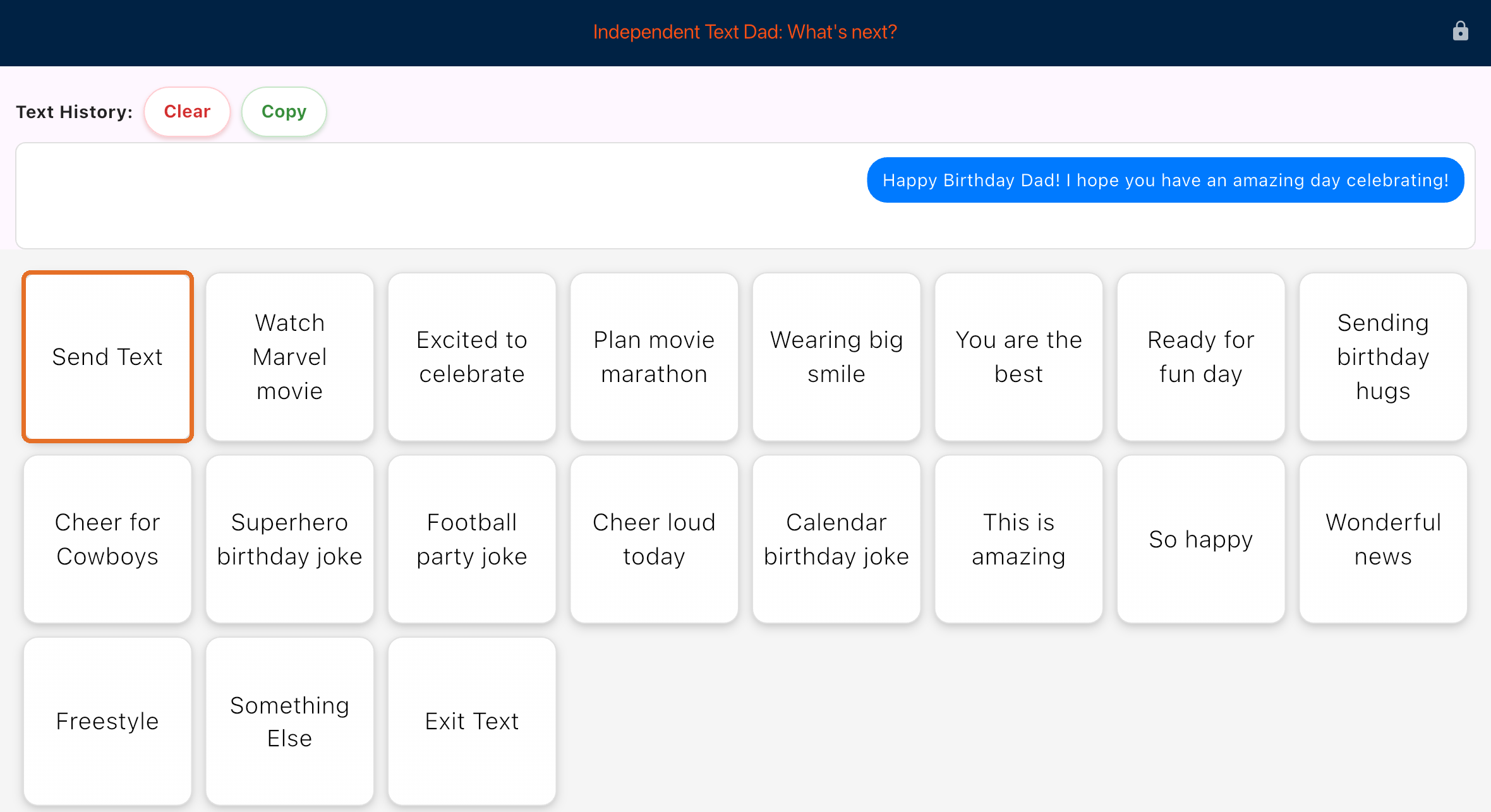
Send Text sends it now. Follow-up options add more to the message.
Bravo University · 208 Text Messages for Scan Interface Users
23
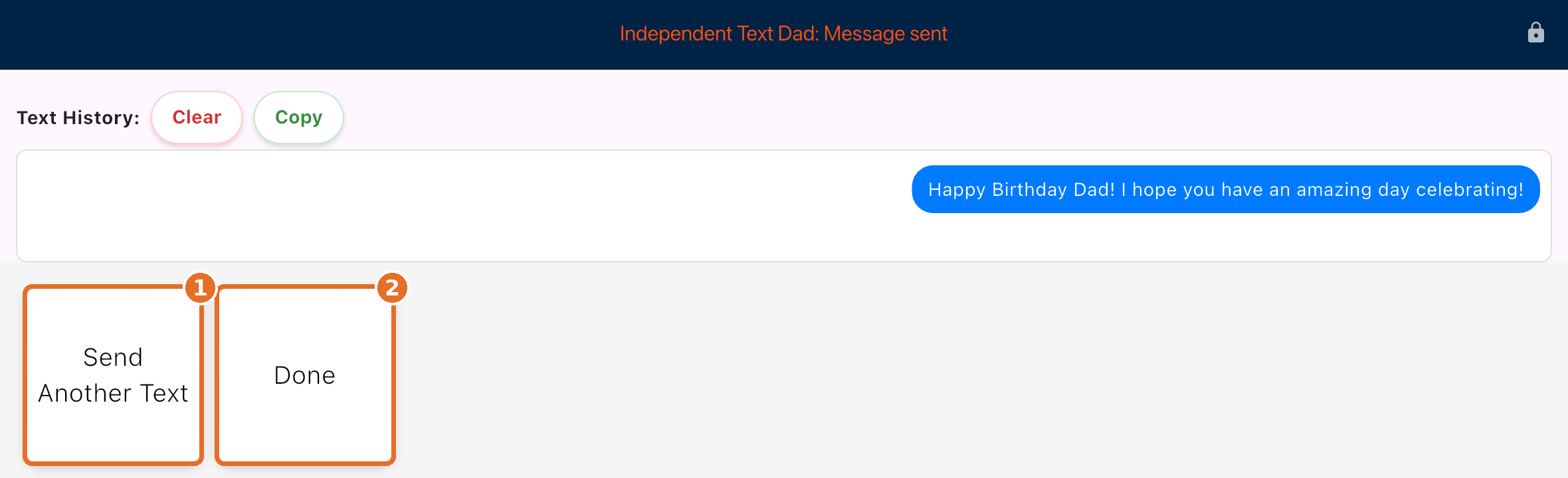
New Topic
Message sent
1
Send Another Text
2
Done
Exit the text page
Bravo University · 208 Text Messages for Scan Interface Users
24
Part 4
Replying to a recent text
Bravo announces the user needs help replying to a recent text
A partner reads the text
Bravo tells them who the text is from
Bravo University · 208 Text Messages for Scan Interface Users
25
Reply
The partner reads the text
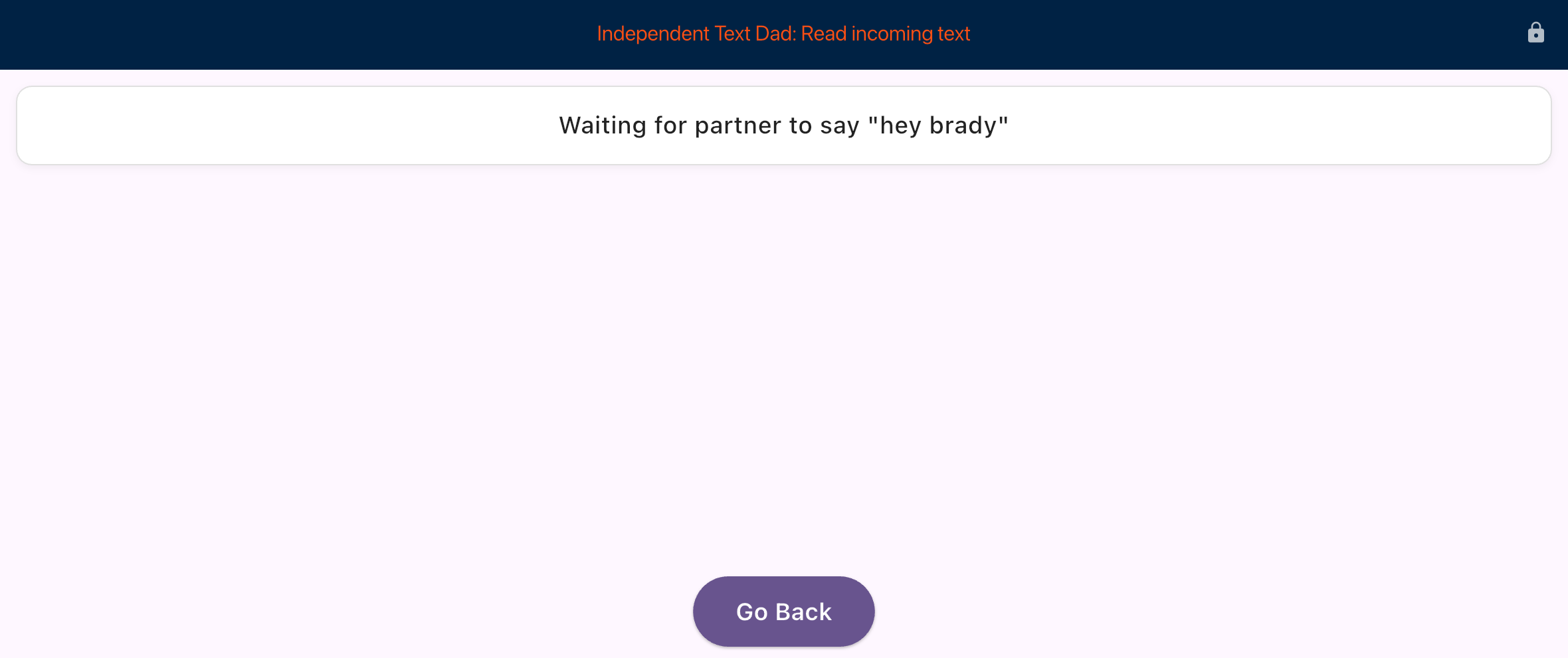
1 · Say the Wake Word
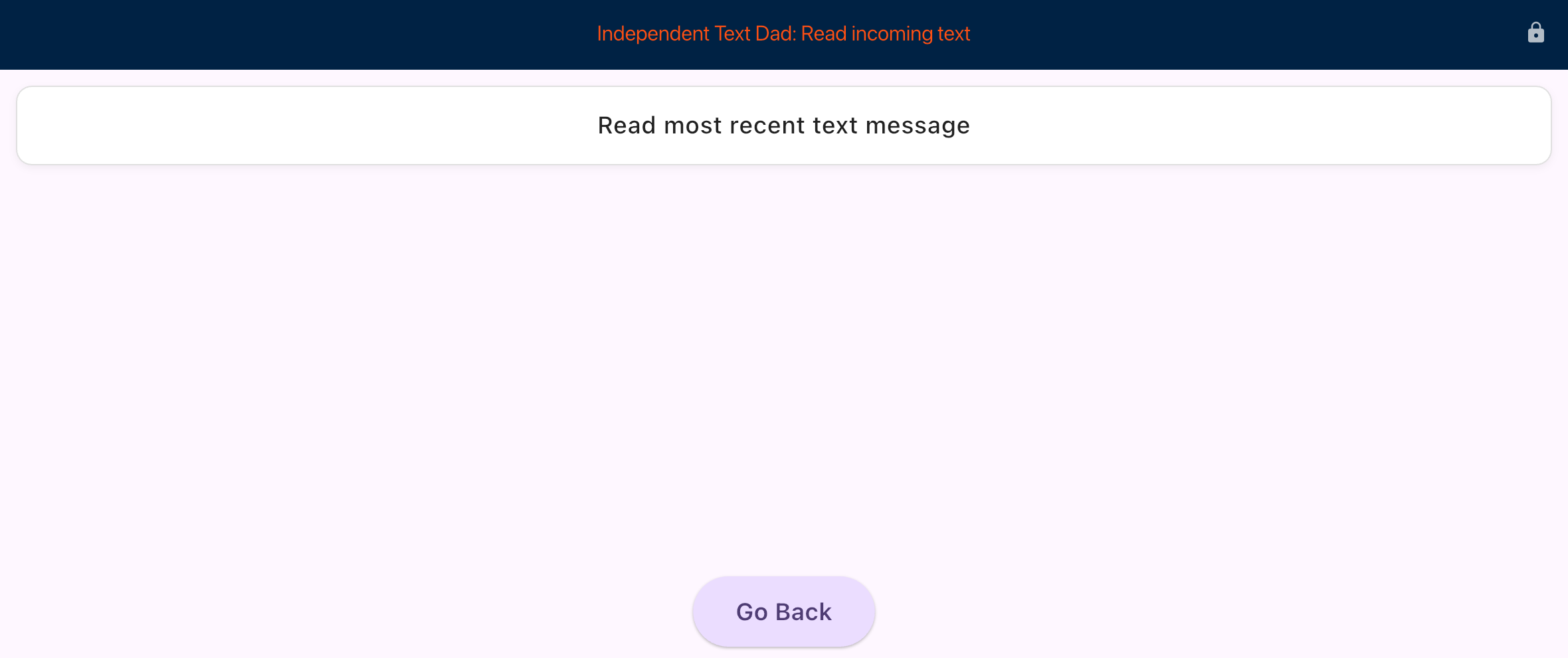
2 · Read the text
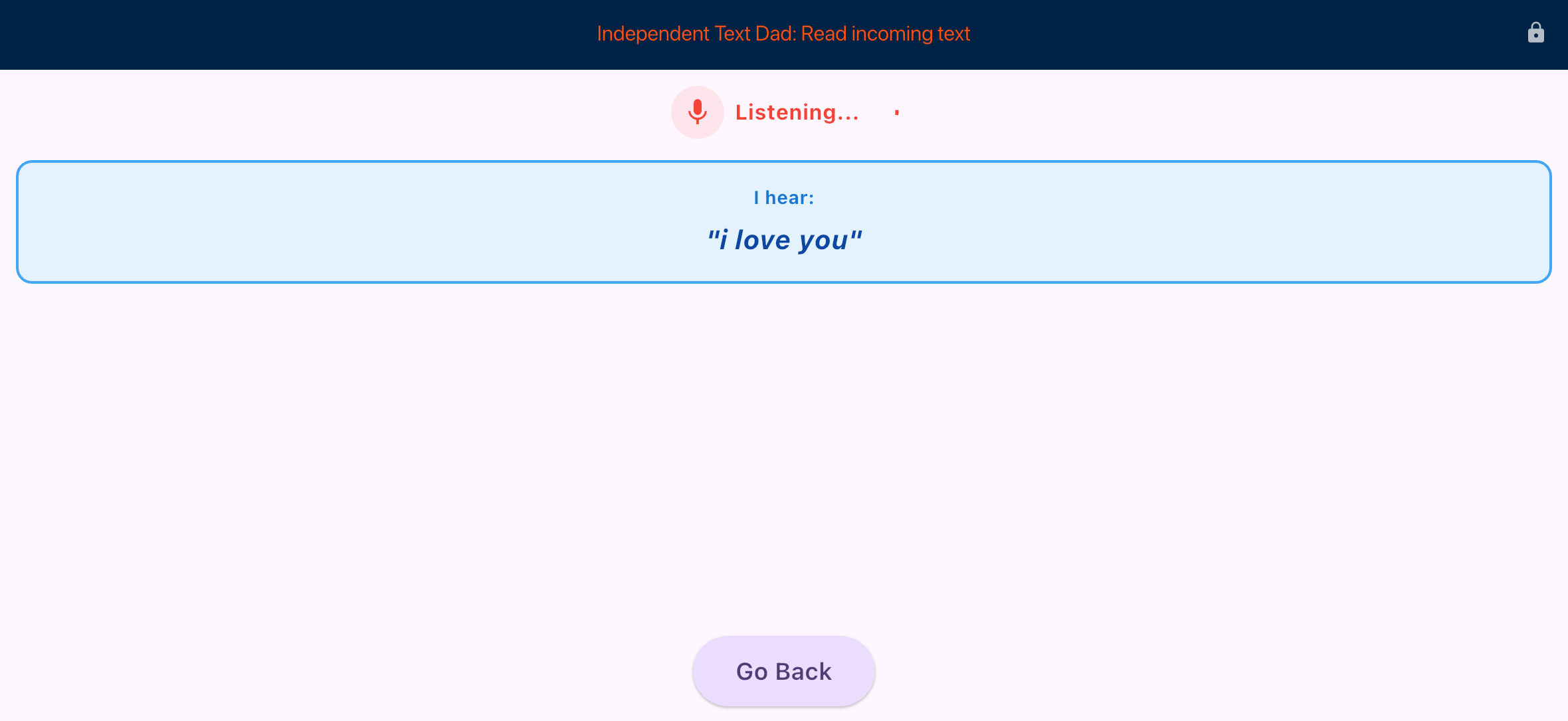
3 · Bravo hears it
Bravo University · 208 Text Messages for Scan Interface Users
26
Reply
Options to answer the text
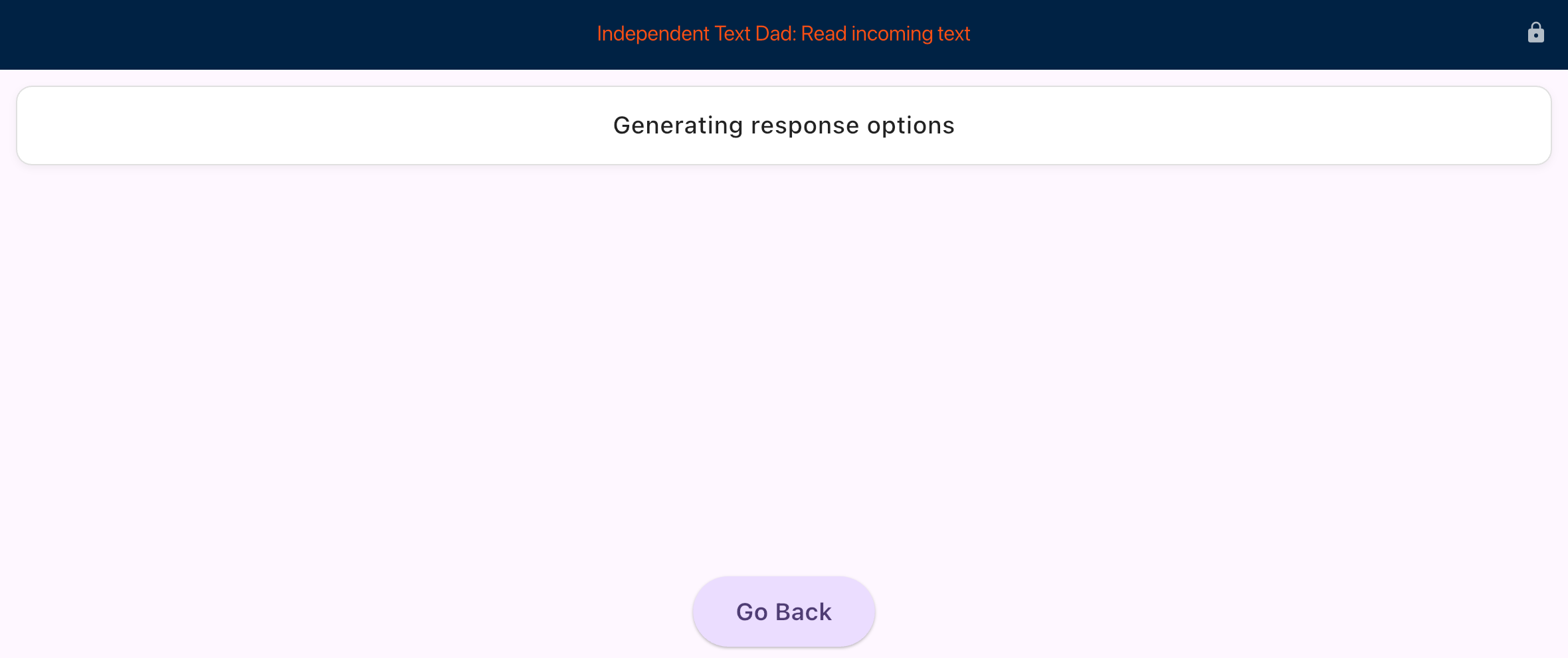
Generating
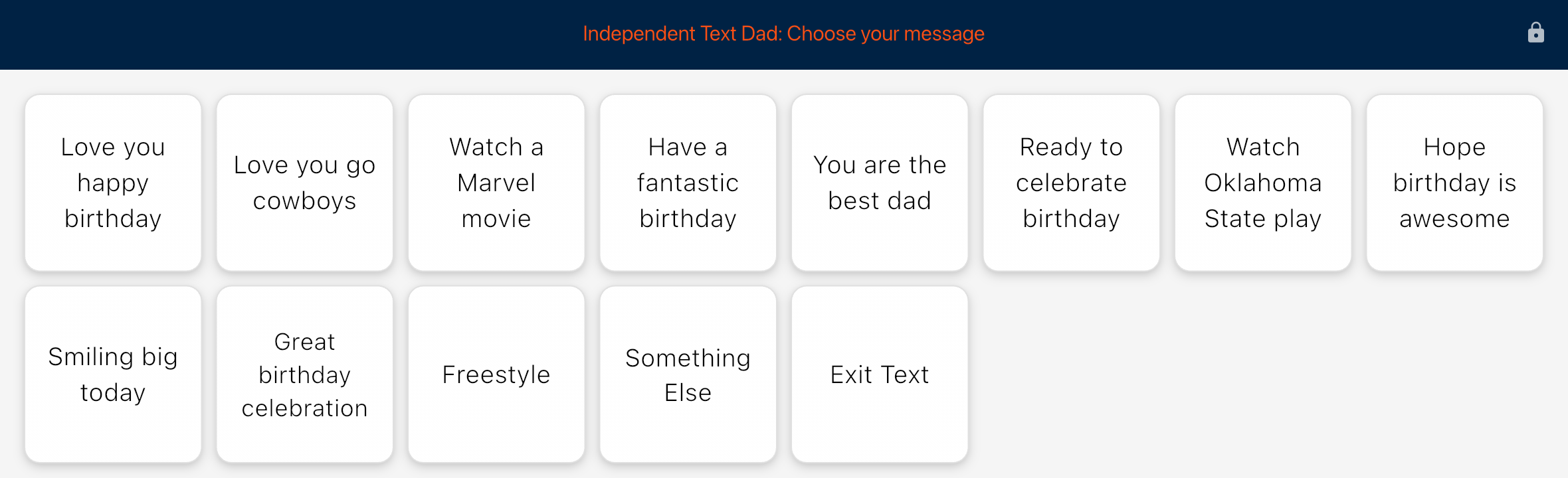
Answers to “I love you”
Bravo University · 208 Text Messages for Scan Interface Users
27
Reply
Then it’s the same as New Topic
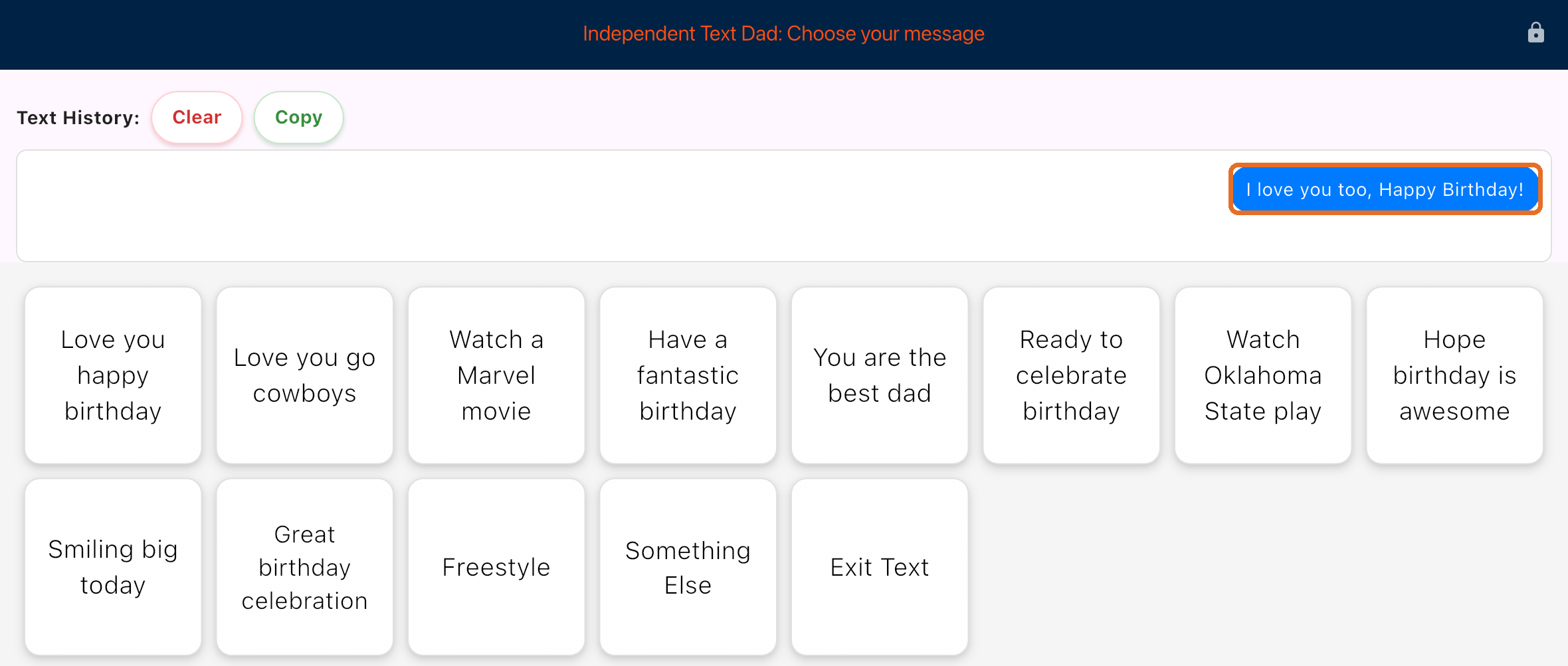
Choose, add more, Send Text, then Send Another Text or Done
Bravo University · 208 Text Messages for Scan Interface Users
28
Recap
Texting at a glance
Step
Remember
Shortcut per contact
Receive Text → Send to contact → Open Bravo
Shortcut name
“Bravo Text” + contact, like Bravo Text Dad
Bravo button
Target Page: Independent Text Page
First use
Allow Contacts, select or share all
New Topic
User chooses, sends, done: no partner
Reply
Partner reads the recent text after the Wake Word
Bravo University · 208 Text Messages for Scan Interface Users
29